 Jump to content




IPTVviva
-
Posts
127 -
Joined
-
Last visited
-
Days Won
8
Everything posted by IPTVviva
-
 Net IPTV is one of the most stable and lightweight media players available for the Smart TV ecosystem. It is designed for users who prefer a minimalist interface and high performance. In this tutorial, we will explain how to install and configure the app on your Samsung (Tizen) or LG (WebOS) TV for educational purposes. Key Features of Net IPTV High Stability: Extremely light on TV hardware, preventing crashes. Easy Management: Manage your playlists easily through their web portal using your Device MAC Address. Subtitles & Dual Audio: Supports multiple audio tracks and subtitle formats for international content. Automatic Updates: Syncs your playlist automatically every time you launch the app. Installation Guide 1. Downloading the App You can find Net IPTV directly in your TV's official store. For Samsung: Go to the Samsung App Store and search for Net IPTV. For LG: Go to the LG Content Store / LG App Store and search for Net IPTV. 2. Getting your MAC Address Once installed, open the app. You will see a "MAC Address" displayed on the screen (it looks like this: 01:23:45:67:89:ab). Write this down. 3. Uploading Your Content To manage your playlist, you need to use the official web uploader: Enter your MAC Address. Upload your personal M3U file or link. Click "Send" and then restart the app on your TV. Official Download Links & Resources To ensure your security, always use official sources: Google Play Store (for Android TVs): Net IPTV on Play Store Important Disclaimer Educational Purpose Only: IPTVviva is a technical forum dedicated to discussing media applications and software configurations. We do not host, provide, or sell any streaming subscriptions or IPTV playlists. Users are responsible for providing their own legal content.
-
If you own a Samsung (Tizen) or LG (WebOS) Smart TV and you are tired of slow, outdated interfaces, Flix IPTV is the solution you’ve been looking for. It is a high-performance, premium player that brings a Netflix-style experience to your IPTVviva playlist. In this guide, we will walk you through why Flix IPTV is dominating the Smart TV market and how to get it running in minutes. Why Choose Flix IPTV? Flix IPTV is not just another player; it is optimized specifically for the hardware of high-end TVs. Cinematic Interface: Large posters for movies and series with full IMDB metadata (ratings, actors, and plot). High-Speed Loading: Even with massive playlists, Flix IPTV handles channel switching and EPG updates instantly. Multi-Language Support: Easily switch between 17 different languages and multiple subtitle tracks. External Player Support: On some versions, you can use external players like MX Player or VLC for even smoother playback. How to Install and Activate on Smart TV Step 1: Install the App Search for "Flix IPTV" in the Samsung Smart Hub or LG App Store. Download and open the app. Step 2: Get your MAC Address Once you launch the app, look for the "Settings" menu and then "User Account". You will see your Mac Address (e.g., 01:23:45:67:89:ab). Copy it. Step 3: Upload your IPTVviva Playlist Go to the official Flix IPTV website (flixiptv.eu/mylist) on your phone or PC: Enter your Mac Address. Paste your M3U Link provided by IPTVviva. Click "Save". Step 4: Refresh and Watch Restart the app on your TV, and your channels will appear beautifully organized. Important Note: The Activation Flix IPTV offers a 7-day free trial. After the trial expires, you need to activate it via a one-time small fee on their website. It is a lifetime license, meaning you pay once and enjoy it forever. Conclusion For those who value aesthetics and speed, Flix IPTV combined with an IPTVviva subscription is the "Ultimate Duo." It transforms your TV into a professional streaming station. Having trouble with activation? Let us know in the comments, and our team will assist you!
-
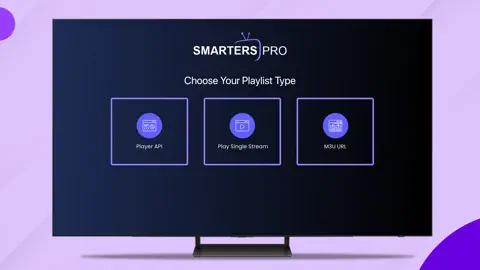
When it comes to IPTV streaming, one name stands above the rest in terms of global reach: IPTV Smarters Pro. Whether you are using a smartphone, a PC, or a high-end Smart TV, this app is usually the first recommendation from service providers. But in 2026, with newer competitors emerging, does it still hold the crown for the best user experience? In this comprehensive review, we dive deep into the features, security, and performance of IPTV Smarters Pro to see if it’s the right fit for your streaming needs. 1. Universal Compatibility The biggest advantage of IPTV Smarters Pro is that it’s everywhere. Unlike TiviMate (which is locked to Android), Smarters Pro works on: Smart TVs: Samsung (Tizen) and LG (WebOS). Mobile: Android and iOS (iPhone/iPad). Desktop: Windows and macOS. Streaming Sticks: Amazon Firestick and Roku. 2. Key Features in 2026 The app has received several updates to keep it modern. Here’s what makes it stand out: Master Search: A powerful tool that lets you search for a movie, series, or live channel across all your playlists at once. VPN Integration: You can set up your VPN directly inside the app to bypass ISP throttling and geo-blocks. Multi-Screen: Watch up to 4 different channels simultaneously—perfect for keeping track of multiple football matches. Parental Control: Lock specific categories (like Adult or News) with a PIN code. 3. Performance & UI While the interface hasn't changed much, it remains very functional. Layout: It uses a "Tile" layout that is very easy to navigate with a remote control or a touchscreen. Streaming Quality: Supports 4K, HDR, and multiple subtitles/audio tracks. Internal Player: It comes with its own built-in player, but also allows you to use external ones like VLC or MX Player if you prefer. Download IPTV Smarters Pro (Official Links) To ensure you are getting the safest and latest version, always use the official download paths for your device: For Android (Phone/Tablet/Box): Download from Google Play Store For iOS (iPhone/iPad): Download from Apple App Store For Samsung Smart TV: Search for "IPTV Smarters Pro" in the Samsung App Store (Tizen OS). For LG Smart TV: Search for "IPTV Smarters Pro" in the LG Content Store (WebOS). For Windows (PC): Download Official .exe for Windows For MacOS: Download Official .dmg for Mac Firestick Users: Since the app is not on the Amazon Store, use Downloader and enter code: 224877 to install it directly. The Verdict: Who is this for? IPTV Smarters Pro is the "Swiss Army Knife" of IPTV. It might not be as pretty as TiviMate, but it is reliable, free, and works on your TV, phone, and laptop. If you want one app to rule all your devices, this is it. Pro Tip: If you are having trouble setting it up, check our App Setup Guide for a step-by-step walkthrough.
-
Are you trying to watch live TV on your Samsung or LG Smart TV without using external boxes like Firestick? You're in luck. In 2026, the App Stores for Tizen OS and WebOS have expanded, offering powerful IPTV players that can handle M3U playlists and Xtream Codes directly. In this guide, we have tested and ranked the most stable IPTV applications for Smart TVs, ensuring high-definition streaming and easy navigation. 1. IPTV Smarters Pro (Samsung & LG) Still the champion of versatility. Most modern Samsung and LG TVs have Smarters Pro available directly in their official app stores. Why it’s great: It supports multi-user profiles and has a very intuitive "Master Search" feature. Compatibility: Samsung (Tizen), LG (WebOS), and Sony (Android TV). 2. Nanomid Player (Premium Experience) Nanomid has become a top-tier choice for LG and Samsung users who want a sleek, modern interface. Why it’s great: It offers extremely fast zapping (channel switching) and supports high-end features like parental controls and VPN integration. Note: It usually offers a free trial followed by a one-time activation fee. 3. Smart IPTV (SIPTV) The "old school" favorite. Although it has a basic interface, it is incredibly stable and lightweight. Why it’s great: It’s famous for its MAC address activation system, which keeps your playlist synced via their website. Best For: Users who want a simple, no-nonsense TV guide. 4. SET IPTV / NET IPTV These are excellent alternatives if Smarters Pro is not available in your region's app store. They are very easy to configure via a browser using your TV's MAC address. Why it’s great: They offer a clean grid-style layout and support for large M3U files without crashing. 5. SS IPTV (Free & Robust) One of the few completely free options that work well on older LG and Samsung models. Why it’s great: It’s a multi-purpose player that allows you to upload playlists from various sources. How to Install & Activate IPTV on Your Smart TV Setting up these apps usually follows one of two methods: Method A: Direct Login Open your TV’s App Store (Samsung Hub or LG Content Store). Search for the app name (e.g., "IPTV Smarters Pro"). Install and open the app. Enter your Xtream Codes (URL, Username, and Password). Method B: MAC Address Activation (For Smart IPTV / SET IPTV) Open the app on your TV and find the MAC Address (e.g., AA:BB:CC:11:22:33). Go to the app’s official website on your phone or PC. Enter your MAC Address and paste your M3U Playlist URL. Restart the app on your TV to load the channels. Important Tip for Smart TV Users: Smart TVs sometimes struggle with very large playlists (over 10,000 channels). If your app is crashing, we recommend using a Playlist Editor to keep only the countries you actually watch (like Canada, UK, or Germany). For better performance, always check our Guide on Fixing IPTV Buffering.
-
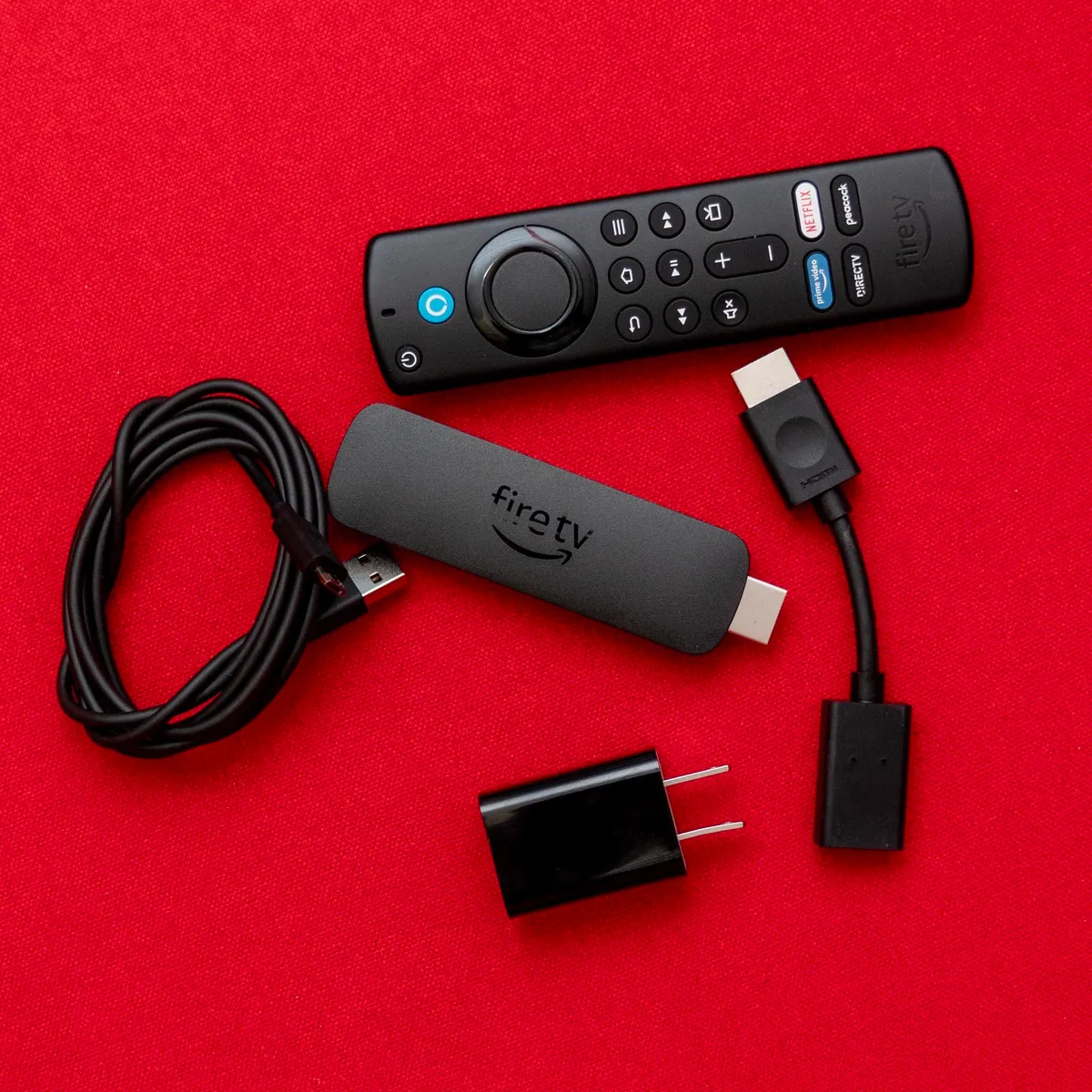
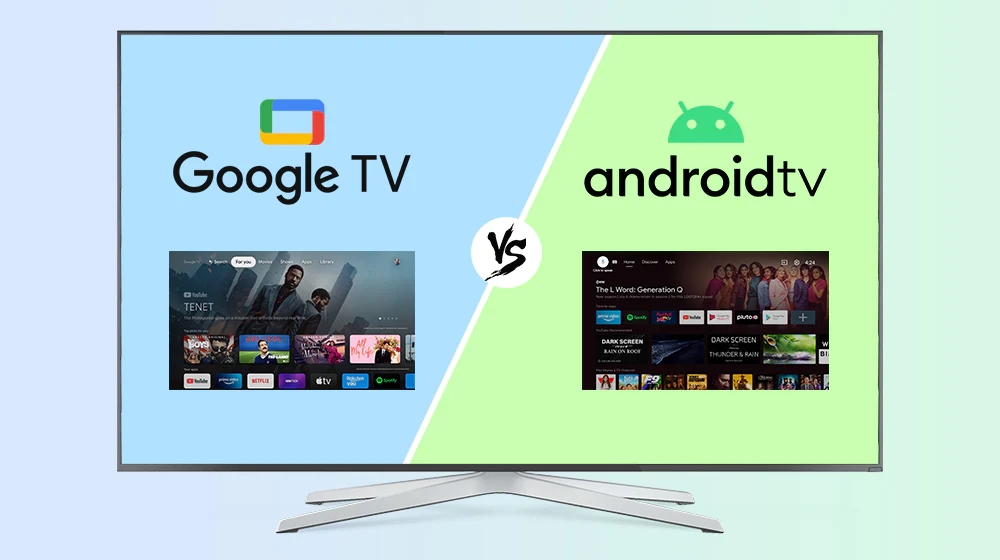
Ready to start streaming but not sure how to configure your player? Setting up IPTV can seem tricky, but with the right steps, you can have hundreds of live channels running in minutes. Whether you are using a Firestick, an Android TV box, or a Samsung/LG Smart TV, this 2026 guide will walk you through the installation process for the most popular IPTV apps. To follow this guide, make sure you have your M3U Playlist URL or Xtream Codes from our Free IPTV Playlists section. 1. How to Install IPTV on Firestick (Amazon Fire TV) The Firestick is the most popular device for IPTV, but since most players aren't on the official Amazon Store, you need to "Sideload" them. Enable Developer Options: Go to Settings > My Fire TV > About. Click on "Fire TV Stick" 7 times until it says "You are now a developer." Allow Unknown Sources: Go back to Developer Options and turn on "Apps from Unknown Sources." Install Downloader: Search for the "Downloader" app in the Amazon App Store and install it. Download the IPTV App: Open Downloader and enter the code for your favorite app (e.g., enter 224877 for IPTV Smarters Pro). Install & Open: Once the APK is downloaded, click Install and launch the app. 2. How to Set Up IPTV on Android TV & Google TV If you have a Sony, Philips, or TCL TV, or an Nvidia Shield/Mi Box, the process is even easier. Open Google Play Store: Search for "TiviMate" or "IPTV Smarters Pro." Install the App: Download and open the player. Add Your Playlist: M3U URL: Paste the link you got from our GitHub playlists. Xtream Codes: Enter the Server URL, Username, and Password. Sync Data: Wait for the channels and EPG (TV Guide) to load. 3. Setting Up IPTV on Samsung & LG Smart TV For TVs running Tizen (Samsung) or WebOS (LG), you don't need a Firestick; you can use the built-in app store. Search the App Store: Look for apps like "IPTV Smarters Pro", "Nanomid", or "Smart IPTV." Install & Launch: Open the app on your TV. Upload Playlist: Some apps (like Smart IPTV) will give you a MAC Address. You visit their website on your phone/PC to upload the M3U link to your TV. Top Recommended IPTV Players for 2026 TiviMate (Best Interface): Ideal for Android TV and Firestick users who want a professional TV guide. IPTV Smarters Pro (Most Versatile): Works on almost every device, including iOS and Windows. OTT Navigator: A great lightweight alternative for older Android devices. Pro Tips for a Better Experience Fix Buffering: If your stream is lagging, check our guide on 7 Proven Methods to Fix IPTV Buffering. Use a VPN: Many ISPs throttle IPTV traffic. Using a VPN ensures your connection stays private and fast.
-
Choosing the right IPTV player can make or break your streaming experience. With so many options available in 2026, it can be hard to know which one offers the best stability, features, and user interface. Whether you are using an Amazon Firestick, an Android TV Box, or a Smart TV, here are the top 5 IPTV players you should be using this year. 1. TiviMate IPTV Player (The Gold Standard) TiviMate remains the undisputed king of IPTV players in 2026. Its interface is designed specifically for big screens, making it feel like a high-end cable TV box. Key Features: Multi-view (watch 4 screens at once), scheduled recording, and a highly customizable EPG. Best For: Users who want a premium, professional experience on Firestick or Android TV. Read More: Check out our Full TiviMate Review for setup tips. 2. IPTV Smarters Pro (The Most Popular) If you are looking for simplicity and compatibility, IPTV Smarters Pro is the way to go. It’s available on almost every platform, including iOS and Smart TVs. Key Features: Built-in video player, support for Xtream Codes API, and parental controls. Best For: Beginners and families who need an easy-to-use app. 3. IBO Player (The Fast & Lightweight Choice) IBO Player has gained massive popularity recently due to its speed. It loads playlists instantly and has a very modern, "Sleek" design. Key Features: Very fast channel switching, supports multiple playlists, and easy activation via MAC address. Best For: Users with mid-range devices who want zero lag. 4. OTT Navigator (The Customization King) For those who like to tweak every single setting, OTT Navigator is a powerhouse. It offers deep integration with various IPTV protocols. Key Features: Advanced filtering, picture-in-picture mode, and great EPG management. Best For: Power users who want to customize their UI. 5. IMPlayer (The Modern Contender) IMPlayer has become a top choice in 2026 for its cloud-syncing capabilities. You can manage your playlists on one device and sync them across all your boxes. Key Features: Cloud management, clean interface, and excellent catch-up support. Best For: Users with multiple devices in different rooms. Conclusion: Which one should you choose? For the best overall experience, go with TiviMate. For easy setup on multiple devices, IPTV Smarters Pro is your best bet. If your stream is lagging, try our guide on How to Fix IPTV Buffering to optimize your connection. What is your favorite IPTV player in 2026? Let us know in the comments!
-
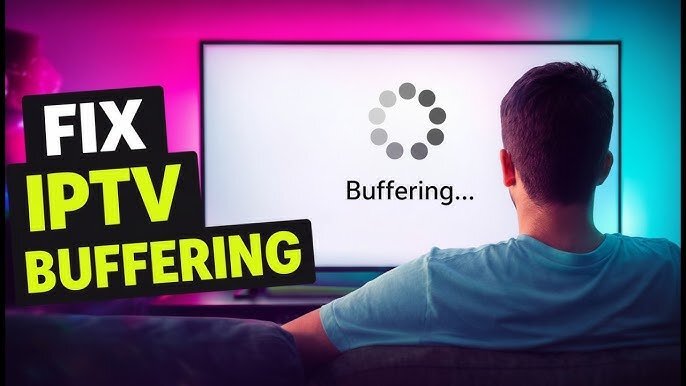
Are you tired of your IPTV stream freezing during a live football match or your favorite movie? IPTV buffering is the most common issue users face, but the good news is that 90% of the time, it’s fixable. In this guide, we will show you exactly how to stop buffering and enjoy a smooth, high-quality streaming experience in 2026. 1. Check Your Internet Speed Before blaming your IPTV provider, ensure your internet is fast enough. For a stable HD stream, you need at least 15-20 Mbps of consistent speed. For 4K, you need 50 Mbps+. Tip: Use a speed test tool to check if you are getting the speed you pay for. 2. Switch from Wi-Fi to Ethernet Wi-Fi is convenient but unstable. Thick walls and interference from other devices can cause "micro-stutters" in your stream. The Fix: Always use a LAN/Ethernet cable to connect your Android Box, Smart TV, or Firestick directly to your router. 3. Change Your DNS Settings (The Pro Move) Sometimes, your ISP’s default DNS is slow or blocks IPTV traffic. Switching to a faster DNS can significantly reduce buffering. Google DNS: 8.8.8.8 / 8.8.4.4 Cloudflare DNS: 1.1.1.1 Note: You can change these settings in your Router or directly in your device's Network settings. 4. Use a VPN to Avoid ISP Throttling Many Internet Service Providers (ISPs) detect high-bandwidth IPTV traffic and intentionally slow down your connection (Throttling). Solution: Using a high-quality VPN encrypts your data, making it impossible for your ISP to see you are streaming, which often stops buffering instantly. 5. Clear Cache on Your Streaming App Apps like TiviMate, IPTV Smarters Pro, or IBO Player accumulate temporary data that can slow them down. How-to: Go to Settings > Apps > [Your App] > Clear Cache. Do NOT click "Clear Data" unless you want to re-enter your login info! 6. Try a Different IPTV Player Sometimes the issue isn't the server—it's the app. If you are having trouble, try switching players. Recommendation: If you haven't yet, check our TiviMate Review to see why it's considered the most stable player for Android. 7. Update Your Device Firmware Running an old version of Android or Fire OS can cause compatibility issues with new IPTV protocols. Ensure your streaming device and your IPTV app are always updated to the latest version. Final Thoughts If you’ve tried all the steps above and still experience freezing, the issue might be with your provider’s server capacity. In that case, it might be time to look for a more reliable IPTV service. Do you have a specific tip that worked for you? Let us know in the comments below!
-
IPTV App Setup Guide: Install & Configure on All Devices (2026) Learn how to install and configure IPTV apps on Android, iOS, Smart TVs, and Firestick. Step-by-step IPTV setup guide with tips for smooth streaming. IPTV apps allow users to stream live TV, movies, and series easly. In this guide, you’ll learn how to install and configure IPTV apps on different devices, including Android, iOS, Smart TVs, and Firestick. 1. IPTV Setup on Android Devices Steps: Go to Google Play Store Search for apps like: IPTV Smarters TiviMate Install the app Open the app and choose: Login with Xtream Codes API Or load M3U Playlist Required Info: Username Password Server URL 2. IPTV Setup on iPhone & iPad (iOS) Steps: Open App Store Install apps like: Smarters Player Lite GSE Smart IPTV Launch the app Add playlist via: M3U URL Xtream Codes 3. IPTV Setup on Smart TVs (Samsung & LG) Steps: Open App Store (Samsung/LG) Install: Smart IPTV Duplex IPTV Open the app Note the MAC Address Upload your playlist on the app’s website 4. IPTV Setup on Firestick Steps: Enable Apps from Unknown Sources Install Downloader App Enter IPTV app download URL or CODE Install apps like: IPTV Smarters Pro TiviMate APK Login with your IPTV credentials Pro Tips Use external player (VLC / MX Player) for better performance Update your IPTV app regularly Avoid free unstable playlists Conclusion Setting up IPTV apps is simple once you understand the process. Follow the steps above for your device and enjoy smooth streaming without interruptions.
-
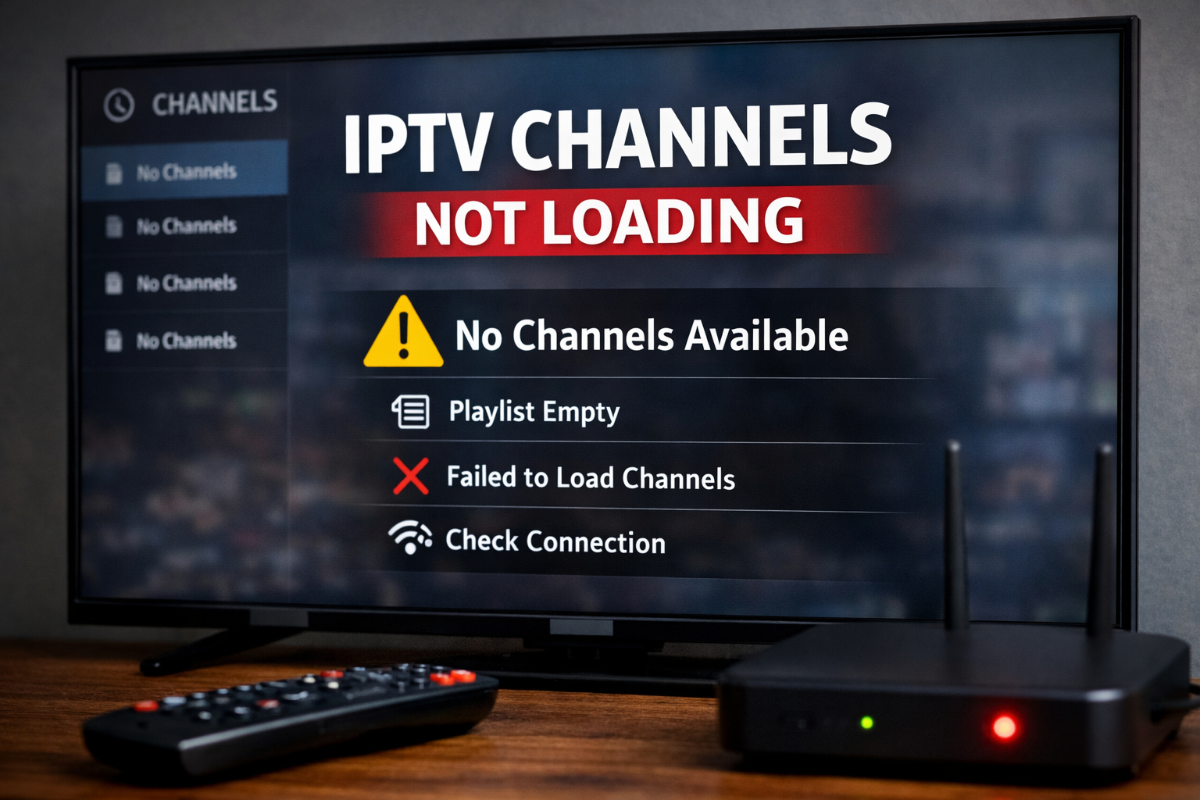
IPTV services provide access to thousands of live TV channels and on-demand content. However, users may encounter common issues such as buffering, freezing, login errors, and playback problems. This guide explains the causes and provides effective solutions to improve your IPTV experience. 1. IPTV Buffering Issues Problem: Video constantly pauses or loads during playback. Possible Causes: Slow or unstable internet connection Network congestion Weak Wi-Fi signal Overloaded IPTV servers Solutions: Ensure a minimum speed of 10 Mbps for HD and 20+ Mbps for FHD/4K Use a wired Ethernet connection instead of Wi-Fi Restart your router/modem Disconnect unused devices from your network Try a different IPTV server 2. IPTV Freezing or Lagging Problem: Video freezes or stutters while audio may continue. Possible Causes: Low device performance Too many apps running in the background App cache overload Server instability Solutions: Restart your device (Smart TV, Android Box, Firestick) Clear the IPTV app cache Close unnecessary background applications Update the IPTV app to the latest version 3. IPTV Login Errors Problem: Unable to log in to your IPTV account. Possible Causes: Incorrect login credentials Expired subscription Server downtime ISP blocking IPTV services Solutions: Double-check your username and password Verify subscription status with your provider Try logging in on another device Use a VPN if your ISP blocks access 4. IPTV Playback Problems Problem: Channels or VOD content fail to play. Possible Causes: Broken or expired stream links Unsupported video format Application compatibility issues Solutions: Reload your playlist (M3U or Xtream Codes) Use an external player such as VLC or MX Player Update your IPTV application Test other channels to identify if the issue is global 5. IPTV Channels Not Loading Problem: Channel list is empty or not loading. Possible Causes: Invalid or expired playlist Server issues Internet connectivity problems Solutions: Re-add or refresh your IPTV playlist Restart the application or device Check your internet connection Contact your IPTV provider Tips to Improve IPTV Performance Use a stable high-speed internet connection Avoid overloaded or low-quality IPTV services Keep your apps and device updated Use reliable IPTV apps like TiviMate or IPTV Smarters Consider using a VPN for better stability
-
TiviMate is one of the leading IPTV applications designed for Android devices and Android TV. It provides users with a seamless experience to watch live television channels from various IPTV providers. With a clean and intuitive interface, TiviMate appeals to both casual viewers and tech-savvy users looking for advanced customization options. User Interface & Design: TiviMate offers a modern, minimalistic design that makes navigation easy. Channels are organized into categories, and users can customize their playlists for a personalized experience. The app also supports multiple playlists, allowing users to switch between different IPTV services effortlessly. Features: EPG Support: TiviMate supports Electronic Program Guides (EPG), enabling users to see daily schedules for their favorite channels. Multiple Playlists: Users can add more than one playlist at a time, making it convenient for those who subscribe to multiple IPTV providers. Catch-up & Recording: The app offers options to record shows and watch them later, though some features require the premium version. Favorites & Categories: Channels can be marked as favorites and organized into custom categories for quick access. Advanced Playback Options: Users can control playback speed, skip commercials (if supported), and customize viewing preferences. Pros: Clean, user-friendly interface suitable for TV and mobile. Flexible playlist management for multiple IPTV sources. Powerful EPG integration for daily program tracking. Options for recording and catching up on shows. Cons: Some advanced features require a premium subscription. Dependent on a stable internet connection for optimal performance. Occasional compatibility issues with certain IPTV providers. Conclusion: Overall, TiviMate is a top choice for anyone serious about IPTV. Its combination of a polished interface, advanced playlist management, and robust features makes it ideal for both beginners and advanced users. While the free version is sufficient for casual viewing, the premium version unlocks the full potential of the app, making it a worthwhile investment for IPTV enthusiasts
-
A fast and stable internet connection is essential for smooth IPTV streaming. Many users experience buffering or lag due to slow connections or improper settings. In this guide, you will learn how to optimize your internet for the best IPTV performance. Best Ways to Optimize IPTV Streaming Use a High-Speed Internet Connection Minimum recommended speed: 10 Mbps For HD/4K streaming: 20–50 Mbps Test your internet speed regularly Faster internet = smoother streaming Use Ethernet Instead of Wi-Fi Ethernet provides a more stable connection than Wi-Fi Reduces buffering and interruptions Ideal for Smart TVs and streaming boxes Wired connection = best performance Switch to 5GHz Wi-Fi 5GHz band is faster than 2.4GHz Less interference from other devices Better for uninterrupted streaming Always choose 5GHz if available Close Background Apps and Devices Close unused apps on your Smart TV or box Limit other devices using the same network Frees up bandwidth and memory Less load = better streaming Restart Your Router Regularly Refresh your network connection Fix minor speed or connectivity issues Improve overall stability Restart once every few days Final Thoughts Optimizing your internet is key to enjoying IPTV without interruptions. By following these tips, you can achieve smooth, high-quality streaming every time.
-
The IPTV world is constantly evolving, and apps are getting better every year. In 2026, several IPTV applications have introduced new features, improved performance, and better user experiences. In this article, we’ll explore the latest updates and what they mean for users. TiviMate TiviMate continues to be one of the most popular IPTV players. New Updates: Improved user interface Faster channel loading Better EPG (TV Guide) support Bug fixes and stability improvements Ideal for Android TV users looking for a smooth experience. IPTV Smarters IPTV Smarters remains a strong option for many users. New Features: Enhanced streaming performance Updated design and layout Multi-screen support improvements Better compatibility with different devices Great for beginners and advanced users. VLC Media Player Even though it’s not only for IPTV, VLC is still widely used. Latest Improvements: Improved streaming support Better format compatibility More stable playback Perfect for users who want a simple and free solution. What These Updates Mean These improvements bring: Faster streaming Fewer crashes Better user experience More stable IPTV playback Users can now enjoy smoother and more reliable streaming than before. Important Note Always use trusted and legal sources when configuring IPTV apps. Avoid unknown or unsafe links to protect your device and data. Final Thoughts IPTV apps in 2026 are more powerful and user-friendly than ever. With constant updates and improvements, users can enjoy better performance and a smoother streaming experience. What IPTV app do you use? Share your experience below!
-
How to Set Up IPTV on Smart TV (Step-by-Step Guide 2026)
IPTVviva posted a topic in App Setup Guides
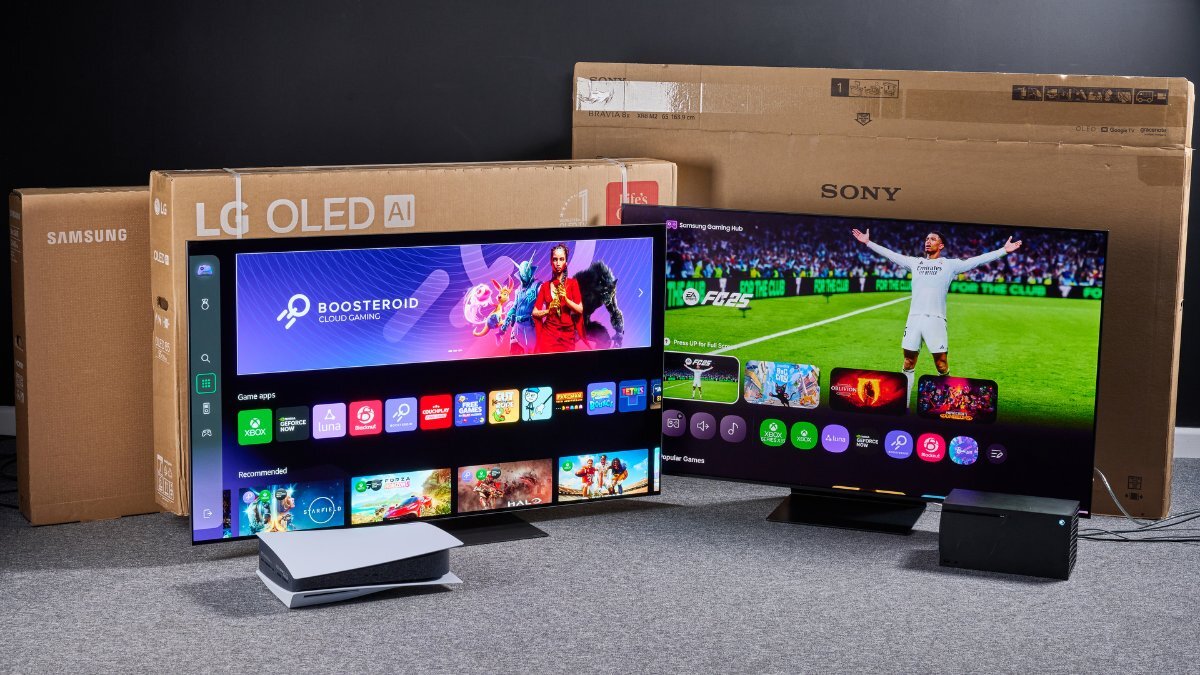
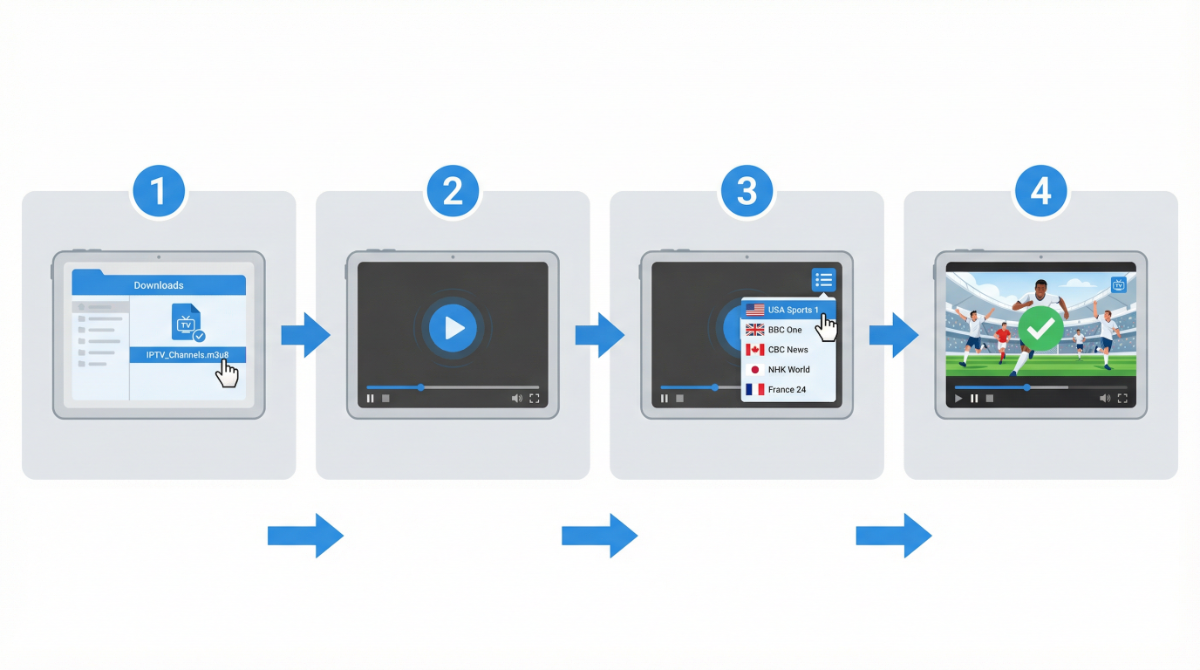
Setting up IPTV on your Smart TV is easy and takes only a few minutes. This guide will help you get started quickly and enjoy smooth streaming. What You Need Before you begin, make sure you have: A Smart TV (Samsung, LG, or Android TV) A stable internet connection An IPTV player app A valid IPTV playlist (from a legal provider) Step 1: Install an IPTV App Open your TV App Store Search for an IPTV app (e.g., IPTV Smarters) Install the app on your device Step 2: Open the App Launch the app Accept permissions Wait for it to load Step 3: Add IPTV Playlist Select “Add Playlist” or “Login” Enter your playlist URL or login details Save your settings Step 4: Load Channels Wait for channels to load Browse categories (Sports, Movies, News) Organize channels if needed Step 5: Start Watching Select any channel Start streaming and enjoy Tips for Better Streaming Use at least 10 Mbps internet speed Prefer Ethernet or 5GHz Wi-Fi Keep your IPTV app updated Restart the app regularly Final Thoughts Setting up IPTV on a Smart TV is simple when you follow the correct steps. With a stable connection and the right app, you can enjoy a high-quality streaming experience. If you have any questions, feel free to reply below!





.jpg.8224306c95ce4bfb85b0ce0c9c4e56e0.jpg)
ethernet.jpg.3d33a599d896fac85bdf9c58a705bc32.jpg)
5ghzvs2_4ghz.png.5249544940acc53d5430b36cb4f7f58e.png)
2.jpg.bc31db6967498a19aa48d511d3da2199.jpg)
restartyourrouter.jpg.ed61a87a72e14ee7474bf9aeef762fc9.jpg)


.jpg.84790bdcb0a7f52afbcb108d4d765189.jpg)
2.jpg.a712e8e88769a8c28e1e4a434ebe4e30.jpg)
3.jpg.64bb8124168d57e2b638106de817e6ba.jpg)
4.jpg.d555ce956fd9168d0cdcaf5db5020e02.jpg)
5.jpg.ed67e3ecbb575522fc5d5151f8bd77d4.jpg)