Jump to content




IPTVviva
-
Posts
127 -
Joined
-
Last visited
-
Days Won
8
1 Follower

Recent Profile Visitors
480 profile views


IPTVviva's Achievements





-
 The Ultimate Guide to Fixing IPTV Throttling, ISP Blocks & Smart DNS Configuration (2026 Tutorial) Have you ever experienced a situation where your internet speed test shows a blazing fast 200 Mbps, yet your IPTV streams keep buffering every 5 seconds during a major football match? Or perhaps your playlist works flawlessly on your mobile data network but completely fails to connect when you switch to your home Wi-Fi? If this sounds familiar, you are likely a victim of ISP Throttling or a direct IPTV Domain Block. In this comprehensive tutorial from the IPTVviva Help Center, we will dissect exactly how Internet Service Providers (ISPs) track and restrict streaming traffic, and provide you with verified, step-by-step solutions to bypass these blocks forever. Part 1: Understanding the Enemy – How ISPs Block IPTV Internet Service Providers worldwide use advanced monitoring techniques to detect and restrict IPTV traffic, especially during high-profile live sporting events. The three most common methods include: DNS Hijacking / Blocking: When you type a website name or load an IPTV host URL, your device asks your ISP’s default DNS server for the IP address. If the ISP blocks that domain, the DNS server returns a fake address, causing a connection timeout error. Deep Packet Inspection (DPI): ISPs use hardware firewalls to inspect the digital data packets traveling to your router. Even if they don't know the exact domain name, they recognize the distinctive signature patterns of raw TS (Transport Stream) or HLS (HTTP Live Streaming) video chunks and automatically throttle your bandwidth. IP Range Blacklisting: Regulatory bodies regularly feed lists of known IPTV server IP clusters directly to ISPs, who block inbound data from those specific destinations altogether. Part 2: Quick Fix – How to Change DNS on Streaming Devices Before spending money on extra tools, the simplest and most cost-effective first line of defense is changing your device's DNS servers. Default ISP DNS addresses are heavily monitored and restrictive. Switching to secure public networks like Google or Cloudflare can instantly restore access. 1. How to Change DNS on Amazon Firestick Navigate to Settings > My Fire TV > About > Network. Take a physical note or screenshot of your IP Address, Gateway, and Subnet Mask. Go back to Settings > Network > select your Wi-Fi network and choose Forget Network. Re-select your Wi-Fi network, type your password, but instead of clicking Connect, click Advanced. Input the exact IP Address and Gateway you noted down in Step 1. For Network Prefix Length, type 24 and click Next. Now enter the clean Public DNS configurations: DNS 1 (Cloudflare Primary): 1.1.1.1 (or Google: 8.8.8.8) DNS 2 (Cloudflare Secondary): 1.0.0.1 (or Google: 8.8.4.4) Click Connect and restart your Firestick. 2. How to Change DNS on Android TV / Google TV Open the Settings gear icon > Select Network & Internet. Scroll down to IP Settings and switch it from DHCP to Static. Keep your current IP address and Gateway parameters unchanged by clicking next. When prompted for DNS 1, type 1.1.1.1. When prompted for DNS 2, type 1.0.0.1. Save the settings and reboot your TV system. Part 3: The Definitive Shield – VPN vs. Smart DNS If changing your DNS parameters does not bypass the buffering loop, your ISP is executing Deep Packet Inspection (DPI). To overcome this layer of censorship, you must abstract or wrap your connection protocol. [Normal Connection] Your Device ----> ISP Monitoring (Visible Traffic) ----> IPTV Server (Blocked/Throttled) [VPN Connection] Your Device ====(Encrypted Tunnel)====> ISP (Blind) ----> IPTV Server (Smooth Stream) Option A: Implementing a Premium VPN (Virtual Private Network) A VPN creates a heavily encrypted, secure tunnel between your router and a remote server location. Because your ISP can only see incoming scrambled data, they cannot block or selectively throttle the underlying video stream. The Pros: Absolute military-grade encryption, completely bypasses DPI, bypasses geo-restrictions. The Cons: Encryption adds slight routing overhead, which can reduce your raw top-end internet speed by roughly 10% to 15%. Best Choice For: Users facing aggressive, active live-blocking firewalls during live match windows. Option B: Deploying Smart DNS proxies Unlike a standard VPN, Smart DNS does not route or encrypt your overall internet payload. It selectively intercepts and reroutes only the specific geographic location data requests needed to validate your connection. The Pros: Zero speed reduction or latency overhead (perfect for preserving 4K UHD stream bitrates on weaker processors). The Cons: Does not provide encryption protection; if your ISP blocks your actual IPTV server IP address directly, Smart DNS will fail. Best Choice For: Users running setups on older Smart TVs (Samsung/LG) that do not natively support standalone VPN apps. Part 4: Step-by-Step IPTV Diagnostics Checklist When your server lines begin stalling, use this systematic checklist compiled by our technical community to pinpoint the failure bottleneck within minutes: Step Diagnostic Action Expected Baseline Outcome 01 Run a Speed Test via a dedicated single-connection tool (like fast.com). Ensure your continuous download bitrate reads higher than 30 Mbps for stable 4K playback. 02 Temporarily switch your streaming device connection to a Mobile 4G/5G Hotspot. If the stream clears up instantly, your home network ISP is actively filtering or throttling your IPTV server port. 03 Verify the active status of your server's host URL via an online Ping Tool. Check if the host port returns a clean HTTP 200 OK status response code to rule out server-side downtime. 04 Toggle your IPTV player's internal Stream Protocol format. Change the primary video output format from standard .ts files to progressive .m3u8 streams, which mimic standard web traffic protocols. Frequently Asked Questions (FAQ) 1. Can an ISP block IPTV entirely? Yes, ISPs can block IPTV services using DNS hijacking, IP blacklisting, or Deep Packet Inspection (DPI). This usually results in a "Connection Timeout", "Core Player Error", or the application completely failing to load any media content. 2. Why does my IPTV buffer only during live football matches? This is a classic symptom of ISP Throttling. During high-traffic events like the Premier League, Champions League, or World Cup, ISPs automatically restrict bandwidth on streaming ports to reduce network congestion and target unauthorized streams. 3. Will changing my DNS improve my IPTV streaming speed? Changing your DNS to Cloudflare (1.1.1.1) or Google (8.8.8.8) won't increase your raw internet speed, but it can eliminate routing delays and bypass basic domain blocks, leading to faster channel zapping and fewer connection drops. 4. Is it better to use a VPN or a Smart DNS for IPTV? If your ISP is actively throttling your bandwidth using DPI, a VPN is better because its encryption hides your traffic profile completely. However, if your TV cannot install VPN apps and you only need to bypass geographic restrictions, a Smart DNS is preferred as it maintains maximum network speed. 5. Does a free VPN work for smooth IPTV streaming? No, free VPNs are highly discouraged for IPTV. They usually impose strict monthly data caps, have congested servers that cause severe buffering, and often log or sell your browsing data. For stable 4K or Full HD streaming, a premium, no-logs VPN is mandatory. Join the Technical Help Desk Support Queue! We want to keep this tutorial as the definitive troubleshooting archive for our forum community. If you are still encountering errors, reply below with your details: What specific error message or behavior are you experiencing (e.g., Core Player Error, Looping every 10 seconds, Connection Timeout)? Who is your current Internet Service Provider (ISP) and what country are you connecting from? What Streaming App and Device model are you running? Post your diagnostic logs below, and our community technicians will assist you immediately!
-
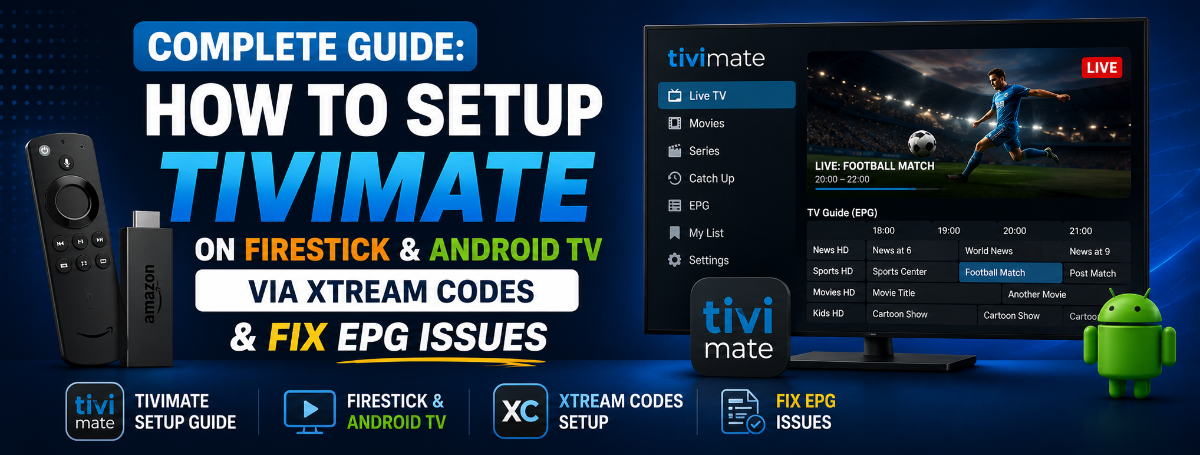
Complete Guide: How to Setup TiviMate on Firestick & Android TV via Xtream Codes & Fix EPG Issues When it comes to streaming IPTV on Android TV, Google TV, or Amazon Firestick, TiviMate is undeniably the absolute king. Unlike basic players, TiviMate offers a premium, high-end cable box experience with ultra-smooth channel switching and advanced layout customizations. However, many users struggle during the initial installation phase, or find that their Electronic Program Guide (EPG) displays a frustrating "No Information" error. In this step-by-step guide, we will walk you through downloading, installing, and perfectly configuring TiviMate using Xtream Codes API (which is highly recommended over heavy M3U links for faster data syncing). Step 1: How to Install TiviMate on Amazon Firestick Since TiviMate is not natively available on the Amazon Appstore, we must sideload it using the Downloader app. 1.Enable Developer Options :Prerequisite. Go to Firestick Settings > My Fire TV > About. Click on your Fire TV Stick name 7 times until a notification says "You are now a developer." Go back one screen and open Developer Options, then turn ON Apps from Unknown Sources. 2.Get the Downloader App :1 min. Return to the home screen, click the Find/Search icon, type Downloader, and install the official app with the orange icon. 3.Enter the TiviMate Shortcode :2 min. Open Downloader, click the URL box, type the official TiviMate shortcode 272483 (or enter the direct URL [https://tivimates.com/tivimate.apk](https://tivimates.com/tivimate.apk)), and click Go. 4.Execute and Install :1 min. Once the download completes, click Install. After installation is finished, click Delete to clear the residual installation file and save precious Firestick device storage. Step 2: Configuring TiviMate via Xtream Codes API While TiviMate supports raw M3U playlist URLs, using Xtream Codes ensures that your live channels, movies, series, and EPG are separated accurately into responsive visual categories. Launch TiviMate and click on Add Playlist. Choose Xtream Codes from the parameters list. Carefully enter the server line details provided by your IPTV administrator: Server URL: [http://example.com](http://example.com):port (Replace with your active provider host address) Username: Your unique profile username Password: Your unique profile security password Check the box that says "Include TV Guide" (Essential for EPG syncing). Click Next, wait a few moments for the processing bar to load your channels, and hit Done. Step 3: Optimizing the Player Settings for 4K & Sports Streams To prevent common problems like video stuttering, micro-lags, or audio going completely out of sync, make these mandatory adjustments inside the application core panel: Video Decoder: Go to Settings > Playlists > [Your Playlist Name] > Parameters > Switch video output from Software to Hardware. This forces the app to utilize your Firestick's physical graphical chip. Buffer Size: Go to Settings > Player > Set buffer size to Small or Medium. Never set it to Large, as it delays the raw data feed, causing sync issues during high-bitrate live football broadcasts. Audio Passthrough: Enable Audio Passthrough under player sound configurations to guarantee Dolby Digital compatibility if you are using an external soundbar or home theater system. Step 4: Fixing the TiviMate "EPG No Information" Bug If your channel guide timeline remains completely blank after loading your server profiles, follow this advanced diagnostic protocol to force update the systemic parameters: Potential Root Cause Diagnostic Breakdown Troubleshooting Action Required Outdated App Cache Data The database is stuck reading a corrupted storage log. Go to Android Settings > Apps > TiviMate > Clear Cache (Do NOT clear data). Reopen the app, go to Settings > TV Guide > Click Update TV Guide. Mismatched Channel IDs The raw channel tags do not align cleanly with the remote EPG link. Long-press the specific blank channel on your remote > select Assign EPG > manually search for the matching network source label to lock it manually. Server Timeout Limitation Massive playlists block the background data download. Go to Settings > TV Guide > Change Update interval to 12 or 24 hours. Disable "Update on app start" to stop network congestion on bootup. Share Your Setup & Get Help Below! Are you currently running the Free version or have you upgraded to TiviMate Premium to unlock multi-screen viewing? What device are you using (Firestick 4K, Nvidia Shield, Chromecast)? Share your device performance with our community! If you are running into a specific error code or connection failure while setting up your active playlists, post your log error below and our admin team will help you troubleshoot it immediately! Leave your comments, questions, or tips below!
-
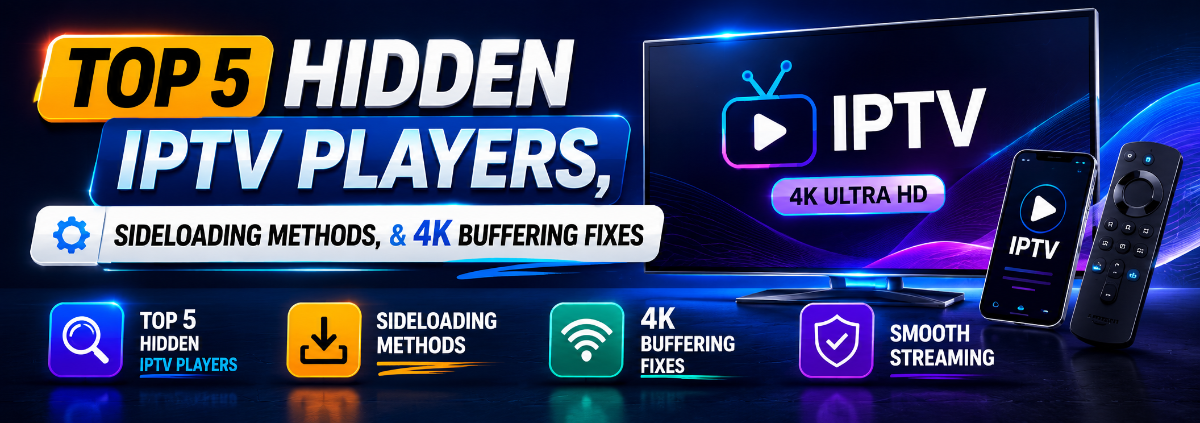
Top 5 Hidden IPTV Players, Sideloading Methods, and 4K Buffering Fixes Managing IPTV on Smart TVs running proprietary operating systems like Samsung’s Tizen OS and LG’s webOS has become increasingly challenging. Unlike Android TV or Firestick, where you can easily sideload any .apk file, Samsung and LG users are restricted by strict app stores, sudden app removals, and memory optimization issues that cause massive buffering during live sports events. If you own a Samsung or LG Smart TV and want to unleash the full potential of your M3U playlists or Xtream Codes API with advanced EPG and 4K support, this exclusive, in-depth guide is for you. Part 1: Top 5 Premium & Free IPTV Apps for Samsung & LG (2026 Edition) While legacy apps like Smart IPTV or SS IPTV are either outdated or completely removed from many regional stores, these 5 cutting-edge applications offer the ultimate UI, smooth audio/video syncing, and robust playlist management. 1. IBO Player / IBO Pro Player (Paid/Activation) IBO Player has rapidly become the gold standard for Tizen and webOS. It boasts a modern, Netflix-like dashboard that is highly intuitive for family use. Why it stands out: Unmatched processing speed for massive playlists (over 50,000 channels/VODs). It handles multi-audio tracks and subtitles effortlessly. How to load: Install directly from the LG Content Store or Samsung Smart Hub. Upload your playlist via the official MAC address portal online. 2. TiviMate Premium (Via Projector/Developer Mode) Historically exclusive to Android, advanced users are now running TiviMate-like layouts or ported versions via developer options on high-end LG and Samsung panels. Why it stands out: The absolute best Electronic Program Guide (EPG) timeline interface on the market. Best for: Power users who refuse to compromise on the classic satellite-box viewing layout. 3. IPTV Smarters Pro (Official & Web Version) Despite past legal challenges, IPTV Smarters remains a powerhouse. If the app is missing from your regional Samsung/LG store, its Web Player bypass is incredibly stable. Why it stands out: Supports Xtream Codes API flawlessly, which parses data significantly faster than standard M3U links. Tip: If hidden in your region, changing your TV’s service country in the settings menu can instantly reveal it. 4. Nanomid Player An excellent choice specifically optimized for European and North American streaming protocols. Why it stands out: Advanced built-in parental controls and a dedicated secure player engine that natively bypasses minor ISP throttling. UI Experience: Extremely clean, dark-mode friendly, with a smooth categorization system for Live TV, Movies, and TV Series. 5. Net IPTV A lightweight, budget-friendly option designed specifically for older Samsung and LG Smart TV models that have limited RAM capacity. Why it stands out: It strips down heavy visual animations to focus purely on stream stability and low resource consumption. Part 2: How to Sideload IPTV Apps via USB on Samsung (Tizen OS) If an application is deleted or blocked in your local region's Samsung App Store, you do not need to buy a Firestick. You can manually force-install specific application directories using a standard USB flash drive. Step-by-Step Guide for Tizen OS: Prepare the USB: Format a USB flash drive to FAT32 format on your PC/Mac. Download the Tizen Widget Pack: Download the official, verified user-widget zip folder of your chosen IPTV player (e.g., Smart IPTV or IBO Player widget). Extract Files: Extract the zip archive directly into the root directory of your USB drive. The path must look exactly like this: G:/userwidget/ (where G is your drive letter). TV Preparation: Turn off your Samsung Smart TV. Plug the USB drive into the USB 1 slot (avoid the HDD power slot if possible). Installation: Turn the TV on. Tizen OS will automatically detect the installation payload. You will see a notification saying "Installing User Widget" at the top of the screen. Completion: Once finished, the app will appear in your main Apps lineup. Note: Keep the USB inserted on certain older Tizen models to maintain app authorization. Part 3: The LG webOS Developer Mode Method LG TVs do not support USB sideloading for security reasons, but you can bypass the LG Content Store seamlessly by using an official Developer Account. Create a free developer account at the LG Developer Portal (developer.lge.com). Go to the LG Content Store on your TV, search for Developer Mode, and install the application. Open the app, log in with your developer credentials, and toggle Dev Mode Status to ON. Download the WebOS App Manager program onto your computer. Connect your computer to your TV using the IP address and Passphrase displayed on the TV's Developer Mode screen. Drag and drop the .ipk file of your desired IPTV player into the desktop manager, and it will install instantly onto your LG TV. Part 4: How to Fix 4K Buffering & EPG Lag on Smart TVs Even with a premium IPTV line, the built-in media processors inside Samsung and LG TVs are significantly weaker than dedicated streaming devices. Use these configurations to eliminate buffering entirely: Issue Root Cause Definitive Fix / Configuration High-Bitrate 4K Stuttering TV Wi-Fi Card Saturation / Local Interference Switch to a 5GHz Wi-Fi network or use a USB-to-Ethernet adapter (The built-in LAN port on most LG/Samsung TVs is limited to a slow 100 Mbps). App Freezing on Launch Playlist size exceeding TV's available RAM storage Ask your IPTV provider to trim your playlist. Remove countries, foreign VODs, and adult sections you do not watch. Keep the playlist under 15,000 items. "No Information" EPG Error Outdated cache or incorrect electronic program format Change your playlist type from a raw M3U URL to Xtream Codes API structure. This forces the TV app to download data in micro-chunks instead of parsing a massive 50MB text file. Audio out of Sync Hardware Acceleration conflict within Tizen/webOS Go to the IPTV App Settings -> Video Player -> Switch from Hardware Decoder to Software Decoder (or vice versa depending on the app). Join the Discussion: What is Running on Your Panel? Choosing the right ecosystem dictates your entire viewing experience. Let's build the ultimate community resource archive right here: Which Smart TV model are you currently running, and what is your absolute go-to IPTV player app? Have you run into the dreaded "App Missing from Store" error recently? Let us know your country, and we can help you find the correct regional workaround code. If you are an IPTV developer or server administrator, what app-side optimization parameters do you recommend for our community lines? Drop your questions, setup pictures, and troubleshooting requests in the comments section below!
-
Match 6: Brazil vs Morocco – World Cup 2026 Group Stage | TV Channels, Kick-off Time & Where to Watch The FIFA World Cup 2026 presents one of the most highly anticipated fixtures of the group stage! Match 6 features a spectacular Group C clash between South American giants Brazil and the historic African semifinalists, Morocco, live from New York New Jersey Stadium. Fans and IPTV users worldwide are locking in to see this ultimate test of skill and passion. Here is your comprehensive guide with match information, international kick-off times, and official TV broadcasting channels. Match Details & Venue Tournament: FIFA World Cup 2026 – Group Stage (Group C) Match Number: Match 6 Teams: Brazil vs Morocco Date: Saturday, June 13, 2026 Venue: MetLife Stadium (New York New Jersey Stadium) — East Rutherford, New Jersey, USA Kick-off Times Around the World Make sure your IPTV playlists and streaming devices are ready before kick-off: Local Time (New York): 18:00 (6:00 PM) Pacific Time (US/Canada): 15:00 (3:00 PM) Morocco Time (WET): 23:00 (11:00 PM) United Kingdom (BST): 23:00 (11:00 PM) Central European Time (CET): 00:00 (Midnight) (Sunday, June 14) Saudi Arabia / East Africa: 01:00 AM (Sunday, June 14) Official TV Channels & Broadcasters Check your active server lines and local providers to stream Brazil vs Morocco live: Region / Country Official TV Channels Streaming Platform / App Morocco & MENA Arryadia TNT beIN Sports FIFA World Cup Channel SNRT Live / beIN CONNECT / TOD Brazil TV Globo, SporTV Globoplay United States FOX, Fox Sports 1 (English) Telemundo, Universo (Spanish) Fox Sports App, Peacock Canada CTV, TSN, RDS TSN+ / CTV App United Kingdom BBC One / ITV 1 BBC iPlayer / ITVX Pan-Europe EBU Broadcasters (TF1, ARD, ZDF, RAI) Local Broadcaster Apps Community Discussion: Share Your Predictions! What is your score prediction for this massive Group C showdown? Can the Atlas Lions stun the Seleção? Which IPTV server bouquets or satellite feeds (Astra, Hotbird, Eutelsat) are showing the cleanest 4K/UHD streams for tonight's games? Post your streaming status, channel codes, or feed parameters in the comments section! Drop your predictions and streaming tips below!
-
Match 5: Qatar vs Switzerland – World Cup 2026 Group Stage | TV Channels, Kick-off Time & Where to Watch The excitement of the FIFA World Cup 2026 moves to the West Coast for Match 5, featuring a highly anticipated Group B clash between Qatar and Switzerland. With Switzerland looking to establish early dominance in Group B and Qatar eager to make a strong statement on North American soil, this fixture promises intense tactical battle. Here is your ultimate guide with all match details, worldwide kick-off times, and official TV broadcasting channels. Match Details & Venue Tournament: FIFA World Cup 2026 – Group Stage (Group B) Match Number: Match 5 Teams: Qatar vs Switzerland Date: Saturday, June 13, 2026 Venue: Levi's Stadium (San Francisco Bay Area Stadium) — Santa Clara, California, USA Kick-off Times Around the World Convert the match time to your local zone so you can follow the action live without delay: Local Time (San Francisco): 12:00 PM (Noon) Eastern Time (USA/Canada): 15:00 (3:00 PM) United Kingdom (BST): 20:00 (8:00 PM) Central European Time (CET): 21:00 (9:00 PM) Qatar / KSA Time: 22:00 (10:00 PM) Official TV Channels & Broadcasters For satellite TV viewers and IPTV users checking their server lines, you can watch Qatar vs Switzerland live on the following networks: Region / Country Official TV Channels Streaming Platform / App Qatar & MENA beIN Sports FIFA World Cup Channel Alkass Sports Channels beIN CONNECT / TOD App Switzerland SRG SSR (SRF, RTS, RSI) Play SRF / Play RTS United States FOX, Fox Sports 1 (English) Telemundo, Universo (Spanish) Fox Sports App, Peacock Canada CTV, TSN, RDS TSN+ / CTV App United Kingdom BBC One / ITV 1 BBC iPlayer / ITVX Pan-Europe EBU Broadcasters (TF1, ARD, ZDF, RAI) Local Broadcaster Apps Community Discussion: Share Your Predictions! What is your score prediction for this Group B fixture? Can Qatar surprise the Swiss side? Which IPTV playlists or satellite feeds are providing the best 4K/UHD streams for tonight's World Cup games? Share your active server experiences, stream stability reports, or configuration tips in the comments below! Let's hear your thoughts below!
-
The FIFA World Cup 2026 action continues with Match 4, featuring a thrilling Group D clash between the tournament co-hosts, the United States (USA), and South American giants Paraguay. As the USMNT looks to kick off their home tournament with a massive victory, fans around the globe are searching for the best ways to catch the action live. Here is your complete guide on match details, kick-off times, and official broadcasting networks. Match Details & Venue Tournament: FIFA World Cup 2026 – Group Stage (Group D) Match Number: Match 4 Teams: USA vs Paraguay Date: Saturday, June 13, 2026 Venue: SoFi Stadium (Los Angeles Stadium) — Los Angeles, California, USA Kick-off Times Around the World Make sure to convert the time to your local timezone so you don't miss a single minute: Local Time (Los Angeles): 18:00 (6:00 PM) Eastern Time (USA/Canada): 21:00 (9:00 PM) United Kingdom (BST): 02:00 AM (Sunday, June 14) Central European Time (CET): 03:00 AM (Sunday, June 14) Middle East / KSA: 04:00 AM (Sunday, June 14) Official TV Channels & Broadcasters Depending on your region, you can watch the live coverage of USA vs Paraguay on the following television networks: Region / Country Official TV Channels Streaming Platform / App United States FOX, Fox Sports 1 (English) Telemundo, Universo (Spanish) Fox Sports App, Peacock Canada CTV, TSN, RDS TSN+ / CTV App United Kingdom BBC One / ITV 1 BBC iPlayer / ITVX MENA (Middle East) beIN Sports FIFA World Cup Channel beIN CONNECT / TOD App South America TyC Sports, DSports DGO Pan-Europe EBU Members (TF1, ARD/ZDF, RAI, etc.) Local Broadcaster Apps Community Discussion: Share Your Predictions! What is your score prediction for this major Group D opener? Will the home advantage give the USA a clean three points, or will Paraguay cause an early tournament upset? If you are looking for reliable IPTV streams or want to test your active server lines for stability ahead of the match, drop a comment below or share your recommended channels! Let's discuss below!
-
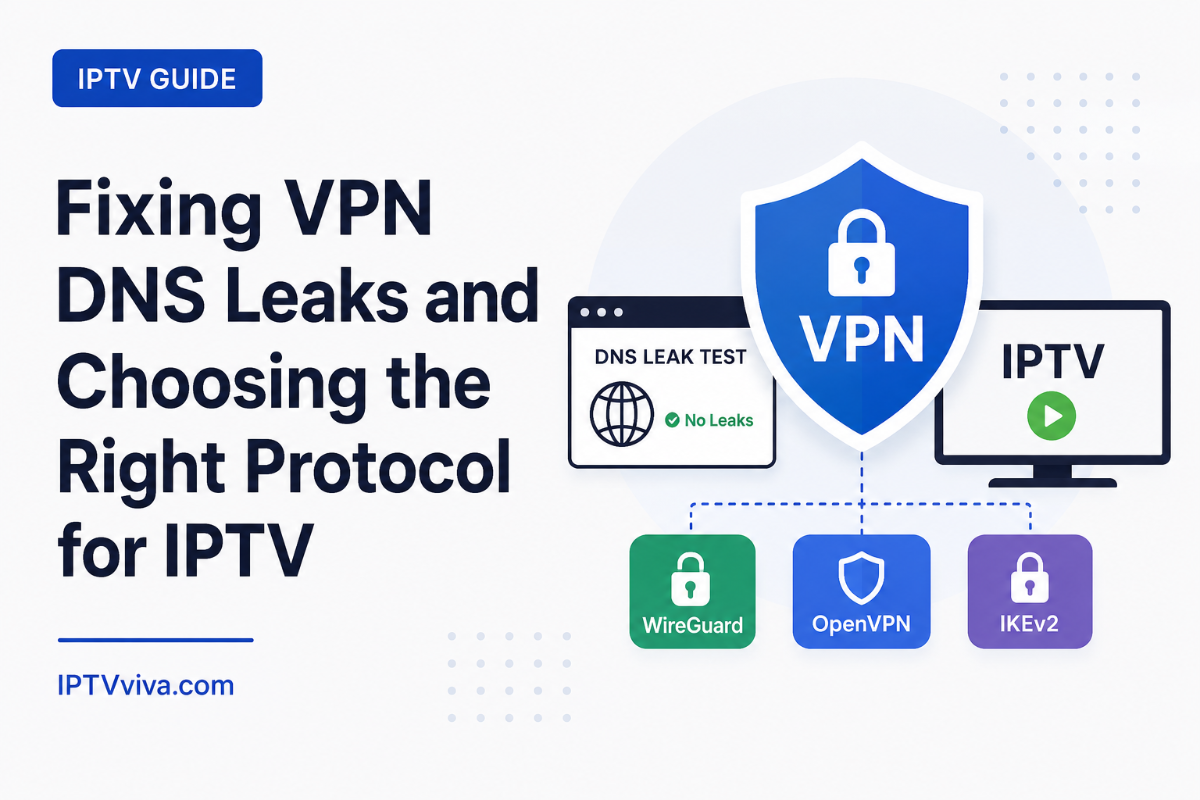
Fixing VPN DNS Leaks and Choosing the Right Protocol for IPTV Many IPTV users believe that simply clicking "Connect" on a VPN app makes them invisible to their Internet Service Provider (ISP). However, thousands of users still experience buffering, throttling, or "Content Not Available" errors even when their VPN is active. Why? The answer often lies in DNS Leaks and the use of outdated VPN Protocols. In this exclusive guide for IPTVviva, we will break down the technical barriers that prevent your VPN from working perfectly with your streaming service. We will explore how to identify a leak, how to fix it on Android and Firestick devices, and which protocols offer the best speed-to-security ratio in 2026. 1. The Silent Threat: What is a DNS Leak? When you use a VPN, your internet traffic is supposed to travel through an encrypted tunnel. However, sometimes your device sends "DNS Queries" (the requests that translate a domain name into an IP address) directly to your ISP instead of through the VPN tunnel. Why this kills your IPTV experience: If your ISP sees that you are requesting data from an IPTV server's DNS, they can "soft-throttle" that specific traffic. This leads to the classic IPTV symptom: your speed test shows 100Mbps, but your 4K stream buffers every 5 seconds. How to Test for Leaks: Connect to your VPN. Open a browser on your streaming device and go to dnsleaktest.com. If you see your ISP’s name or your real country’s flag in the results, your VPN is leaking. 2. Fixing DNS Leaks on Android TV and Firestick Most leaks happen because the Android OS tries to be "helpful" by using a backup DNS. Here is how to force your device to stay inside the tunnel: Set a Static DNS: Instead of using "Automatic" IP settings, go to your Network settings and manually set your DNS to Cloudflare (1.1.1.1) or Google (8.8.8.8). This ensures that even if the VPN drops for a millisecond, your ISP's DNS doesn't take over. Enable IPv6 Leak Protection: Many IPTV providers only support IPv4. If your home internet uses IPv6, the traffic might bypass the VPN. Inside your VPN app settings, always enable "Block IPv6" or "IPv6 Leak Protection." 3. WireGuard vs. OpenVPN: The 2026 IPTV Showdown Choosing the right protocol is the difference between a smooth 4K stream and a pixelated mess. A. WireGuard (The Modern King): Speed: Up to 3x faster than OpenVPN. Efficiency: It uses state-of-the-art cryptography that requires very little CPU power. This is perfect for Firesticks and low-end Android boxes that tend to overheat. Re-connection: If your Wi-Fi flickers, WireGuard reconnects almost instantly, meaning your IPTV stream won't time out. B. OpenVPN (The Reliable Veteran): Obfuscation: If you live in a country with heavy internet censorship, OpenVPN (TCP) is better at "disguising" VPN traffic as regular web traffic. Cons: It is heavy on the processor and can cause "Input Lag" on your streaming device. Verdict: For 99% of IPTVviva users, WireGuard is the superior choice for high-bandwidth streaming. 4. Bypassing "VPN Blocks" from IPTV Providers Believe it or not, some IPTV providers block certain VPN IP addresses to prevent server overload or for licensing reasons. The Fixes: Dedicated IP: If you can, use a Dedicated IP address provided by your VPN service. Since you are the only one using it, it is less likely to be "blacklisted" by the IPTV server. Change City, Not Country: Instead of switching to a different country, try switching to a different city within the same country. Often, only certain server clusters are flagged. Split Tunneling: If your VPN is causing the IPTV app to fail but you need the VPN for other things, use Split Tunneling. This allows you to select exactly which apps go through the VPN and which stay on the local network. 5. Advanced Troubleshooting: MTU Settings for VPNs If your VPN connects but the IPTV app shows "No Internet," the issue is likely the MTU (Maximum Transmission Unit). VPN encryption adds "overhead" to every packet. If the packet becomes too large, it gets dropped by the router. The Fix: Inside your VPN app settings (like Surfshark, Nord, or ExpressVPN), look for the MTU setting. Change it from "Automatic" to a lower value like 1300 or 1350. This often solves the "Connected but no data" issue immediately. 6. The "Kill Switch" – Why it's Mandatory If your VPN connection fails for even one second, your real IP is exposed. Your ISP's system will immediately flag the high-bandwidth IPTV stream. Always ensure the "Kill Switch" is enabled. It will cut the internet entirely if the VPN drops, protecting your privacy and preventing your ISP from logging your IPTV activity. FAQ: VPN & IPTV Troubleshooting Q1: Why does my VPN make my IPTV slower? Answer: Every VPN adds some latency. However, if the speed drop is more than 20%, you are likely using a crowded server or a "heavy" protocol like OpenVPN (TCP). Switch to WireGuard and pick a server geographically closest to your IPTV provider's server. Q2: Can I use a Free VPN for IPTV? Answer: Strongly discouraged. Free VPNs often have "Data Caps" and sell your browsing logs. More importantly, they rarely support the speeds required for HD or 4K streaming, leading to constant buffering. Q3: Does a VPN fix "Buffering" during peak hours? Answer: Yes, if the buffering is caused by ISP Throttling. If the ISP sees a lot of traffic on Saturday night (during football matches), they slow down IPTV packets. A VPN hides this traffic, allowing you to bypass the throttle. A VPN is no longer just an "option" for IPTV; it is a necessity for a stable and private experience. By fixing DNS leaks, optimizing your MTU settings, and utilizing the WireGuard protocol, you can ensure that your setup at IPTVviva is bulletproof. What's your experience? Are you facing a "VPN Detected" error on your favorite app? Leave a comment below with your VPN provider and device model, and we will help you find the right settings! NordVPN & NordLynx Protocol: The Ultimate Performance Guide for IPTV Users Integrated VPN Guide for IPTV: Optimizing Connection, Privacy, and Performance Why Your VPN Fails and How to Fix It? (2026 Guide) VPN for IPTV: Fixing Buffering, Protocol Conflicts, and MTU Issues
-
Stop IPTV Crashing: How to Optimize RAM and Background Processes on Streaming Devices You are watching a crystal-clear 4K stream, and suddenly, the app closes. Or perhaps the interface becomes so sluggish that your remote clicks take seconds to respond. Most IPTV users blame the server, but the culprit is often RAM Exhaustion. Streaming devices like the Fire TV Stick 4K, Chromecast, and generic Android boxes usually have limited RAM (between 1.5GB to 2GB). In this guide, we will explore how to reclaim your device’s resources to ensure your IPTV player runs with 100% priority. 1. The "Ghost in the Machine": Hidden Background Apps Even when you are inside your IPTV app (TiviMate, IPTV Smarters, etc.), other apps like Netflix, YouTube, or system update services are running in the background. They consume "Address Space" in your RAM, leaving very little room for your IPTV player to buffer video. The Fix: The "Force Stop" Routine Before starting a long viewing session, go to Settings > Applications > Managed Installed Applications. Manually "Force Stop" apps that you aren't using. Pro Tip: Use a "Background Process Limit" setting in Developer Options and set it to "No background processes" or "At most 1 process." 2. Disabling "Data Tracking" and "Telemetry" Modern streaming OS (especially FireOS and Google TV) constantly send data back to their servers about your usage habits. This background "pinging" uses both CPU cycles and bandwidth. On Firestick: Go to Settings > Preference > Privacy Settings. Turn off Device Usage Data and Collect App Usage Data. On Android TV: Disable "Usage & Diagnostics" in the device preferences. Result: You will notice a snappier interface and fewer micro-stutters during live streams. 3. The "App Overload" Syndrome Many users install 20 different IPTV players, 5 VPNs, and multiple media tools. Every installed app adds "listeners" to your system boot sequence. The Solution: Keep it Lean Uninstall every app you haven't used in the last 30 days. Keep only one primary IPTV player and one backup. Ensure you have at least 1GB of free internal storage. If your storage is full (above 90%), the Android system cannot create "Swap Files," which are essential when RAM runs low. 4. Clearing the "System Cache" vs. "App Cache" In our previous guide, we talked about App Cache. But the System Cache is different. It’s where the Operating System stores temporary update files. For Android Boxes, a "Cold Boot" is the best fix. Don't just turn it off with the remote (which puts it in Sleep Mode). Unplug the power cord for 30 seconds. This flushes the RAM completely and resets the CPU’s instruction cycle. 5. Fixing "Source Error" and "Code 404" in Playlists Sometimes the troubleshooting isn't about the hardware, but how the app reads the link. Output Format: If you are getting a "Source Error," try changing your internal playlist link from type=m3u8 to type=ts (or vice-versa). User-Agent: Some servers block certain apps. In your IPTV player settings, find the User-Agent field and type "VLC" or "IPTVSmarters." This "masks" your device and can bypass server-side blocks. FAQ: Memory & System Fixes Q1: Will a "Task Killer" app help my IPTV performance? Answer: Generally, no. Most "Task Killers" stay active in the RAM themselves to monitor other apps, which defeats the purpose. It is better to use the built-in Android "Developer Options" to limit processes. Q2: Why does my device get hot when I use a VPN with IPTV? Answer: Encryption is a heavy CPU task. When you combine 4K decoding with high-level VPN encryption (like OpenVPN), the processor works double time. Switch to the WireGuard protocol to reduce heat and RAM usage. Q3: Can I add more RAM to my Firestick or Android Box? Answer: No, RAM is soldered to the chip. However, you can use an OTG Cable to add a fast USB drive and format it as "Internal Storage" to help with app data management. Guide to IPTV Performance Optimization: Managing Cache, Hardware Acceleration, and System Overload Mastering IPTV Playback: How to Fix M3U8 Errors and Optimize Decoding for 4K Streaming How to Fix IPTV Buffering (Ultimate Guide 2026) Fixing "Black Screen" & "Data Integrity" Errors: Advanced Network Optimization for IPTV (Ultimate Guide)
-
Guide to IPTV Performance Optimization: Managing Cache, Hardware Acceleration, and System Overload In the world of digital streaming, nothing is more frustrating than a "Media Playback Error" or a sudden frame drop in the middle of a live football match or a high-stakes movie scene. While most users immediately blame their internet connection or their IPTV provider, the root cause often lies within the local environment—specifically, how your streaming device handles data processing and memory. As we move into 2026, streaming bitrates are increasing with the rise of 4K and 8K content. This puts an immense strain on hardware like Firesticks, Android Boxes, and Smart TVs. In this comprehensive guide, we will dive deep into the technical side of IPTV troubleshooting, focusing on Cache Management, Hardware Acceleration (HW vs. SW), and System Resource Optimization. 1. Understanding the Role of Cache in IPTV Streaming The "Cache" is a temporary storage area where your streaming app (like TiviMate, OTT Navigator, or IPTV Smarters) stores video segments before they are played. Why does the cache fill up? Every time you switch a channel or load a VOD, data is stored. Over time, these temporary files can become corrupted or take up so much RAM that the device can no longer process the incoming live stream effectively. The Fix: Manual vs. Automatic Clearing Manual Clearing: On Android-based devices, navigating to Settings > Apps > [Your IPTV App] > Clear Cache is a temporary fix. However, doing this daily is inefficient. Buffer Size Adjustment: Most premium IPTV players allow you to change the buffer size. Small Buffer: Reduces channel switching time (zapping) but increases the risk of stuttering on unstable connections. Large Buffer: Provides a "safety net" for the stream but uses more RAM and causes a slight delay in live events. Pro Tip: For devices with low RAM (1GB or less), keep the buffer size at "Small" or "None" to prevent the app from crashing due to memory exhaustion. 2. Hardware Acceleration: HW vs. SW Decoding This is perhaps the most misunderstood setting in IPTV apps. Decoding is the process of converting the raw data stream into a visible picture. Hardware Decoding (HW): Uses the dedicated Video Processing Unit (VPU) on your device’s chip. It is extremely efficient, uses less power, and stays cool. Software Decoding (SW): Uses the main CPU to process the video. This is much more taxing, leads to device overheating, and often results in "laggy" video. When to use which? Use HW/HW+: Always try this first. It is the gold standard for 4K and 1080p 60fps streams. Switch to SW: Only if you are hearing audio but seeing a black screen, or if the video format (like some older HEVC or AVI files) is not natively supported by your device’s hardware. Troubleshooting Hardware Conflicts: If your stream freezes specifically when a commercial starts or when the resolution changes, it’s likely a "Decoder Conflict." Setting your player to "Hardware+" or "VLC Toolkit" (if using an external player) can often resolve these handshake issues. 3. Combating "Packet Loss" and "Jitter" Beyond Speed Tests You might have a 100Mbps connection and still experience buffering. This is because streaming is sensitive to Jitter (the variance in time between data packets arriving). Advanced Network Fixes: The MTU Value: If you are using a VPN, your Maximum Transmission Unit (MTU) might be too high, causing "Packet Fragmentation." Reducing your MTU setting in your router or VPN app to 1400 or 1380 can significantly stabilize live HD streams. DNS Distortions: Some ISPs use "Transparent DNS Proxies" to throttle IPTV traffic. Switching to Cloudflare (1.1.1.1) or Google (8.8.8.8) directly inside your device settings—not just the router—bypasses these local bottlenecks. 4. Heat Management: The Silent Killer of IPTV Boxes Devices like the Amazon Fire TV Stick or small Android "Puck" boxes have no active cooling (fans). When decoding high-bitrate 4K IPTV streams, the CPU temperature can spike to over 80°C. Symptoms of Overheating: The stream starts fine but begins to stutter after 20–30 minutes. The app closes automatically (Force Close). The remote control becomes unresponsive. The Solution: Use the HDMI Extender that came with your Firestick to move it away from the back of the TV (which generates its own heat). Disable "Background Processes" in Developer Options to reduce CPU load. Avoid using "Live Wallpapers" or heavy themes on your device dashboard. 5. Fixing EPG (Electronic Program Guide) Sync Issues A common "Troubleshooting" complaint is that the EPG is "Out of Sync" or shows "No Information." This isn't always a provider issue. The Technical Fix: EPG Mode: Switch from "Global" to "Per-Channel" update. Storage Path: If your device is low on space, the EPG database (which can be 200MB+) won't save correctly. Clear old VOD data to make room. Time Offset: Check your device’s system time. If it differs from the provider’s server time by even 1 minute, the EPG will appear empty. Always set "Automatic Date & Time" to ON. 6. Optimizing the "M3U8" Playlist Parsing If your app takes 5 minutes to start, your playlist is too large. Many providers offer 10,000+ channels, most of which you never watch. The "Lite" Optimization Method: Use an M3U editor (like m3u4u or similar tools) to filter your list. By reducing a 20,000-item list to a 500-item list, you reduce the RAM required for the app to "parse" the data, leading to a much faster and more stable experience. 7. VPN Protocol Selection: WireGuard vs. OpenVPN For IPTV, the protocol you choose matters more than the VPN brand. OpenVPN (UDP): Good, but can be slow on older hardware. OpenVPN (TCP): Avoid for IPTV. It checks every packet for errors, which causes massive lag in live video. WireGuard: The best choice for 2026. It is lightweight, fast, and handles the "re-handshaking" of a stream much better if your connection momentarily drops. 8. Summary Checklist for a Flawless Stream If you are currently facing issues, follow this 5-step "Emergency Reset": Power Cycle: Unplug the device and the router for 60 seconds (clears electrical static and refreshes IP). Clear Cache: Go to app settings and wipe the temporary data. Check Decoder: Ensure Hardware (HW) acceleration is active. VPN Check: Toggle your VPN on/off to see if your ISP is throttling that specific stream. Update App: Ensure you aren't running an outdated version of the player, as codecs are updated frequently. Frequently Asked Questions (FAQ) – IPTV Troubleshooting Q1: Why does my IPTV work on my phone but not on my Android TV Box? Answer: This is usually due to "Account Concurrency" or "MAC Address Binding." Many providers lock your subscription to the first device you log in with. Additionally, check if your TV Box is using an older Wi-Fi standard (2.4GHz vs 5GHz); phones often have better Wi-Fi antennas than budget streaming boxes. Q2: What is the meaning of "Error Code 401" or "403"? Answer: These are HTTP status codes. 401 Unauthorized means your login credentials (username/password) are incorrect or your sub has expired. 403 Forbidden often means your IP address has been flagged or blocked by the provider’s firewall (try using a VPN). Q3: Can I fix buffering by increasing my internet speed to 1Gbps? Answer: Not necessarily. If the bottleneck is the IPTV server's capacity or your device’s CPU, increasing your raw internet speed won't help. Stability (low ping and zero packet loss) is more important for IPTV than high download speeds. Q4: Why are the audio and video out of sync? Answer: This is a classic "Clock Sync" issue. Go to your player settings and look for "Audio Delay" or "Sync Mode." Switching the player engine from "Native" to "ExoPlayer" or "VLC" usually fixes this instantly. Q5: Is it safe to use IPTV without a VPN? Answer: While it depends on your country, a VPN is recommended to prevent ISP Throttling. ISPs often detect the continuous data stream from IPTV servers and intentionally slow it down to reduce network congestion. Troubleshooting IPTV in 2026 requires a balance between understanding your network and knowing the limits of your hardware. By mastering cache management and understanding how your device decodes video, you can eliminate 90% of the common issues that plague streamers today. Join the Discussion: Are you still seeing a specific error code? Post your device model and app version below, and our community will help you find the specific fix! Mastering IPTV Playback: How to Fix M3U8 Errors and Optimize Decoding for 4K Streaming How to Fix IPTV Buffering (Ultimate Guide 2026) Fixing "Black Screen" & "Data Integrity" Errors: Advanced Network Optimization for IPTV (Ultimate Guide) IPTV Keeps Disconnecting? Fix Random Drops & Auto-Reconnect Issues (2026)
-
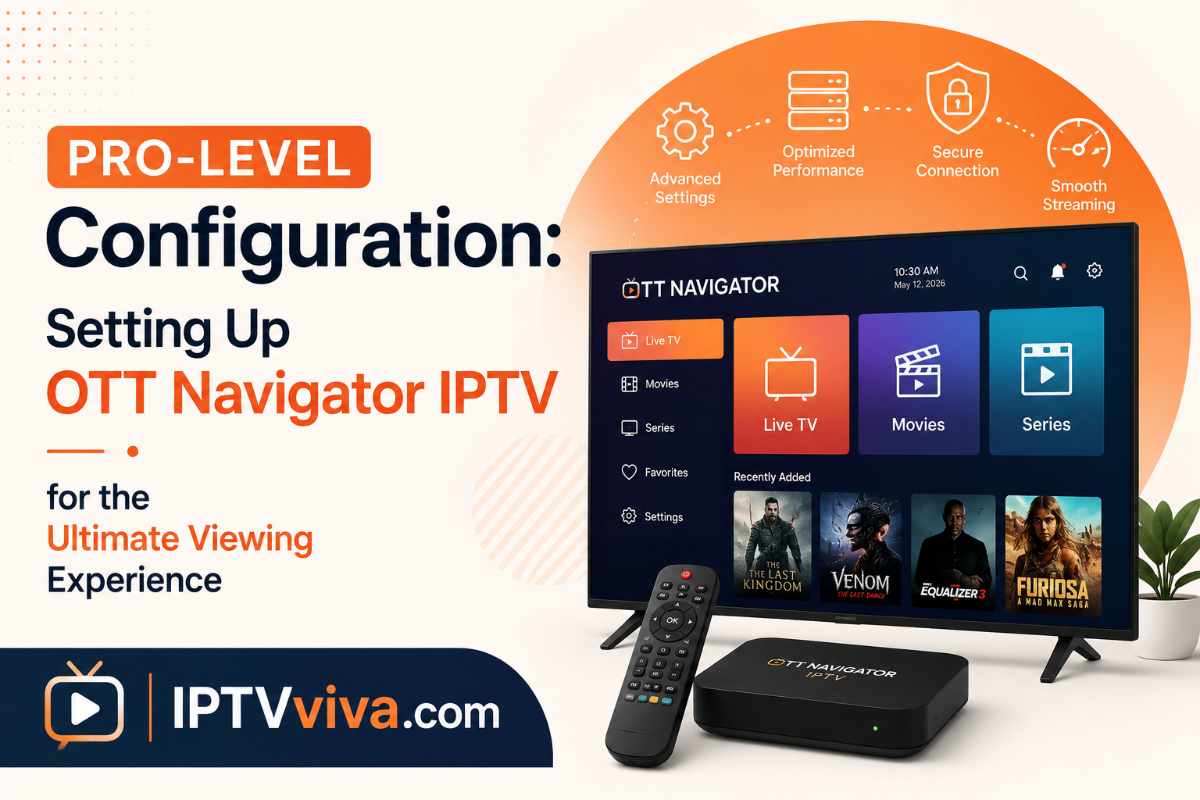
Pro-Level Configuration: Setting Up OTT Navigator IPTV for the Ultimate Viewing Experience Welcome to the IPTVviva App Setup Center. While there are dozens of IPTV players available, OTT Navigator stands out as one of the most powerful, feature-rich applications for Android-based devices (Firestick, Nvidia Shield, and Android TV). If you are tired of basic interfaces and want a player that gives you full control over your streams, codecs, and UI, this guide is for you. Here is how to set it up like a professional. 1. Installation and Initial Connection Unlike simpler apps, OTT Navigator offers multiple ways to connect. For the best stability, we recommend using the Xtream Codes API. Steps to Connect: Download the App: Install OTT Navigator from the Google Play Store or sideload the official APK on your Firestick. Add Provider: Upon launching, select Settings > Provider > Add Provider. Select Type: Choose Xtream Codes. Enter Credentials: Server Address: (e.g., [http://your-provider.com:80](http://your-provider.com:80)) Username: Your unique username. Password: Your unique password. Apply: Click Apply and wait for the app to sync your "Live Channels," "Movies," and "Series." 2. Activating "Studio Mode" (Multi-Screen) One of the exclusive features of OTT Navigator is Studio Mode, allowing you to watch multiple channels at once. How to use it: While watching a channel, long-press the Select button on your remote. Action: Navigate to the "Windows" icon. Here, you can add up to 4 screens (or more depending on your device's RAM). Pro Tip: This is perfect for sports fans who want to track multiple matches simultaneously. Ensure your subscription supports Multi-room or Multiple Connections to avoid being banned by your provider. 3. Optimizing the Video Engine (Fixing Buffering & Sync) If you experience lag, the problem is often the "Clock" or "Codec" synchronization. Go to: Settings > Playback > Decoder. Hardware vs. Software: Set your primary decoder to Hardware (HW). This uses your device's GPU for a smoother frame rate. Buffer Size: Set the "Network Buffer" to 5 seconds. This provides a safety net for minor internet fluctuations without causing a significant delay in live events. AFR (Auto Frame Rate): Enable this feature to match the app’s output to your TV’s refresh rate (e.g., 50Hz for European sports or 60Hz for US content). This eliminates "Micro-stuttering." 4. Customizing the User Interface (UI) OTT Navigator is known for being a "Chameleon." You can make it look exactly how you want. Themes: Go to Settings > Interface > Themes. You can choose "Modern," "Classic," or "Compact" list views. EPG Customization: You can overlay the Electronic Program Guide so it appears as a transparent bar at the bottom, allowing you to browse other channels without stopping the current video. User-Defined Groups: You can hide adult categories or international channels you don't watch by going to Settings > Channels > Visibility. 5. Setting up a Backup Provider One of the most powerful features of OTT Navigator is the Backup Source logic. How it works: If you have two different IPTV subscriptions, you can link them. If the stream from "Provider A" fails or goes offline, the app can be configured to automatically attempt to play the same channel from "Provider B." Setup: In the Provider settings, select your secondary list and assign it as a "Backup" to your primary list. 6. Advanced Troubleshooting for OTT Navigator Error: "Codec Not Supported" If you get a black screen with audio, go to Settings > Playback and switch the Media Player from "System" to "Internal (VLC Based)" or "ExoPlayer." These built-in engines handle 99% of modern video formats (HEVC, H.264). Issue: EPG is not showing data Ensure your system time is set to Automatic. If the time on your Android Box is even 5 minutes off, the EPG will not align with the current programs and will appear empty. OTT Navigator is perhaps the most versatile app in the IPTV ecosystem. While it has a steeper learning curve than other apps, the rewards in terms of Stability, Customization, and Features are well worth the effort. Part 2: Advanced FAQ – Solving Complex Issues Q. What is the difference between "Hardwired" and "Wi-Fi" for IPTV? While Wi-Fi is convenient, it is susceptible to EMI (Electromagnetic Interference) from other electronics. For 4K streaming, a Hardwired (Ethernet) connection is always superior because it provides a dedicated lane for data packets, reducing "Junk traffic" and jitter. Q. Why does my IPTV work on my Phone but not on my TV? This is usually a DNS (Domain Name System) issue. Smart TVs often use the ISP’s default DNS, which might block IPTV servers. Fix: Change your TV or Router DNS settings to Google DNS (8.8.8.8 / 8.8.4.4) or Cloudflare (1.1.1.1). Q. What is "Catch-Up" and why are some channels missing it? Catch-Up allows you to watch past broadcasts (DVR on the server side). Not all channels have this because it requires massive storage on the provider's server. Look for a "Clock" icon next to the channel name in apps like TiviMate. Q. What is "Packet Loss" and how does it affect streaming? Packet loss occurs when data units fail to reach their destination. In IPTV, this results in Pixelation (distorted squares on the screen) or the "Audio-Sync" going out of track. A VPN or a better quality Ethernet cable can often fix this. Q. Can I use IPTV on a MAG device in 2026? Yes, but MAG devices (like the 524 or 540) use a Stalker Portal. You will need to provide your MAC Address (starts with 00:1A:79) to your provider. Note that MAG devices are less flexible than Android Boxes for apps like YouTube or Netflix. Suggested Topics for Future Reading How to Build Your Own IPTV Playlist (M3U Guide 2026) Hidden IPTV Settings Nobody Talks About (Boost Performance 10x) How to Fix IPTV Buffering & Freezing Issues (Advanced Guide 2026) How to Setup IPTV with Xtream Codes Login (Ultimate Guide 2026) Did you find this guide helpful? If you are stuck on a specific setting or need help with a custom "Provider" setup, leave a comment below and the IPTVviva team will assist you!
-
NordVPN & NordLynx Protocol: The Ultimate Performance Guide for IPTV Users In the world of streaming, speed is king. Most VPNs slow down your connection due to heavy encryption overhead, but NordVPN has changed the game with its proprietary NordLynx protocol. For the IPTVviva community, understanding how to leverage this specific software can eliminate buffering and bypass ISP restrictions permanently. This guide explores why NordVPN is the top-rated software for IPTV in 2026 and how to configure it for maximum stability. 1. What is NordLynx? (The Speed Revolution) Most VPN apps rely on the old OpenVPN protocol, which is secure but can be slow and "heavy." NordVPN developed NordLynx, built around the WireGuard® protocol. Efficiency: It uses only about 4,000 lines of code (compared to 70,000+ for OpenVPN), making it much lighter on your Android Box or Firestick CPU. Performance: Tests show that NordLynx maintains up to 95% of your original internet speed, which is essential for 4K UHD and 60FPS Sports streaming. 2. Advanced Features for IPTV Enthusiasts A. Obfuscated Servers (Stealth Mode) Some ISPs use advanced firewalls to detect and block VPN traffic. NordVPN’s Obfuscated Servers disguise VPN data as regular HTTPS traffic. If your IPTV service refuses to connect while the VPN is on, switching to an Obfuscated Server usually solves the problem. B. Double VPN (Multi-Hop) For users who require maximum anonymity, this feature routes your traffic through two different VPN servers. While this can slightly increase latency, it provides double encryption, making it impossible for anyone to trace your streaming activity. C. Threat Protection This built-in software tool blocks malicious websites, trackers, and intrusive ads. Since some third-party IPTV apps might contain trackers, this feature acts as an extra layer of security for your device. 3. Step-by-Step Setup for IPTV Boxes (Firestick/Nvidia Shield) To get the most out of NordVPN on your streaming device, follow these exact settings: Download & Install: Get the app directly from the official Google Play Store or Amazon Appstore. Enable NordLynx: Go to Settings > Protocol and manually select NordLynx. Do not leave it on "Default." Split Tunneling: Go to Settings > Split Tunneling. Enable it and select your IPTV app (e.g., TiviMate or Smarters Pro). This ensures only the IPTV app uses the VPN, while your other apps (like YouTube or Netflix) use your regular connection to maintain local speeds. Auto-Connect: Enable "Auto-connect on untrusted networks" to ensure you never accidentally stream without protection. 4. Troubleshooting NordVPN on IPTV Problem: "Unable to load playlist" Diagnosis: The server IP might be blacklisted by the IPTV provider. Fix: Disconnect and reconnect to a different city or country. NordVPN has over 6,000 servers; usually, a simple reconnect assigns you a fresh, working IP. Problem: Slow speeds during Live Sports Diagnosis: Server congestion. Fix: Use the "Quick Connect" feature. NordVPN’s algorithm will automatically find the least congested server with the lowest Ping relative to your location. 5. Why IPTVviva Recommends NordVPN in 2026 No-Logs Policy: Audited multiple times to ensure they never store your browsing or streaming history. Dedicated IP: You can purchase a static IP address that only you use. This prevents the "Bad Neighbor" effect where multiple users on one IP cause it to get flagged. 24/7 Support: Essential for troubleshooting connection issues in real-time during a major match. While there are many VPN applications available, the integration of NordLynx makes NordVPN the most technically sound choice for high-bitrate IPTV streaming. It bridges the gap between high-level security and the raw speed required for modern digital broadcasting. Do you have questions about setting up NordVPN on your specific device? Post your device model below, and we will provide a custom configuration!
-
Integrated VPN Guide for IPTV: Optimizing Connection, Privacy, and Performance Welcome to the IPTVviva VPN Troubleshooting Center. For many IPTV users, a VPN is no longer an optional luxury but a technical necessity. Whether you are facing ISP Throttling, regional blocks, or privacy concerns, understanding how to properly configure your VPN can make the difference between a constant buffer and a seamless 4K experience. This guide provides a deep dive into the best practices for using a VPN with your streaming setup. 1. Why Do You Actually Need a VPN for IPTV? Many users believe a VPN is only for hiding their identity, but in the IPTV world, its primary functions are technical: Bypassing ISP Throttling: Many Internet Service Providers detect high-bandwidth streaming traffic and intentionally slow down your connection. A VPN encrypts your data, making it impossible for the ISP to see what you are streaming, thus maintaining your full speed. Overcoming Geo-Blocks: Some content or IPTV servers are restricted to specific countries. A VPN allows you to "relocate" your IP to the server's home country. Fixing Routing Issues: Sometimes, the direct path from your home to the IPTV server is congested. A VPN server might offer a "cleaner" and faster route. 2. Choosing the Right VPN Protocol (Speed vs. Security) Not all VPN protocols are suitable for streaming. If you use the wrong one, your speed will drop by 50% or more. WireGuard (Recommended): This is the newest and fastest protocol. It uses state-of-the-art cryptography and is significantly faster than older protocols. If your VPN provider offers WireGuard, use it for IPTV. OpenVPN (UDP): A very reliable and fast choice. Always select UDP over TCP for streaming, as it is faster and better at handling video data. IKEv2: Good for mobile devices and stable connections, but generally slower than WireGuard. 3. Top VPN Recommendations for IPTVviva Users Based on server stability and "No-Log" policies, these are the industry leaders: A. NordVPN (The All-Rounder) Known for its NordLynx protocol (based on WireGuard), it offers incredible speeds and specialized servers that are difficult for ISPs to detect. It works perfectly on Firesticks and Android Boxes. B. Surfshark (Best for Families) The best part about Surfshark is "Unlimited Connections." You can protect your IPTV box, your phone, and your laptop all with one subscription. It also features a "NoBorders" mode for highly restrictive networks. C. ExpressVPN (The Premium Choice) While more expensive, its Lightway protocol is optimized for low-latency streaming. It is highly effective at bypassing "Deep Packet Inspection" from aggressive ISPs. 4. Troubleshooting Common VPN Issues on IPTV Problem: Buffering increases when the VPN is ON. Solution: You are likely connected to a server too far away. Always connect to a server geographically closest to your IPTV provider’s server or your physical location. Switch Protocol: If you are on OpenVPN, switch to WireGuard. Problem: The IPTV app won't connect at all. Solution: Some IPTV providers block certain VPN IP addresses. Try a "Dedicated IP" if your VPN offers it, or switch between different cities in the VPN app until you find an unblocked server. Problem: Speed is fine, but the app crashes. Solution: This is often a "Split Tunneling" issue. Go to your VPN settings and use Split Tunneling to ensure only your IPTV app is going through the VPN, reducing the load on your device's processor. 5. How to Set Up a VPN on Your Device For Firestick & Android Boxes: Download your chosen VPN app from the Amazon Appstore or Google Play Store. Log in and go to Settings. Enable "Connect on Boot" (so you are always protected). Choose the WireGuard protocol. Select a server and hit Connect. For Smart TVs (Samsung/LG): Most Smart TVs do not support VPN apps natively. To bypass this: Install the VPN on your Router. Or use a Smart DNS service (provided by NordVPN or ExpressVPN), which changes your location without the full encryption overhead. 6. The "Kill Switch" Feature: Why It Matters A Kill Switch is a vital security feature. If your VPN connection drops for even a second, the Kill Switch immediately cuts your internet. This prevents your "Real IP" from being exposed to your ISP or the IPTV server, maintaining your privacy at all times. A VPN is the best investment you can make for a stable IPTV experience in 2026. It protects you from ISP interference and opens up a world of global content. Pro Tip: If you are testing a new VPN, always perform a Speed Test with the VPN Off and then On to see exactly how much it affects your bandwidth. If you have trouble configuring your specific VPN provider, post your details (Device + VPN Name) below, and our team will help you troubleshoot!
-
Strategic Optimization for IPTV Streaming: Reducing Latency and Buffering Issues Welcome to the IPTVviva Help Center. One of the most common challenges users face in the streaming world is not just "getting the service to work," but making it work optimally. High latency (lag) and constant buffering can ruin the viewing experience, especially during live sports events. In this tutorial, we will explore the technical side of IPTV optimization and how you can configure your setup for maximum stability. 1. The Foundation: Network Environment Before blaming the server or the app, we must ensure your local network is capable of handling high-bitrate streams. Hardware vs. Wireless The LAN Advantage: Whenever possible, connect your streaming device (Android Box, Smart TV, or PC) via an Ethernet Cable (Cat6 or higher). Wi-Fi signals are subject to "Interference" from household appliances and physical barriers, causing packet loss. 5GHz over 2.4GHz: If you must use Wi-Fi, ensure you are connected to the 5GHz band. While 2.4GHz has a longer range, the 5GHz band offers much higher bandwidth and less congestion from other devices. 2. Advanced Player Configuration The application you use acts as the "decoder" for the stream. Default settings are often not optimized for every network. Buffer Size Adjustment (The Cache) In apps like TiviMate or OTT Navigator, you can find a setting called "Buffer Size" or "Internal Buffer". Small Buffer: Reduces the delay between the live event and your screen (great for sports) but requires a very stable connection. Large Buffer: Increases stability by pre-loading several seconds of the video, but creates a delay. Recommendation: Set your buffer to "Normal" or "Medium" (approx. 2-3 seconds) to balance stability and real-time viewing. Changing the Output Format If you experience "Black Screens" or "Audio but No Video," try changing the output format in your Xtream Codes settings from .ts to .m3u8. The M3U8 format is often more compatible with modern hardware decoders and handles network fluctuations better. 3. Dealing with ISP Throttling Many Internet Service Providers (ISPs) use Deep Packet Inspection (DPI) to identify IPTV traffic. Once identified, they may intentionally slow down your connection (Throttling). The Role of VPNs in Optimization A VPN (Virtual Private Network) is not just for privacy; it’s a performance tool. Encapsulation: It hides your traffic from the ISP, preventing them from identifying and throttling the IPTV stream. Peering: Sometimes, your ISP has a poor "route" to the IPTV server. A VPN can provide a more direct route, reducing the number of "hops" the data takes. Protocol Selection: Use WireGuard or OpenVPN (UDP) for the best balance of speed and encryption. 4. Hardware Maintenance: Clearing the Cache Android-based devices (Firesticks, Shields, Boxes) tend to accumulate "Junk Data" in the background. System Cache: Regularly go to Settings > Apps > [Your IPTV App] > Clear Cache. Note: Do not click "Clear Data" unless you want to delete your login credentials. Reboot Cycle: Power-cycle your router and streaming device at least once a week to clear the RAM and refresh the IP assignment. 5. Troubleshooting Codec Issues If certain channels work while others don't, it is likely a Video Codec mismatch. Software Decoding: If your device is powerful (like an Nvidia Shield), you can switch the app settings to "Software Decoding." This uses the CPU to process the video, which is more compatible but consumes more power. External Players: If the built-in player in Smarters or TiviMate fails, use VLC Media Player or MX Player. These apps come with a massive library of built-in codecs that can handle almost any stream format. 6. Understanding Server Load and Peak Hours During major events (e.g., Champions League Finals), thousands of users hit the same server simultaneously. Backup Playlists: Always keep a secondary, lower-quality playlist (SD or HEVC) as a backup. CDN Selection: Some advanced providers allow you to choose a CDN (Content Delivery Network) location. Always choose the one geographically closest to you to reduce Ping (Latency). Summary Checklist for a Better Experience: Switch to Ethernet (Priority #1). Use a VPN if you notice buffering during peak hours or weekends. Optimize Buffer Settings in your player. Keep Hardware Updated and clear the app cache regularly. By following these technical steps, you move from being a passive viewer to an optimized user. If you encounter a specific error code or need help with a particular device, feel free to start a thread here in the Tutorials & Help Center.
-
IPTV Guide 2026: Frequently Asked Questions (FAQs) & Expert Solutions Welcome to the IPTVviva Beginner Help section. If you are new to the world of Digital Streaming, you probably have many questions about how things work, why buffering happens, or which device is best. This comprehensive guide is designed to be your "Encyclopedia of IPTV," covering everything from basic concepts to advanced troubleshooting. Part 1: Core Concepts – What is IPTV? 1. What exactly is IPTV? IPTV stands for Internet Protocol Television. Unlike traditional broadcasting methods like Satellite (DISH) or Cable, IPTV delivers television content over the internet. It uses your home network to send "Data Packets" directly to your device. This technology allows for features like VOD (Video on Demand) and Time-Shifting, which traditional TV cannot provide. 2. How does IPTV work? When you click on a channel, your device sends a request to the IPTV Server. The server then streams that specific channel directly to your IP address. This is why a stable internet connection is more important than a physical dish outside your house. 3. Is IPTV Legal? This is a complex question. The technology itself is 100% legal. However, the legality depends on the Service Provider. Using official apps like Netflix, Hulu, or Sling TV is legal. Using third-party providers depends on whether they hold the broadcasting rights for the channels they offer in your specific region. Part 2: Technical Requirements & Connectivity 4. What is the minimum Internet Speed required? To enjoy a Buffer-Free experience, your download speed must meet these standards: SD (Standard Definition): 5 Mbps minimum. HD (High Definition): 10 - 15 Mbps. 4K UHD (Ultra High Definition): 25 Mbps or higher. Stability Tip: Always use an Ethernet Cable (LAN) instead of Wi-Fi for better stability. 5. What is "Buffering" and how can I stop it? Buffering occurs when your device cannot download the stream fast enough. Common causes include: ISP Throttling: Your Internet Service Provider limits your speed when they detect high streaming traffic. Server Overload: Too many users on the IPTV server at once. Weak Wi-Fi Signal: Interference from walls or other devices. Solution: Use a VPN (Virtual Private Network) to bypass ISP throttling and ensure you are using a 5GHz Wi-Fi band or LAN cable. Part 3: Devices & Hardware (The Best Setup) 6. Which device is best for IPTV? Not all devices are created equal. Here is the hierarchy of IPTV hardware: Dedicated Android Boxes: Devices like the Nvidia Shield TV or Formuler (Z11 Pro Max) are the kings of IPTV because they support hardware decoding. Amazon Firestick (4K Max): The most popular budget-friendly option. Apple TV: Great for speed, but limited in terms of third-party apps. Smart TVs (Samsung/LG): Convenient, but often have limited memory, which leads to crashes. 7. Do I need a MAG Box? MAG Boxes (like MAG 520) were the industry standard. They use a MAC Address based system. While they are very stable, most users today prefer Android TV Boxes because they allow for more apps (YouTube, Netflix, Browsers) alongside IPTV. Part 4: Formats & Protocols (M3U vs. Xtream Codes) 8. What is an M3U URL? An M3U Link is a text-based playlist format. It contains the server address and your unique login token. When you paste this link into an app, it downloads the full list of channels. 9. What are Xtream Codes API? This is the most modern and recommended way to log in. Instead of a long link, you get: Server URL (e.g., http://provider-dns.com:80) Username Password Xtream Codes are better because they load the EPG (Electronic Program Guide) and VOD Posters much faster than M3U links. 10. What is EPG? EPG stands for Electronic Program Guide. It is the digital menu that shows you what is currently playing and what is scheduled next. Without an EPG, your IPTV list is just a bunch of names without context. Part 5: Top Recommended IPTV Applications 11. What are the best apps for Android and Firestick? TiviMate: Widely considered the best IPTV player in the world. It has a premium interface that looks like a high-end cable box. IPTV Smarters Pro: The most famous "all-in-one" app. It’s free and very easy to set up. OTT Navigator: A great alternative to TiviMate with many customization options. 12. What about iOS and Apple TV? iPlayTV: The best UI for Apple users. GSE Smart IPTV: A classic, reliable choice. Part 6: Troubleshooting & Common Issues 13. My channels are "Looping." Why? If a channel plays for 10 seconds and then restarts, this is usually a Server-Side issue. It means the source of the channel is struggling. Try switching to a different quality (e.g., from HEVC to HD). 14. Error: "Playlist Expired" or "Login Failed" Check your internet connection first. Ensure there are no typos in the URL (even a small dot matters). Contact your provider to see if your subscription has ended. 15. Why do I have no sound on some channels? This is usually a Codec issue. Some channels use AC3 or DTS audio. Fix: Go to your app settings and change the Video Player to "External" and use VLC Media Player or MX Player. Part 7: Security & Best Practices 16. Should I use a VPN with IPTV? Highly Recommended. A VPN does three things: Privacy: Hides your streaming activity from your ISP. Bypassing Blocks: Some ISPs block IPTV server addresses. Routing: Sometimes a VPN provides a "cleaner" route to the server, reducing lag. 17. Can I use one subscription on multiple devices? Most providers allow only one active connection at a time. If you try to stream on two devices simultaneously, your account might get banned or the stream will constantly cut. Always check if your plan supports "Multi-Room" or "Multiple Connections." Part 8: Advanced Vocabulary for IPTV Users To help you navigate the forums like a pro, here are some terms you should know: Catch-Up: The ability to watch shows that aired in the past (usually up to 7 days). VOD: Video on Demand (Movies and Series). FPS (Frames Per Second): For sports, you want 60 FPS for smooth motion. HEVC (H.265): A video compression standard that provides high quality even with low internet speeds. Reseller: A person who sells IPTV panels or subscriptions on behalf of a large server. The world of IPTV is vast and constantly changing. At IPTVviva, we strive to keep our community updated with the latest trends and fixes. If you have followed this guide and still have questions, feel free to Open a New Topic in this section, and our expert members will be happy to assist you. Remember: A good experience starts with a good device and a stable internet connection. Happy streaming!
-
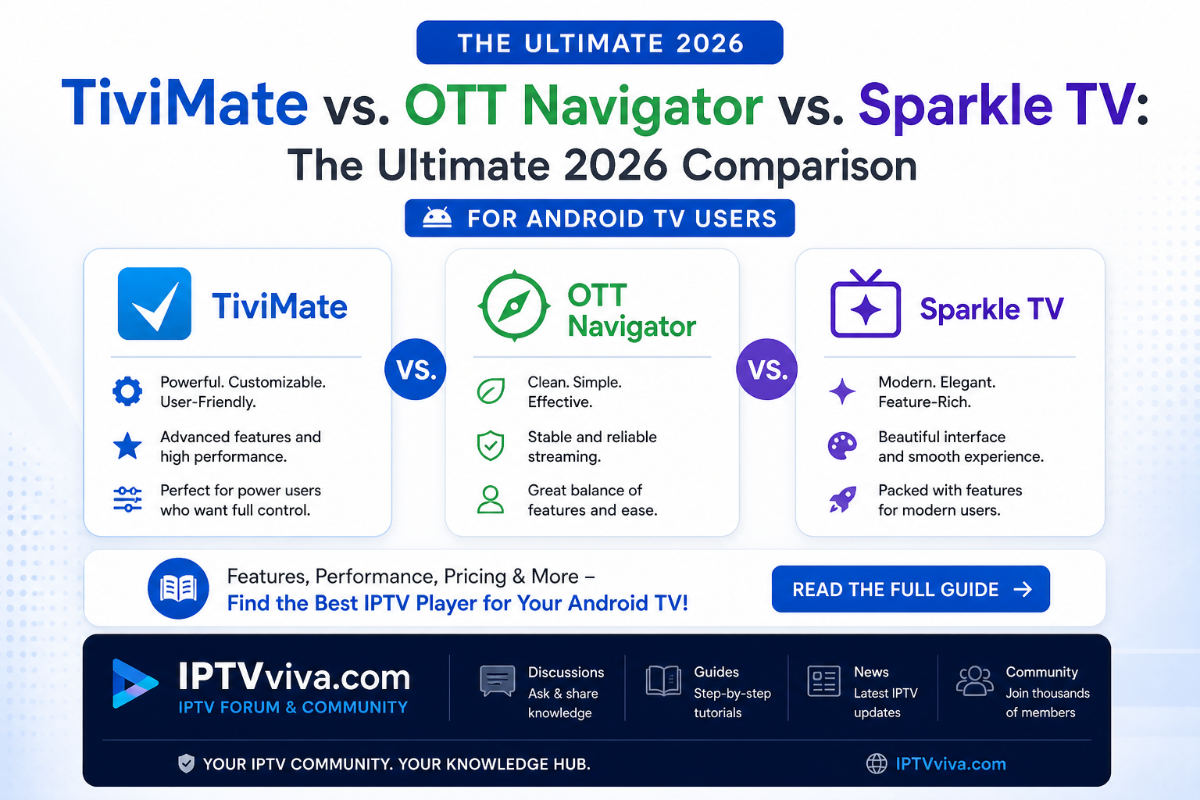
TiviMate vs. OTT Navigator vs. Sparkle TV: The Ultimate 2026 Comparison for Android TV Users If you own an Android TV Box, Shield TV, or Firestick, you know that the app you choose is just as important as the service you buy. In 2026, the competition between IPTV players has reached a peak. While many still recommend TiviMate, new updates to Sparkle TV and OTT Navigator have changed the game. In this IPTVviva exclusive, we compare these "Big Three" to see which one deserves to be your primary player. 1. TiviMate: The King of Interface TiviMate remains the gold standard for users who want their IPTV to feel like a high-end cable box. The Interface: Its clean, professional EPG is unmatched. Key Feature: The "Multiview" mode, allowing you to watch up to 9 screens at once (perfect for sports fans). The Downside: The free version is very limited, and it is only available for Android (no iOS or Windows). 2. Sparkle TV: The Modern Challenger Sparkle TV has gained massive popularity recently due to its seamless integration with "Live Channels" on Android. The Interface: Very modern, material-design aesthetic. Key Feature: Exceptional support for Timeshift and DVR (Recording). It handles external hard drives and NAS storage better than TiviMate. The Downside: The settings menu can be a bit confusing for absolute beginners. 3. OTT Navigator: The Power User’s Dream If you like to customize every single detail, OTT Navigator is for you. The Interface: Highly customizable but looks a bit "dated" compared to the other two. Key Feature: Its ability to handle multiple providers and massive M3U lists without slowing down. It also has a unique "Media Library" view for VOD. The Downside: The massive amount of settings can be overwhelming. Technical Comparison Table Feature TiviMate Sparkle TV OTT Navigator User Interface Zapping Speed Recording (DVR) Customization Multi-screen Yes (Up to 9) Yes (Up to 4) Yes (Limited) Frequently Asked Questions (FAQ) Q: Which app is best for a low-end Android Box? A: OTT Navigator is generally lighter on resources. However, if your box is very old, we recommend using IPTV Smarters Pro as it consumes less RAM. Q: Can I sync my favorites across two different devices? A: Sparkle TV offers excellent Google Drive sync features. TiviMate requires you to manually backup and restore the configuration file, which we have explained in our forum here. Q: Do these apps come with channels? A: No. These are "Players" only. You must provide your own M3U link or Xtream Codes login from a provider. Q: Is the premium version worth it? A: Absolutely. Features like EPG auto-update, Multiview, and internal AFR (Auto Frame Rate) are only available in the paid versions and they drastically improve the viewing experience. Related Tutorials on IPTVviva To get the most out of these apps, check out our step-by-step setup guides: The Ultimate 2026 Guide to IPTV Optimization: Fix Buffering, Enhance Privacy, and Master Pro Players How to Setup IPTV with M3U Playlist (Step-by-Step Guide 2026) The Future of Streaming: Mastering the XC API vs. M3U for Ultra-Fast Loading in 2026 There is no single "best" player, only the best player for your needs. If you want beauty, go with TiviMate. If you want a powerful DVR, Sparkle TV is the winner. If you want total control, OTT Navigator is your best bet. Join the discussion below and let us know your favorite!
.png.ad849606187740ec49e8f20f280bb85a.png)



ExpertSolutions.png.7579a96fb0728581a863aba8764b9a85.png)