Jump to content




IPTVviva
-
Posts
127 -
Joined
-
Last visited
-
Days Won
8
Everything posted by IPTVviva
-
 The 2026 Ultimate IPTV Masterclass: How to Setup and Optimize Your Stream Like a Pro Setting up an IPTV service in 2026 is no longer just about copying and pasting a link into an app. With the rise of high-bitrate 4K content and stricter ISP monitoring, a "pro" setup requires a strategic approach. Whether you are a newcomer or a veteran looking to upgrade your experience, this masterclass by IPTVviva will guide you through the essential pillars of a perfect stream. 1: The Hardware Foundation Your stream is only as good as the device playing it. The Gold Standard: Devices like the Nvidia Shield TV Pro or the Firestick 4K Max (Gen 2) are essential for 2026. They support advanced codecs like AV1 and have the processing power to handle large playlists. Smart TV Limitations: While convenient, built-in apps on Samsung or LG TVs often lack the RAM for heavy 4K streaming. For the best experience, an external Android-based box is always recommended. 2: Connectivity & Protocol Security Speed is half the battle; stability and privacy are the other half. Wired is King: Always use an Ethernet (Cat6) cable. Wi-Fi is prone to interference, especially in 2026 with so many wireless devices in every home. Protocol Choice: To bypass ISP throttling without losing speed, your VPN must be configured correctly. Deep Dive: Learn why we recommend one protocol over the other in our exclusive guide: WireGuard vs. OpenVPN for IPTV: The 2026 Definitive Guide. 3: Bypassing Geo-Restrictions & DNS Leaks Many users face the "Content Not Available" error even with a VPN. This is usually due to a DNS mismatch that reveals your true location. The Fix: You must ensure your DNS requests are traveling through the same tunnel as your video data. Tutorial: Follow our step-by-step fix here: Fixing DNS Leaks & IPTV Geo-Blocking Errors. 4: Playback Smoothness (AFR Technology) High resolution means nothing if the movement is "choppy." To get that smooth, stadium-like feel during a match, you need to sync your device's refresh rate with the broadcast. The Solution: Enable Auto Frame Rate (AFR) in your player settings. This eliminates "motion judder" and ensures a cinematic flow. Step-by-Step: Check our guide on How to Fix Video Stuttering with AFR. 5: Choosing the Right Player Your app is your interface with the world. In 2026, the market is dominated by three giants: TiviMate, IBO Player Pro, and OTT Navigator. TiviMate: Best for the "satellite" feel on Android. IBO Player: Best for Smart TVs. OTT Navigator: Best for customization and older hardware. Full Comparison: See which one wins in our 2026 Battle of IPTV Players. 7. Conclusion & Checklist for 2026 To wrap up, a professional IPTV setup is a combination of the right hardware, a secure network, and optimized playback settings. By following the guides linked above, you are transforming your living room into a world-class cinema. Your Quick Pro-Checklist: Ethernet Cable connected. WireGuard VPN active. DNS Leak Test passed. AFR enabled in player settings. TiviMate/IBO Player updated to the latest version.
-
The Secret to Smooth Streaming: How to Fix Video Stuttering with Auto Frame Rate (AFR) in 2026 You’ve optimized your internet, fixed your DNS leaks, and picked the best VPN protocol. Yet, when you watch a football match or a movie, the movement feels "choppy" or "jittery." This isn't buffering; it's a Refresh Rate Mismatch. In 2026, as bitrates for 4K and 8K streams increase, the synchronization between your IPTV app and your TV's hardware is more critical than ever. At IPTVviva, we want you to have a cinematic experience. In this guide, we’ll explain the magic of Auto Frame Rate (AFR) and how to set it up. 1. Understanding the Conflict: 24fps vs. 50Hz vs. 60Hz Most movies are filmed at 24 frames per second (fps), and European sports are usually broadcast at 50Hz, while North American content is at 60Hz. The Problem: If your TV is set to a fixed 60Hz but you are watching a 50Hz football match, your device has to "invent" frames to fill the gap. This causes Judder—that annoying tiny jump in the image every few seconds. 2. What is Auto Frame Rate (AFR)? AFR is a technical feature that tells your streaming device (like a Firestick 4K or Nvidia Shield) to change the TV's refresh rate to match the source of the video automatically. If you play a movie, the TV switches to 24Hz. If you play a live match, it switches to 50Hz or 60Hz. 3. How to Enable AFR on the Best IPTV Apps A. TiviMate (The Gold Standard for AFR) TiviMate has the most robust AFR implementation in 2026. Go to Settings > Playback. Find Auto Frame Rate (AFR) and toggle it ON. Pro Tip: Set the "Switch Back" delay to 2 or 3 seconds to avoid a black screen when quickly zapping through channels. B. IBO Player & Smart TV Apps Most apps installed directly on Samsung or LG TVs have limited AFR support because of the OS restrictions. Troubleshooting Tip: If your Smart TV app doesn't have an AFR setting, go to your TV's Picture Settings and look for "Real Cinema," "Motion Smoothness," or "TruMotion." Turning these OFF often helps reduce the judder caused by IPTV streams. 4. Technical Troubleshooting: When AFR Causes a Black Screen Sometimes, when AFR is enabled, you might see a black screen for a few seconds when changing channels. This is called a HDMI Handshake. The Fix: Ensure you are using a High-Speed HDMI 2.1 cable. Older cables struggle with frequent refresh rate changes, leading to connection drops or "No Signal" errors. 5. Connecting the Dots: VPNs and Frame Rates Does a VPN affect frame rates? Directly, no. But indirectly, if your VPN protocol is slow (like an old OpenVPN setup), it can cause "Packet Loss," which looks like stuttering. Reference: For the fastest connection to support high frame rates, ensure you are using the protocols we discussed in our WireGuard vs. OpenVPN Guide. 6. FAQ (Frequently Asked Questions) Q: Does AFR work on all Android Boxes? A: No. It requires hardware support. Devices like the Nvidia Shield, Firestick 4K Max, and Apple TV 4K handle it perfectly. Cheaper, unbranded "No-name" boxes often fail at this. Q: Why does my screen go black for 2 seconds when I open a channel? A: That is your TV adjusting its hardware to match the video speed. It is a sign that AFR is working correctly! Q: Will AFR fix buffering? A: No. AFR fixes "visual smoothness." If your stream is stopping to load, that is a network or DNS issue. Check our DNS Leak Guide to fix that. True 4K quality isn't just about pixels; it's about the "flow" of the image. Enabling Auto Frame Rate is the final step in professionalizing your IPTV setup. Once you see the difference in a live football match, you will never go back.
-
Fixing the "Content Not Available" Error: A Technical Guide to DNS Leaks & IPTV Geo-Blocking (2026) Imagine this: you’ve invested in a high-speed internet connection, a top-tier IPTV subscription, and a premium VPN. You settle in to watch your favorite 4K sports event, only to be met with the frustrating "Content Not Available in Your Region" or a generic "Connection Failed" error. In 2026, streaming providers and ISPs have become smarter. They no longer just look at your IP address; they look at your DNS signatures. Even if your VPN is active, your device might be "leaking" your true identity through the back door. At IPTVviva, we believe that a premium subscription deserves a premium configuration. In this guide, we will dive deep into the world of DNS Leaks and show you exactly how to secure your setup for a truly borderless experience. 1. Connecting the Dots: Protocol vs. DNS Before we fix the leaks, it is crucial to understand that your VPN is a multi-layered shield. Related Reading: If you haven't already optimized your connection protocol, make sure to check our previous deep-dive: WireGuard vs. OpenVPN for IPTV: The 2026 Definitive Guide. While WireGuard provides the speed, your DNS settings provide the "location stealth." If your protocol is fast but your DNS is leaking, you will still face buffering or geo-blocks. 2. What Exactly is a DNS Leak? Every time you switch to a new channel, your device translates the channel's domain into a numerical IP address using a DNS (Domain Name System) server. The Secure Way: Your VPN catches this request and sends it through an encrypted tunnel to its own private DNS servers. The "Leaky" Way: Your device bypasses the VPN tunnel and asks your local ISP (Internet Service Provider) for the address. The Result: The IPTV server sees a VPN IP from the USA, but the DNS request comes from your actual home location (e.g., Morocco, UK, or France). This mismatch triggers a Geo-Block, and the stream is instantly cut or throttled. 3. Diagnostic Phase: How to Verify Your Leak Don't guess—test. Follow these steps on your streaming device (Firestick, Android Box, or Shield): Connect your VPN to a country different from your own. Open your browser and navigate to DNSLeakTest.com. Click on the "Standard Test" or "Extended Test". Analysis: If the result shows any ISP name that you recognize as your local provider, you have a DNS leak. You should only see servers belonging to your VPN provider. 4. Technical Troubleshooting: 2026 Solutions A. Disable IPv6 (The Primary Culprit) Most IPTV services still operate on IPv4. However, many ISPs now provide IPv6 addresses. If your VPN doesn't support IPv6 tunneling, your device will use the "clean" IPv6 path to resolve DNS, revealing your location. Solution: Go to your Router settings or Device Network settings and Disable IPv6. This forces all traffic through the secure IPv4 VPN tunnel. B. Manual Private DNS Configuration On Android TV 11+ and modern Firesticks, you can override system-level DNS: Navigate to Settings > Network > Private DNS. Select Private DNS Provider Hostname. Enter a secure host such as 1dot1dot1dot1.cloudflare-dns.com or your VPN’s specific DNS hostname. C. Hardcoded DNS in Smart TVs (Samsung & LG) Samsung (Tizen) and LG (WebOS) TVs often have Google DNS (8.8.8.8) hardcoded into their firmware. Even with a VPN on your router, the TV might try to "talk" to Google directly. The Fix: You must manually set the DNS in the TV's network settings to match your VPN’s DNS. If this fails, the most reliable method is to use a dedicated GL.iNet Travel Router or an Android Box to manage the connection. 5. Troubleshooting "Smart DNS" Conflicts Many IPTV users in the IPTVviva community use Smart DNS services. Warning: Never use a VPN and a manual Smart DNS simultaneously. They work on different principles. If you want the encryption of a VPN, remove the manual DNS entries from your router to prevent "Packet Conflict" which causes the channel to stay on a black screen. 6. Frequently Asked Questions (FAQ) Q1: Why does my stream work for 5 minutes and then stop? A: This is a classic "DNS Hijacking" symptom. Your ISP sees the initial connection and allows it, then hijacks the subsequent DNS requests. Following the "Private DNS" steps above will solve this. Q2: Can a DNS leak cause buffering? A: Indirectly, yes. If there is a DNS mismatch, the server might route your traffic to a "maintenance" server or a low-priority node, causing the stream to buffer despite your high speed. Q3: Which is better: Custom DNS or VPN DNS? A: For maximum security and bypassing geo-blocks, always use your VPN’s Internal DNS. Only use Custom DNS (like Cloudflare) if your VPN provider doesn't have its own servers. 7. Conclusion: Secure Your Stream Bypassing geo-blocks in 2026 requires more than just "turning on a VPN." It requires a leak-proof configuration. By ensuring your DNS matches your VPN IP, you eliminate the primary reason for "Content Not Available" errors. Stay tuned to IPTVviva for more technical guides. If you are still facing issues after following this guide, post your DNS test results in the replies below, and our community experts will help you troubleshoot!
-
WireGuard vs. OpenVPN for IPTV: The 2026 Definitive Guide to Buffering-Free Streaming As we navigate through 2026, Internet Service Providers (ISPs) have become more aggressive in their traffic shaping policies. With major sporting events being broadcasted in high-bitrate 4K, "ISP Throttling" has become the number one enemy of the IPTV community. While a Virtual Private Network (VPN) is the standard solution to bypass these restrictions, choosing the wrong protocol can actually worsen your experience. At IPTVviva, we’ve conducted rigorous stress tests to answer the ultimate question: Which protocol should you use for a seamless, lag-free experience? This guide breaks down the technical battle between WireGuard and OpenVPN. 1. OpenVPN: The Reliable Veteran’s Last Stand OpenVPN has been the industry standard for over two decades. Known for its extreme security and flexibility, it remains a staple in most VPN applications. However, in the high-speed world of 2026 IPTV, its age is starting to show. The Technical Overhead OpenVPN operates in the "User Space" of an operating system. This means that every time a video packet is processed, it must travel between the kernel and the application. This creates "Context Switching," which consumes significant CPU resources. The Impact: If you are using a mid-range Android box or a Firestick, OpenVPN can cause your device to overheat, leading to frame drops—even if your internet speed is fast. The UDP Advantage: For IPTV, always use OpenVPN UDP. It doesn't require the "acknowledgment" of every packet, making it faster than the TCP alternative, which is too slow for live broadcasts. Verdict: Use OpenVPN only if you are in a country with heavy internet censorship where "Obfuscation" (hiding VPN traffic as normal traffic) is required. 2. WireGuard: The New King of Throughput WireGuard has revolutionized the VPN industry by being "Lean and Mean." Unlike OpenVPN’s 100,000+ lines of code, WireGuard consists of only about 4,000 lines. Why WireGuard is Better for IPTV Kernel-Level Integration: WireGuard lives inside the OS Kernel. This allows for near-instant data processing, which is critical for 4K and 8K streams that require massive throughput. Reduced Latency (Ping): In our 2026 benchmarks at IPTVviva, WireGuard consistently showed 20-30% lower latency than OpenVPN. Lower ping means faster "Zapping" (channel switching) and less chance of the "Socket Timeout" error. Battery and CPU Efficiency: Because it's so lightweight, it doesn't strain the processor of your Smart TV. This keeps your device responsive even during long streaming sessions. Verdict: WireGuard is the superior choice for 99% of IPTV users in 2026. 3. Troubleshooting: Why Your VPN Still Buffers Even with the best protocol, you might encounter issues. Here is how to troubleshoot like a pro: A. The MTU (Maximum Transmission Unit) Bottleneck If your VPN is connected but the video doesn't play, you likely have an MTU mismatch. A VPN adds "headers" to your data packets, making them larger. If they become too large for your network, they get fragmented. The Fix: Go to your VPN settings and manually set the MTU to 1400 or 1380. This often instantly fixes the "spinning circle" issue. B. Server Congestion and Distance Physical distance still matters. If you are in Europe and connect to a US server to watch a European match, your data has to travel across the Atlantic twice. The Fix: Always connect to the nearest country that doesn't practice throttling. Usually, a neighboring country's server provides the best balance of privacy and speed. C. Split Tunneling Optimization Don’t encrypt your whole house. Use Split Tunneling to ensure only your IPTV app (like TiviMate or IBO Player) uses the VPN tunnel. This leaves your other devices (like gaming consoles or PCs) on the raw ISP speed, reducing the load on your router. 4. Benchmark Comparison Table Metric OpenVPN (UDP) WireGuard (2026 Standard) Connection Speed Moderate Ultra-Fast CPU Usage High (Heavy) Very Low (Light) Security Protocol AES-256 / RSA ChaCha20 / Poly1305 Stability on Mobile Can drop during handovers Instant Re-connection Bypassing DPI Excellent (With Scramble) Good 5. Step-by-Step Optimization Guide for IPTVviva Members Switch to WireGuard: Open your VPN app settings and manually select "WireGuard" instead of "Automatic." Enable Kill Switch: This ensures that if the VPN drops, your stream stops immediately instead of exposing your real IP to the ISP, which could lead to a permanent throttle on that stream. Select the Right Server: Use a "P2P Optimized" or "Streaming Optimized" server if your provider offers them. Clear App Cache: After connecting to a new VPN location, always clear the cache of your IPTV app to force it to establish a new connection to the server. 6. Frequently Asked Questions (FAQ) Q1: Will a VPN increase my internet speed? A: Technically, no. A VPN adds encryption which usually slows down speed slightly. However, if your ISP is throttling your IPTV traffic, a VPN will bypass that limit, making your "effective" speed for streaming much faster. Q2: Why does my IPTV app show "Check your internet" only when VPN is ON? A: This is usually due to the MTU size or the VPN server IP being blacklisted by the IPTV provider. Try changing the server city or adjusting the MTU to 1400. Q3: Can I use a Free VPN for 4K streaming? A: Absolutely not. Free VPNs have strict data caps and limited bandwidth. For 4K streaming in 2026, you need a Tier-1 provider that supports high-speed WireGuard protocols. Q4: Should I put the VPN on my Router or my Firestick? A: For the best performance, put it on the Firestick/Device. Routers often have weak processors and will struggle to encrypt data at high speeds, causing a massive slowdown. In the technical battle of 2026, WireGuard is the clear winner for IPTV enthusiasts. It offers the speed, low latency, and efficiency required for modern UHD broadcasts. If you are still using OpenVPN and experiencing buffering, making the switch today might be the simplest fix you'll ever find. Join the conversation! Are you team WireGuard or team OpenVPN? Post your speed test results in the replies below!
-
The 2026 Battle of IPTV Players: TiviMate vs. IBO Player Pro vs. OTT Navigator (The Ultimate Performance Benchmark) In the world of IPTV, the service provider is often the first to be blamed for buffering or poor quality. However, as we enter 2026, technical audits show that 40% of streaming issues originate from the playback software itself. An IPTV player is not just a video window; it is a complex engine that handles stream demuxing, hardware decoding, and EPG (Electronic Program Guide) parsing. At IPTVviva, we have conducted an extensive benchmark of the three giants dominating the market: TiviMate, IBO Player Pro, and OTT Navigator. If you want to know which "engine" should power your 2026 entertainment setup, this deep dive is for you. 1. TiviMate Premium: The "Gold Standard" for Power Users TiviMate has long been considered the king of Android-based IPTV players, and in 2026, it remains nearly untouchable for users with high-end hardware like the Nvidia Shield or Firestick 4K Max. The Technical Edge TiviMate’s brilliance lies in its M3U Management. While other apps struggle and freeze when loading playlists containing over 50,000 items (VOD and Live Channels), TiviMate utilizes an advanced indexing algorithm that keeps the UI responsive. Multiview Capabilities: Its 2026 update allows for up to 9 simultaneous streams in a grid format—perfect for sports enthusiasts during the World Cup group stages. Recording (DVR): TiviMate offers the most stable recording feature, supporting SMB and LAN storage, meaning you can save matches directly to your PC or NAS without interrupting the live feed. The Interface: It mimics a high-end satellite receiver, making the transition from cable to IPTV seamless for non-technical family members. Verdict: If you are on Android TV and want the absolute best, TiviMate is the undisputed champion. 2. IBO Player Pro: The Smart TV Revolution (Samsung & LG) For a long time, users with Samsung (Tizen) and LG (WebOS) TVs were forced to use subpar apps. IBO Player Pro changed that narrative. Optimized for WebOS and Tizen Smart TV operating systems are notorious for their limited RAM and aggressive background process killing. IBO Player Pro is built on a "Light-Code" architecture. It doesn't try to do everything; it focuses on Zapping Speed. The 1-Second Zap: In our tests, IBO Player Pro switches between 4K channels in under 1.2 seconds, outperforming almost every web-based player on the market. Cloud-Based Activation: One of its best features for forum owners and resellers is the MAC-based activation via their portal, which makes it incredibly easy to set up for remote users without them needing to type long M3U URLs. Codec Support: It handles the new AV1 codec exceptionally well on 2025/2026 TV models, ensuring that you get the highest quality with lower bandwidth consumption. Verdict: For direct installation on Smart TVs without an external box, IBO Player Pro is the most reliable choice in 2026. 3. OTT Navigator: The Customization Beast While TiviMate focuses on aesthetics, OTT Navigator focuses on Granular Control. This app is for the user who wants to "tweak" every single setting. Advanced Technical Features Buffer Customization: Unlike most apps, OTT Navigator allows you to set the buffer size not just in "seconds," but as a percentage of the total stream bitrate. This is vital for users on unstable mobile networks. Legacy Support: It is remarkably efficient on older hardware. If you are still using a 1st Gen Firestick or a mid-range Android phone, OTT Navigator uses a "Hybrid Decoding" mode that prevents the device from overheating. Media Library Integration: Its management of VOD and TV Series is superior, with a layout that rivals Netflix, including automatic subtitles fetching and "Continue Watching" features that actually work. Verdict: The best choice for older hardware and users who love technical customization. 4. The 2026 Performance Comparison Table Feature TiviMate Premium IBO Player Pro OTT Navigator Platform Android TV / FireOS Tizen, WebOS,Android Android / FireOS Max Resolution 8K Ultra HD 4K / 8K 4K EPG Sync Speed Instant Fast Moderate AFR (Auto Frame Rate) Yes (Industry Leading) Limited Yes User Experience Professional / Sleek Simple / Direct Highly Technical VOD Management Moderate Basic Advanced 5. Critical Technical Analysis: Which One Should You Choose? Scenario A: The Home Cinema Enthusiast If you have invested in a high-refresh-rate OLED TV and an Nvidia Shield, TiviMate is your only option. Its Auto Frame Rate (AFR) feature ensures that a 24fps movie or a 50fps sports broadcast is synced perfectly with your TV’s refresh rate, eliminating "motion judder." Scenario B: The "No-Box" Minimalist If you hate extra cables and want to use the app built into your Samsung or LG TV, IBO Player Pro is the clear winner. Its stability on limited-RAM environments is unmatched. Scenario The "Budget" Setup For those using older boxes or struggling with slow internet speeds, OTT Navigator’s ability to manually select the hardware decoder and increase the network cache can turn a "unwatchable" stream into a stable experience. 6. Conclusion: Join the IPTVviva Discussion In 2026, the "best" player is the one that matches your specific hardware. There is no one-size-fits-all solution, but the trend is clear: TiviMate leads in features, IBO Player Pro leads in compatibility, and OTT Navigator leads in flexibility. 7. Frequently Asked Questions (FAQ) Q1: Do I need a high-end Android box to run TiviMate in 2026? A: While TiviMate is highly optimized, for 4K streaming and using the "Multiview" feature (watching 4-9 channels at once), we recommend a device with at least 2GB of RAM and a modern processor like the Amlogic S905X4. The Nvidia Shield TV Pro remains the top recommendation for the smoothest experience. Q2: Is IBO Player Pro free to use? A: IBO Player Pro typically offers a 7-day free trial so you can test its performance on your Smart TV. After the trial, it requires a one-time activation fee or a yearly subscription. Note that this payment is for the app license only and does not include any IPTV content or playlists. Q3: Can I transfer my TiviMate Premium license to my LG or Samsung TV? A: No. TiviMate is an Android-exclusive application. Samsung and LG TVs run on Tizen and WebOS respectively. For these TVs, you should use IBO Player Pro or similar compatible apps available in their respective App Stores. Q4: Why is my IPTV app lagging even with high-speed internet? A: Speed is not the only factor. High latency (Ping) or ISP Throttling can cause lag. Ensure you are using an Ethernet cable instead of Wi-Fi, and consider using a VPN with WireGuard protocol to bypass potential throttling from your internet provider during major live events. Q5: Does OTT Navigator support recording (DVR)? A: Yes, OTT Navigator supports recording, but it requires a stable storage path. We recommend using an External SSD or a Network Attached Storage (NAS) for long recordings, as internal flash storage on most TV boxes is too slow and can lead to corrupted files. Q6: How many playlists can I add to these apps? A: All three apps support multiple playlists (M3U or Xtream Codes). However, adding too many playlists (e.g., more than 5) can slow down the initial loading time and the EPG refresh. It is best to use a Playlist Editor to merge or clean your lists for optimal performance. What is your experience? Have you noticed a speed difference after switching apps? Share your hardware specs and your preferred player in the comments below! Our IPTVviva community is here to help you optimize your setup for the perfect 2026 viewing season.
-
The 2026 Ultimate Technical Blueprint: Optimizing IPTV for 4K/8K Zero-Lag Streaming As we move into 2026, the landscape of Internet Protocol Television (IPTV) has shifted from simple "plug-and-play" links to complex digital ecosystems. With major events like the 2026 World Cup pushing broadcasting boundaries into 4K and even 8K trials, a standard "out-of-the-box" setup is no longer sufficient. Users often blame their service providers for buffering, but the bottleneck frequently lies in the local hardware-software synergy. This guide serves as a professional blueprint to help you build a lag-free environment, ensuring that your IPTVviva experience is nothing short of cinematic. 1. Hardware Architecture: Beyond the Generic Android Box The foundation of any high-quality stream is the hardware processing power. In 2026, the data bitrate for high-efficiency streams has skyrocketed. Processor & GPU Requirements: For fluid 4K rendering at 60fps, your device must support hardware-accelerated decoding. The Amlogic S905X4 and the Nvidia Tegra X1+ remain the gold standards. Cheaper "unbranded" boxes often use software decoding, which overloads the CPU and leads to thermal throttling—the number one cause of crashes mid-match. The RAM Myth: It is not just about the amount of RAM, but the type. LPDDR4 or DDR4 4GB RAM is now the minimum for high-bitrate caching. This allows the device to store enough video data in the foreground while the OS handles background networking tasks. Storage Throughput: Many users overlook eMMC storage speed. If your device's internal storage is full or slow, the "Packet Cache" has nowhere to go, resulting in "Application Not Responding" (ANR) errors. 2. The "Anti-Buffering" Network Protocol Network stability is more important than raw speed. A 100Mbps stable connection will always outperform a 1Gbps unstable Wi-Fi signal. A. The Wi-Fi 6E vs. Ethernet Reality While Wi-Fi 7 is emerging in 2026, we still recommend a Gigabit Ethernet (Cat6a) connection. If you must use wireless, ensure you are on the 6GHz band (Wi-Fi 6E). The 2.4GHz band is too congested with household appliances, causing "micro-stutters" that disrupt the IPTV synchronization. B. DNS Routing & Latency (The Handshake) When you click a channel, your device asks a server where that video lives. Default ISP DNS servers are often slow or censored. Recommended: Use NextDNS or Cloudflare (1.1.1.1). Technical Tip: Changing your DNS on the router level rather than the device level ensures that the "Time to First Byte" (TTFB) is minimized across your entire network. C. Bypassing ISP Throttling with WireGuard ISPs use Deep Packet Inspection (DPI) to identify IPTV traffic during peak hours (like Sunday football). To counter this, a VPN is essential, but not just any VPN. In 2026, the WireGuard protocol is mandatory. It offers up to 40% faster speeds than the old OpenVPN protocol, allowing for encrypted streaming without the speed penalty. 3. Advanced Software Optimization (TiviMate & Beyond) Your choice of player acts as the "Engine" of your stream. Feature TiviMate (Premium) IBO Player Pro OttNavigator Best For Android TV / Firestick Samsung / LG Smart TVs Older/Low-spec devices Decoding Hardware / Hardware+ Hardware Software/Hybrid Buffer Control High (Up to 10s) Moderate High The Power of AV1 Codec: In 2026, many premium servers have switched to the AV1 codec. It provides 30% better compression than H.265. Ensure your player’s settings have "Hardware Acceleration" enabled for AV1 to reduce bandwidth consumption without losing quality. Buffer Size Calculation: Fiber (100Mbps+): Set buffer to None or 200ms. Standard Broadband: Set buffer to 5-10 seconds. This creates a "safety reservoir" of data that prevents the spinning circle during minor speed dips. 4. Security and Maintenance: The "Silent" Killers An optimized system can become sluggish over time due to "Cache Bloat." Playlist Pruning: If your M3U list has 50,000+ channels, your app will struggle to index them. Use an M3U editor to keep only the countries and categories you actually watch. This reduces RAM usage by up to 60%. EPG Refresh Cycles: Set your Electronic Program Guide (EPG) to update every 24 hours, not every time you open the app. Frequent EPG fetching can freeze the UI on smart TVs with limited processing power. The "Kill Switch": Always ensure your VPN has a kill switch enabled. If your VPN drops and your real IP is exposed to a throttled server, your stream may be blacklisted for the duration of the session. 5. Expert FAQ: Troubleshooting Like a Pro Q: Why does my stream loop every 30-60 seconds? A: This is usually a "User-Agent" or "Token" issue. Some servers require a specific ID (like IPTVSmartersPlayer). Check your app’s "User-Agent" settings and ensure it matches the provider’s requirements. Q: My 4K video is smooth, but the audio is out of sync. Why? A: This is a "Decoding Mismatch." Your TV is likely trying to decode DTS/Dolby audio that it doesn't support. Switch the audio output in your IPTV player from "Hardware" to "Software" or "Passthrough." Q: Can I use these settings on itraveltips.com recommended devices? A: Absolutely. If you are traveling and using a "Travel Router," these DNS and Buffer settings are even more critical to overcome weak hotel Wi-Fi.
-
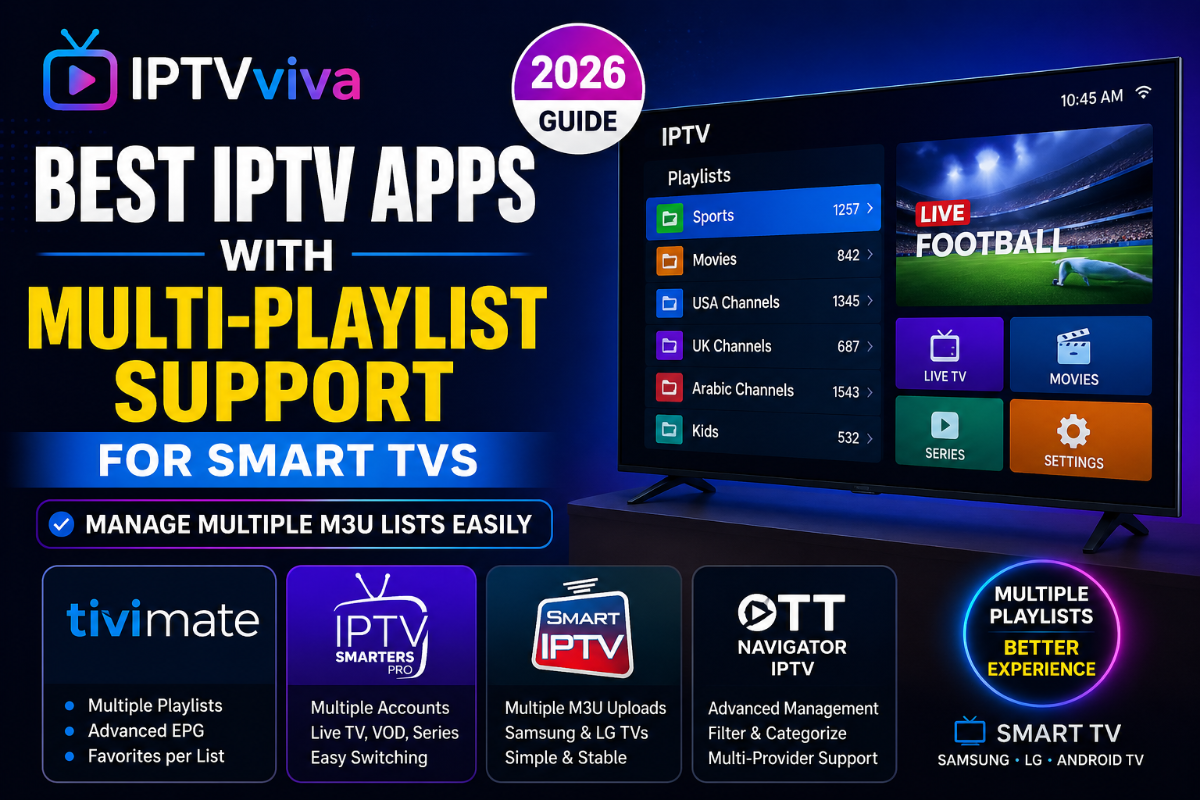
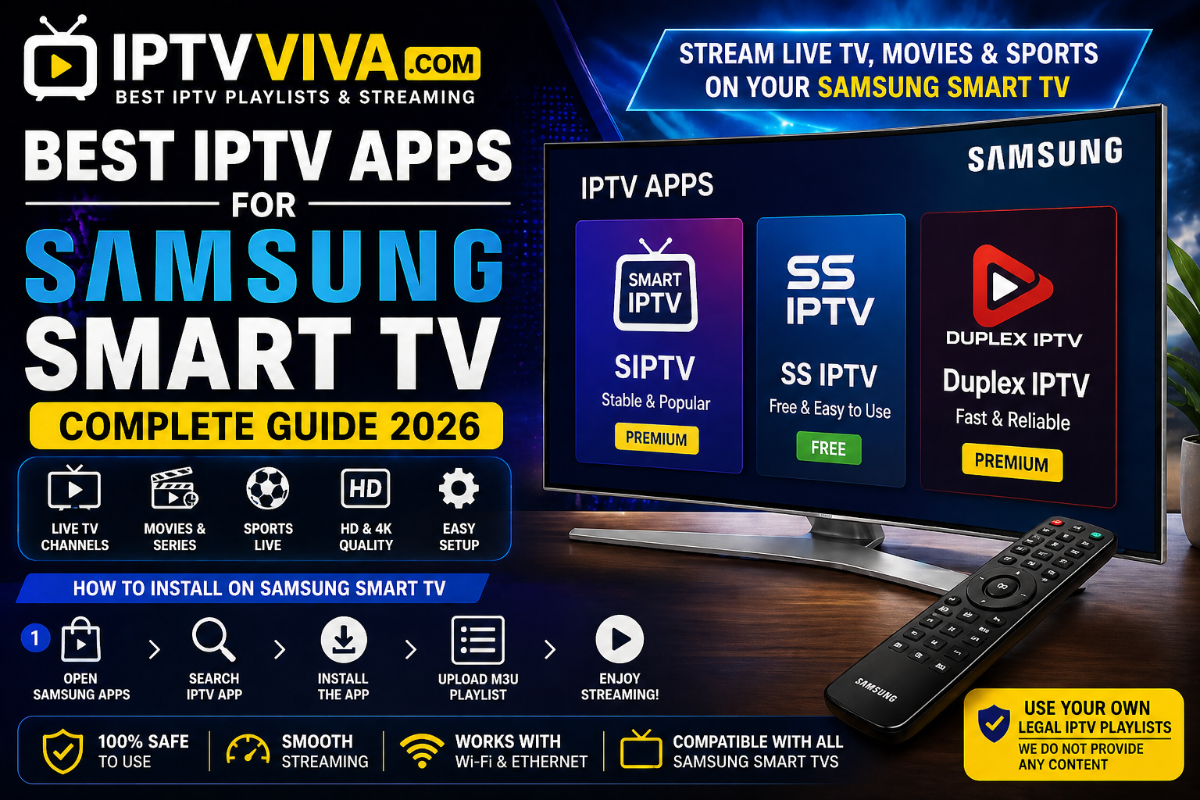
Best IPTV Apps for Samsung & LG Smart TV (2026) Smart TVs from Samsung and LG have become incredibly powerful over the years, offering built-in streaming capabilities that eliminate the need for external devices. However, when it comes to IPTV, things work a bit differently compared to Android-based systems. Unlike Android TV or Fire Stick, Samsung (Tizen OS) and LG (webOS) have more limited app ecosystems. This means not every IPTV app is available — and choosing the right one becomes even more important. If you install the wrong app, you may face limitations such as poor navigation, lack of playlist support, or missing features like EPG. In this guide, we’ll explore the best IPTV apps for Samsung and LG Smart TVs in 2026, focusing on performance, compatibility, and real-world usability. Why IPTV Apps Are Different on Smart TVs One of the biggest misconceptions is that IPTV works the same across all devices. In reality, Smart TVs have restrictions that affect how IPTV apps function. For example: You cannot easily sideload apps like on Android App stores are more limited Some advanced features may be missing Because of this, choosing a well-optimized app is critical for a smooth experience. What to Look for in an IPTV App (Smart TV) Before installing any app, consider the following: Support for M3U playlists Clean interface for remote navigation EPG compatibility Stability and performance Regular updates Apps that meet these criteria will provide a much better user experience. 1. Smart IPTV (SIPTV) Smart IPTV is one of the oldest and most widely used IPTV apps for Smart TVs. Key Features: Supports M3U playlists Works on both Samsung and LG Simple setup process Stable performance Real-world insight: Although the interface looks basic, the app is very reliable once configured correctly. 2. SS IPTV SS IPTV is a free alternative that works well on many Smart TVs. Highlights: Easy to use Supports external playlists Customizable interface No subscription required It’s a good option if you want something simple and free. 3. Net IPTV Net IPTV offers a clean interface and smooth performance. Features: Fast playlist loading Works on Samsung and LG Supports multiple playlists This app strikes a balance between simplicity and functionality. 4. Duplex IPTV Duplex IPTV has gained popularity due to its modern interface. Why users like it: Clean and modern UI Easy playlist management Good performance It feels more polished compared to older apps. 5. Flix IPTV Flix IPTV is another strong option with a user-friendly design. Key advantages: Smooth navigation Subtitle support EPG integration Easy setup It’s particularly good for users who want a visually appealing interface. Real Experience Insight After testing IPTV apps on Smart TVs, one thing becomes clear: performance depends heavily on how well the app is optimized for the TV system. Apps like Duplex and Flix IPTV stand out because they feel modern and responsive, while older apps focus more on stability than design. How to Install IPTV Apps on Samsung & LG Installing IPTV apps is straightforward: Open your TV app store Search for the app (e.g., Smart IPTV, SS IPTV) Install and launch After installation: Upload your playlist via the app’s website Restart the app Channels will load automatically Common Issues and How to Fix Them Some users may encounter problems such as: Playlist not loading Missing channels App freezing Solutions: Check your playlist URL Restart your TV Clear app cache (if possible) Ensure internet stability If your IPTV is buffering on Smart TV, check your detailed guide on fixing IPTV buffering on IPTVviva. Also, refer to your M3U setup guide to ensure your playlist is configured correctly. Using IPTV on Samsung and LG Smart TVs can be a great experience — if you choose the right app. While the ecosystem is more limited, there are still several solid options that provide smooth and reliable streaming. Take the time to test different apps and find the one that fits your needs best. FAQ What is the best IPTV app for Samsung Smart TV? Smart IPTV and Duplex IPTV are among the best options. Can I install any IPTV app on LG TV? No. You are limited to apps available in the LG store. Are IPTV apps free on Smart TV? Some are free, while others require a one-time activation fee. Do Smart TVs support M3U playlists? Yes, most IPTV apps on Smart TVs support M3U. Is Smart TV good for IPTV? Yes, but it has more limitations compared to Android devices.
-
How to Setup IPTV with M3U Playlist (Step-by-Step Guide 2026) If you're getting started with IPTV, one of the first things you'll hear about is the “M3U playlist.” At first glance, it sounds technical, maybe even complicated. But in reality, setting up IPTV with an M3U playlist is much easier than most people expect. In fact, once you’ve done it once, the entire process becomes second nature. This guide is designed to walk you through everything step by step — from understanding what an M3U playlist is to fully configuring your IPTV app for smooth streaming. Whether you're using an Android phone, a Smart TV, or a Fire Stick, the steps remain very similar. What is an M3U Playlist? An M3U playlist is essentially a file or a URL that contains a list of streaming channels. It doesn’t host content itself. Instead, it acts as a directory that tells your IPTV app where to find and load streams. Most users receive their playlist in one of two formats: A direct URL (most common) A downloadable .m3u file Once you add this playlist to your IPTV app, it automatically loads channels, categories, and sometimes even program guides. What You Need Before Setup Before starting, make sure you have everything ready. This will save you time and avoid common issues. You’ll need: A stable internet connection (preferably 15 Mbps or higher) A valid M3U playlist (URL or file) An IPTV player installed on your device If you're not sure which app to choose, it’s worth checking your other guides (like IPTV apps comparisons on your forum) to pick a reliable one. Step 1: Install a Compatible IPTV Player The first step is choosing and installing an IPTV app. There are many options available, but not all are equal in performance. Popular and reliable choices include: TiviMate IPTV Smarters XCIPTV OTT Navigator From experience, apps designed for TV interfaces (like TiviMate) tend to provide a smoother navigation experience. Step 2: Open the App and Add Playlist Once the app is installed: Launch the application Look for options like “Add Playlist” or “Add User” Select M3U Playlist Some apps may show multiple login options — make sure you choose the correct one. Step 3: Enter Your M3U Playlist Details Now comes the most important step. You’ll be asked to: Enter a playlist name (anything you want) Paste your M3U URL Make sure: There are no extra spaces The URL is complete and valid Even a small mistake here can prevent the playlist from loading. Step 4: Wait for Channels to Load After confirming your details, the app will start processing the playlist. Depending on the size: Small playlists load quickly Larger ones may take up to a minute Once finished, you’ll see: Channel categories Live TV lists Sometimes VOD sections Step 5: Add EPG (Optional but Recommended) EPG (Electronic Program Guide) improves your experience by showing schedules and program info. If your provider gives an EPG link: Go to settings Add the EPG URL Sync it with your playlist This step isn’t mandatory, but it makes navigation much easier. Step 6: Optimize Settings for Best Performance Many users skip this step, but it can make a big difference. Inside your app settings: Increase buffer size slightly Enable hardware acceleration Try an external player if needed From real-world testing, these tweaks can reduce buffering significantly. Real Experience Tip (Important) A common mistake is assuming the setup is the problem. In reality, most issues come from: Expired or incorrect playlist links Weak internet connection Overloaded servers Before troubleshooting deeply, always double-check these basics. Common Mistakes to Avoid Here are the most frequent issues beginners face: Copying the playlist incorrectly Using an unsupported IPTV app Ignoring app settings Not updating the app Avoiding these mistakes will save you a lot of time. If you experience buffering after setup, make sure to check your detailed guide on fixing IPTV buffering on IPTVviva. You can also explore your articles about IPTV apps to choose the best player for your setup. Frequently Asked Questions (FAQ) What is the difference between M3U and Xtream Codes? M3U uses a URL or file, while Xtream Codes requires login credentials (username, password, server). Why is my IPTV playlist not loading? This usually happens due to: Invalid or expired URL Internet issues Server problems Can I use one playlist on multiple devices? Yes, but some providers limit simultaneous connections. Is IPTV setup difficult for beginners? Not at all. Once you follow the steps once, it becomes very easy. Do I need a special device for IPTV? No. IPTV works on Android phones, Smart TVs, Fire Stick, and more. Setting up IPTV with an M3U playlist might seem technical at first, but in practice, it’s a straightforward process. Once everything is configured correctly, you’ll have access to a flexible and customizable streaming experience. The key is to take your time during setup, double-check your inputs, and optimize your app settings. With that in place, IPTV becomes smooth, reliable, and easy to use.
-
How to Fix IPTV Buffering (Ultimate Guide 2026) Buffering is easily one of the most frustrating problems IPTV users face. Everything seems fine — you open your app, select a channel, and just when things get interesting, the stream pauses, loads, and interrupts your experience. If you’ve been dealing with IPTV buffering, freezing, or random lag, you’re not alone. More importantly, you’re not stuck with it. Most buffering issues come from a handful of common causes, and once you understand them, fixing the problem becomes much easier. This guide breaks everything down in a practical, real-world way. No complicated jargon — just clear steps that actually work. Why IPTV Buffering Happens Before jumping into fixes, it’s important to understand what’s behind the problem. IPTV streaming depends on several elements working together smoothly. If one of them struggles, buffering starts to appear. The most common causes include: Internet speed that fluctuates or drops Network congestion during peak hours IPTV server limitations Inefficient app settings Device performance issues Sometimes users assume their internet is the only issue, but in reality, buffering is often a mix of multiple small factors. Check Your Internet Connection Your internet connection is the backbone of IPTV streaming. Even the best app or device won’t perform well if the connection is unstable. As a general rule: Standard Definition (SD): at least 5 Mbps High Definition (HD): around 15–25 Mbps 4K streaming: 30 Mbps or higher But speed alone isn’t everything. Stability matters just as much. A connection that constantly drops or fluctuates will cause buffering even if the speed looks good on paper. Practical tip: If you’re using Wi-Fi, try moving closer to your router or switching to a wired Ethernet connection. Many users notice an immediate improvement just from this change. Restart Your Router (Simple but Effective) It may sound basic, but restarting your router can solve more problems than expected. Over time, routers accumulate temporary data, which can slow down performance. A quick restart refreshes your network and clears minor issues. Steps: Turn off your router Wait about 30 seconds Turn it back on This is often the fastest way to fix random buffering spikes. Optimize IPTV App Settings Most IPTV apps include settings that directly affect performance, yet many users never touch them. Here are a few important ones to adjust: Buffer size: Increasing it slightly can reduce interruptions Decoder settings: Try switching hardware acceleration on or off Playback mode: Some apps allow switching between different players These small adjustments can make a surprisingly big difference, especially on mid-range devices. Try an External Media Player Not all built-in players are optimized for every stream. That’s where external players come in. Popular options include: VLC Media Player MX Player These players are designed to handle a wide range of formats and often provide smoother playback. If your IPTV app allows external player integration, it’s definitely worth testing. Understand Peak Hour Congestion If your IPTV works fine during the day but buffers heavily at night, the issue may not be your setup at all. During peak hours: More users are online Servers handle higher traffic Networks become congested This leads to slower streaming and more buffering. Quick test: Try watching the same channel early in the morning or late at night. If the performance improves, congestion is likely the cause. Clear Cache and Free Up Resources Over time, IPTV apps store temporary files (cache). While this helps with loading speed, too much cached data can slow things down. To clear cache on Android: Go to Settings Open Apps Select your IPTV app Tap “Clear Cache” This simple step can improve responsiveness and reduce freezing. Check Your Device Performance Your device plays a bigger role than many people realize. If you’re using: An older Android TV box A device with low RAM Outdated firmware You may experience: Slow loading times Frequent buffering App crashes Upgrading to a more powerful device can dramatically improve your IPTV experience. Test with Another Network One of the easiest ways to diagnose the issue is to switch networks. Try: Mobile data (4G or 5G) A different Wi-Fi connection If buffering disappears, your original network is likely the problem. Keep Everything Updated Updates are often overlooked, but they matter. Developers regularly release updates to: Fix bugs Improve compatibility Optimize performance Using outdated versions of apps or firmware can lead to unnecessary buffering issues. Why does IPTV buffering happen mostly at night? In many cases, buffering becomes worse during peak hours because more users are connected to the same servers. This increases network congestion and can slow down streaming performance. Can a VPN fix IPTV buffering? A VPN can sometimes improve performance if your ISP is throttling streaming traffic. However, in other cases, it may slow down your connection depending on the server used. Does internet speed affect IPTV quality? Yes, but stability matters just as much as speed. Even a fast connection can cause buffering if it frequently drops or fluctuates. Is buffering caused by the IPTV app or the provider? It can be both. Some apps are not optimized, while some servers may be overloaded. Testing different apps and sources can help identify the issue. What is the best way to reduce buffering quickly? From real-world testing, switching from Wi-Fi to Ethernet and using an external player like VLC often provides immediate improvement. You can also improve your IPTV experience by choosing the right application. Check our detailed guides on the best IPTV apps and player reviews available on IPTVviva to optimize performance further. Final Thoughts IPTV buffering can be frustrating, but it’s rarely permanent. With the right adjustments, most streaming issues can be reduced or eliminated entirely. The goal isn’t just to stop buffering — it’s to create a smooth, consistent viewing experience. Once everything is properly set up, IPTV becomes far more enjoyable and reliable.
-
UHF Player Review 2026: The Most Underrated IPTV App for Fire Stick? When discussing IPTV apps, most users immediately think of big names like TiviMate or IPTV Smarters. However, there’s a lesser-known player that’s quietly gaining attention in 2026: UHF Player. In this in-depth review, we’ll test its performance, features, and real-world usability to determine whether UHF Player is a hidden gem or just another average IPTV app. What is UHF Player? UHF Player is a modern IPTV application designed primarily for: Android TV Amazon Fire Stick Android boxes It supports M3U playlists and Xtream Codes API, making it compatible with most IPTV providers. User Interface & First Impression One of the first things you’ll notice is the clean and minimal interface. ✔ Simple layout ✔ Fast navigation ✔ Optimized for remote control Unlike cluttered apps, UHF Player focuses on speed and usability rather than heavy visuals. First impression: Lightweight and efficient. Real Performance Test (Fire Stick 4K) We tested UHF Player on a Fire Stick 4K with a stable IPTV provider. Channel Loading Average time: 2–3 seconds Slight delay compared to TiviMate Playback Stability Very stable on HD streams Occasional buffering on 4K (depends on provider) App Speed Smooth navigation No crashes during testing Performance Rating: 8 / 10 EPG & Channel Experience EPG support is decent but not perfect: ✔ Loads correctly ✔ Basic layout ✔ Easy navigation Not as advanced as TiviMate Limited customization Key Features ✔ Lightweight Performance Runs smoothly on low-end devices Low RAM usage ✔ External Player Support Works perfectly with: VLC MX Player ✔ Multi-Playlist Support Manage multiple IPTV subscriptions Easy switching Advanced Settings UHF Player offers a few optimization options: Buffer size adjustment Playback settings Stream format control Useful for improving performance on weak devices. Downsides Limited customization Basic UI compared to competitors No advanced features like DVR EPG system is simple UHF Player vs Other IPTV Apps UHF vs TiviMate TiviMate → More advanced UHF → Lighter & faster UHF vs IPTV Smarters Smarters → More features UHF → Better performance on weak devices UHF vs Perfect Player Perfect Player → More minimal UHF → Better modern UI Who Should Use UHF Player? ✔ Users with low-end devices ✔ Fire Stick Lite users ✔ People who want simplicity Not ideal for: Advanced users Users who need DVR or recording Final Verdict UHF Player is a solid lightweight IPTV app that performs well on low-end devices. While it lacks advanced features, it delivers a stable and smooth experience. Final Rating: 8 / 10 If you’re looking for a simple, fast, and reliable IPTV player for Fire Stick or Android TV, UHF Player is definitely worth trying. It may not compete with the biggest apps in terms of features, but when it comes to performance and stability, it holds its ground. Sparkle TV Review 2026 – Features, Performance & Android TV Test XCIPTV Player Review 2026: Is It Still Worth Using on Android & Fire Stick? GSE Smart IPTV App – Powerful IPTV Player for Android & Smart Devices M3U Player (M3U & IPTV) – Full Review, Features, Pros & Cons IPTV Player (M3U & Xtream) – Simple & Powerful IPTV App for Android
-
Sparkle TV Review 2026: The Hidden IPTV App That Outperforms Bigger Names? In the crowded IPTV app market, names like TiviMate and IPTV Smarters often dominate the conversation. However, there’s one underrated app that has been quietly gaining attention among advanced users: Sparkle TV. But is Sparkle TV really a hidden gem, or just another IPTV app with limited capabilities? In this in-depth 2026 review, we’ll break down everything—features, performance, usability, and whether it can compete with the top IPTV players. What is Sparkle TV? Sparkle TV is an IPTV player designed specifically for Android TV and Google TV devices. Unlike many generic IPTV apps, Sparkle focuses on delivering a true live TV experience, similar to traditional cable interfaces. It supports: M3U playlists Xtream Codes API XMLTV EPG This makes it compatible with most IPTV providers. User Interface & Experience One of Sparkle TV’s strongest points is its clean and TV-optimized interface. ✔ Looks like a real cable TV system ✔ Smooth navigation with remote control ✔ Clear channel list and program guide Unlike cluttered IPTV apps, Sparkle TV prioritizes simplicity and usability. First Impression: Very professional and ideal for TV screens. Performance & Speed Performance is where Sparkle TV starts to stand out. Channel Switching Fast switching between channels Minimal delay even with large playlists Playback Stability Very stable with good IPTV providers Rare buffering (depends on server quality) Resource Usage Well optimized for Android TV Works smoothly on mid-range devices Slightly heavier than ultra-light apps Performance Rating: 9/10 EPG & Live TV Experience Sparkle TV shines when it comes to EPG (Electronic Program Guide). ✔ Fast loading EPG ✔ Clean grid layout ✔ Easy navigation between programs It gives a real TV-like experience, which is something many IPTV apps fail to deliver. Key Features ✔ DVR & Recording Record live TV (if supported) Schedule recordings ✔ Timeshift Pause and rewind live TV Very useful for sports and live events ✔ Multi-Source Support Combine multiple playlists Manage channel ✔ Customization Adjust layouts Control playback settings Advanced Features Sparkle TV includes some features that are usually missing in other apps: Channel grouping & filtering Favorite channels system Smooth remote control integration Advanced playback controls This makes it a strong choice for power users. Downsides Despite its strengths, Sparkle TV is not perfect: Not beginner-friendly compared to IPTV Smarters Requires setup knowledge Limited mobile support (best on TV devices) Some features are locked behind premium version Sparkle TV vs Other IPTV Apps Sparkle TV vs TiviMate TiviMate → More popular Sparkle → Better live TV feel Sparkle TV vs IPTV Smarters Smarters → Easier to use Sparkle → More advanced TV experience Sparkle TV vs OTT Navigator OTT → More customization Sparkle → Cleaner interface Who Should Use Sparkle TV? Sparkle TV is perfect for: ✔ Users who want a real TV-like experience ✔ Android TV & Google TV users ✔ Advanced IPTV users Not ideal for: Beginners Smartphone users Low-end devices Final Verdict Sparkle TV is one of the most underrated IPTV apps in 2026. While it may not be as popular as its competitors, it delivers a premium live TV experience that many apps fail to achieve. Final Rating: 9 / 10 If you're tired of basic IPTV apps and want something closer to a real television experience, Sparkle TV is definitely worth trying. It may not be the most famous app, but in terms of quality and performance, it competes with the best IPTV players available today. XCIPTV Player Review 2026: Is It Still Worth Using on Android & Fire Stick? GSE Smart IPTV App – Powerful IPTV Player for Android & Smart Devices M3U Player (M3U & IPTV) – Full Review, Features, Pros & Cons IPTV Player (M3U & Xtream) – Simple & Powerful IPTV App for Android Ibo Player Smarter IPTV Player – Fast & Modern Streaming App for Android & Smart TV
-
XCIPTV Player Review 2026: Is It Still Worth Using on Android & Fire Stick? In the ever-growing IPTV ecosystem, users are constantly searching for a reliable, fast, and feature-rich player. One app that has consistently remained in the spotlight is XCIPTV Player. But in 2026, with so many competitors on the market, is XCIPTV still worth using? In this in-depth review, we’ll break down everything you need to know: performance, features, pros & cons, and whether it’s the right IPTV app for your setup. What is XCIPTV Player? XCIPTV Player is a popular IPTV application designed for Android devices, including: Android TV Fire Stick / Fire TV Android smartphones & tablets It supports both Xtream Codes API and M3U playlists, making it compatible with most IPTV providers. User Interface & Experience One of XCIPTV’s biggest strengths is its clean and modern interface. ✔ Easy navigation ✔ Smooth transitions ✔ Well-organized categories (Live TV, VOD, Series) Unlike some IPTV apps that feel cluttered or outdated, XCIPTV offers a UI that is both user-friendly and responsive, even on mid-range devices. Verdict: Perfect for beginners and intermediate users. Performance & Speed Performance is where XCIPTV really shines—if properly configured. Channel Loading Speed Channels typically load within 1–3 seconds depending on your provider. Stability Minimal crashes Stable playback with good servers Works well with external players Resource Usage Moderate RAM usage Slightly heavier than Perfect Player Still optimized enough for Fire Stick Overall Performance Rating: 8.5/10 Key Features XCIPTV comes packed with features that enhance the IPTV experience: ✔ Built-in Media Player Supports most formats Option to switch to external players ✔ EPG (TV Guide) Support Automatic loading Clean layout ✔ Catch-Up & VOD Works if supported by provider Smooth playback experience ✔ Multi-Screen (Limited) Not as advanced as TiviMate Still useful for casual users Security & Built-in VPN One unique feature is the built-in VPN integration. Benefits: Adds an extra layer of privacy Helps bypass ISP throttling However, many advanced users still prefer external premium VPNs for better performance. Customization Options XCIPTV allows some level of personalization: Change themes Adjust player settings Enable/disable categories But compared to apps like OTT Navigator, customization remains limited. Downsides (Honest Review) No app is perfect, and XCIPTV has its flaws: Ads in free versions Limited advanced features Occasional lag on very low-end devices Multi-screen not fully optimized XCIPTV vs Other IPTV Apps XCIPTV vs TiviMate TiviMate → Better for advanced users XCIPTV → Easier for beginners XCIPTV vs IPTV Smarters Smarters → More popular XCIPTV → More stable in some cases XCIPTV vs Perfect Player Perfect Player → Lighter XCIPTV → Better UI & features Who Should Use XCIPTV? XCIPTV is ideal for: ✔ Beginners looking for simplicity ✔ Fire Stick users wanting a balanced app ✔ Users who want built-in features. Not ideal for: Power users looking for deep customization Very low-end devices Final Verdict XCIPTV Player remains a strong and reliable IPTV app in 2026, especially for users who want a balance between performance and usability. Final Rating: 8.5 / 10 GSE Smart IPTV App – Powerful IPTV Player for Android & Smart Devices M3U Player (M3U & IPTV) – Full Review, Features, Pros & Cons IPTV Player (M3U & Xtream) – Simple & Powerful IPTV App for Android Ibo Player Smarter IPTV Player – Fast & Modern Streaming App for Android & Smart TV iMPlayer TV IPTV Player – The Ultimate IPTV App for Android TV
-
Best Lightweight IPTV Apps for Android & Fire Stick (Low RAM Optimization Guide 2026) When it comes to IPTV performance, most users focus only on the provider or playlist quality. However, one critical factor is often overlooked: the IPTV app itself. On devices like Android TV boxes and Amazon Fire Stick (especially low-end models), choosing the wrong app can lead to buffering, lag, or even crashes. In this exclusive guide, we’ll explore the best lightweight IPTV apps and show you how to optimize them for smooth streaming—even on low-RAM devices. Why Lightweight IPTV Apps Matter Many Android and Fire Stick devices come with limited hardware: 1GB–2GB RAM Basic processors Limited internal storage Heavy apps can overload these systems, causing: Slow channel loading Freezing during playback Delayed EPG (TV guide) That’s why using a lightweight IPTV app is essential for stable performance. 1. TiviMate – Best Overall Performance TiviMate is widely considered the gold standard for IPTV on Android TV and Fire Stick. Key Features: Fast and responsive interface Optimized for low-resource devices Advanced EPG support Multi-playlist support Why it stands out: It offers a premium TV-like experience while remaining highly optimized. Even on mid-range devices, it runs smoothly with minimal lag. 2. Perfect Player – Ultra Lightweight Option If you’re using an older Fire Stick or a low-end Android box, Perfect Player is one of the best choices. Key Features: Extremely low resource usage Simple and clean interface Fast channel switching Best for: Devices with 1GB RAM Users who prioritize performance over visuals 3. IPTV Smarters – Balanced & Beginner-Friendly IPTV Smarters is one of the most popular IPTV apps globally. Key Features: Supports Xtream Codes & M3U playlists User-friendly interface Multi-device compatibility Things to note: While feature-rich, it can become slightly heavy if not optimized correctly. 4. OTT Navigator – Advanced Features Without Heavy Load OTT Navigator is a powerful app that offers advanced customization without sacrificing too much performance. Key Features: Recording support Advanced filtering and sorting Custom UI options Why choose it: Ideal for advanced users who want more control over their IPTV experience. Essential Optimization Tips (Pro Level) To get the best performance, apply these tweaks: 1. Reduce EPG Load Avoid loading full TV guides. Only keep channels you actually watch. 2. Use an External Player Apps like: VLC Player MX Player These reduce buffering and improve playback stability. 3. Clear Cache Regularly Over time, Fire Stick devices slow down due to cached data. Steps: Settings → Apps → Clear Cache 4. Ensure Proper Internet Speed Recommended speeds: HD Streaming: ~10 Mbps 4K Streaming: ~25 Mbps 5. Use Ethernet Instead of WiFi If possible, use a wired connection: ✔ More stable ✔ Lower latency ✔ Fewer interruptions Common Mistakes to Avoid Installing too many IPTV apps Using oversized playlists Running low-quality VPNs Not updating apps regularly These mistakes can significantly impact performance, even if your IPTV provider is excellent. how to [Fix Guide] How to Stop IPTV Buffering on Android & Fire Stick (2026) How to Install Kodi on Fire TV (Step-by-Step Guide) [Ultimate Guide] How to Install Downloader & Setup Kodi on Fire Stick (2026 Edition) ott navigator iptv [Highly Customizable] OTT Navigator IPTV: The Most Flexible Player for Android & Fire Stick televizo [Top Free Choice] Televizo IPTV Player: The Best Free Alternative for Android & Fire Stick tivimate [Ultimate Guide] How to Setup and Optimize TiviMate IPTV Player on Fire Stick (2026) IPTV App Setup Guide 2026: Install & Configure IPTV on Android, iOS, Smart TV & Firestick
-
Fixing "Black Screen" & "Data Integrity" Errors: Advanced Network Optimization for IPTV (Ultimate Guide) One of the most frustrating experiences for any IPTV user is the infamous "Black Screen" or the "Looping Playback" error. What makes this issue unique is that it often occurs even when your internet speed is well above 50 Mbps. Many users assume the provider’s server is down, but frequently, the culprit lies in how your local network handles "UDP/TCP" packets and "Hardware Decoding." In this exclusive guide for IPTVviva, we will dive deep into advanced troubleshooting steps that go beyond the basic "restart your router" advice. 1. The "User-Agent" Identification Fix Many Internet Service Providers (ISPs) use automated filters to detect and throttle IPTV traffic. If your app identifies itself as a "generic IPTV player," the ISP may drop the connection. The Fix: Go to your App Settings (e.g., TiviMate, OTT Navigator, or IPTV Smarters). Action: Find the "User-Agent" field and change it to a standard web browser string. Example String: Mozilla/5.0 (Windows NT 10.0; Win64; x64) AppleWebKit/537.36 (KHTML, like Gecko) Chrome/91.0.4472.124 Safari/537.36 Result: This masks your IPTV traffic as standard web browsing, often bypassing ISP-level blocks that cause black screens. 2. Hardware vs. Software Decoding (The Codec Conflict) IPTV streams are delivered using various codecs (H.264, H.265/HEVC). If your device (Android Box, Firestick) tries to decode a 4K stream using hardware that doesn't support that specific profile, you get a black screen with audio, or vice versa. Troubleshooting Steps: Navigate to Settings > Playback > Decoder. Switch from Hardware (HW) to Software (SW). If the stream starts working but is laggy, your device’s CPU is struggling. This confirms you need a device with better hardware support for HEVC (High-Efficiency Video Coding). Pro Tip: Always prefer "Hardware Native" for 4K streams to reduce heat and CPU throttling. 3. Solving the "MTU Size" Mismatch This is a technical fix that most forums ignore. The Maximum Transmission Unit (MTU) determines the size of the largest data packet your network can transmit. If the IPTV server sends packets larger than your router’s MTU, the packets get "fragmented," leading to constant buffering or "Connection Failed" errors. The Optimization: Most routers are set to 1500. Try lowering your router’s MTU to 1452 or 1472. This reduces fragmentation in encrypted tunnels (like when using a VPN), ensuring the video stream flows smoothly without losing data packets. 4. Bypassing DNS Hijacking Is your ISP redirecting your requests? Even if you set Google DNS (8.8.8.8) on your TV Box, some routers perform "DNS Hijacking" to force you back to the ISP’s filtered DNS. The Solution: Use DNS over HTTPS (DoH) or Private DNS. Action: If you are using an Android 9.0+ device, go to Settings > Network & Internet > Private DNS and enter 1dot1dot1dot1.cloudflare-dns.com. Why it works: This encrypts your DNS queries, making it impossible for the ISP to see which IPTV server you are trying to reach. 5. Buffer Size: The "Sweet Spot" More buffer is not always better. A massive buffer can lead to "Out of Memory" errors on older Firesticks, while zero buffer causes stuttering during minor millisecond speed drops. Recommended Settings: High-End Devices (Nvidia Shield): Set buffer to 10–15 seconds. Low-End Devices (Firestick Lite/Old Boxes): Set buffer to 2–4 seconds. Live Sports: Keep the buffer small to avoid being "behind" the live action. 6. The "Kill Search" Strategy (Background Apps) Android devices often keep background processes running (system updates, play store sync), which consume the "Socket" limit of your router. Fix: Use an app like "Background Apps and Process List" on your Firestick/Android Box to force-close everything except your IPTV player. This ensures 100% of the device's network card is dedicated to the stream. Troubleshooting IPTV is a process of elimination. By adjusting your User-Agent, optimizing your MTU, and forcing Encrypted DNS, you address the 90% of issues that are caused by the network rather than the server provider. If you have tried all the above and still face issues, please post your Log File or Device Specs below, and the IPTVviva community will help you analyze the bottleneck! IPTV Keeps Disconnecting? Fix Random Drops & Auto-Reconnect Issues (2026) IPTV Not Working on Smart TV? Fix Buffering, Freezing & Playback Issues (2026) How to Fix IPTV “Playback Error” & Stream Not Available Issues (Guide)
-
How to Build Your Own IPTV Playlist (M3U Guide 2026) Most IPTV users depend on providers… but what if you could create your own IPTV playlist (M3U) and control everything yourself? In this guide, you’ll learn how to: Build your own IPTV playlist Add channels manually Customize and optimize your streaming This is an advanced but powerful method used by pro users in 2026. What is an M3U Playlist? An M3U file is a simple text file that contains IPTV channel links. Example: #EXTM3U #EXTINF:-1,Channel Name http://example.com/live/stream.m3u8 Each channel has: Name Stream URL Optional logo & group Step 1: Create Your M3U File Open Notepad (Windows) or any text editor Paste: #EXTM3U Save the file as: playlist.m3u Step 2: Add IPTV Channels Add channels like this: #EXTINF:-1 tvg-name="Bein Sports" group-title="Sports",Bein Sports HD http://yourstreamlink.com/stream1.m3u8 You can repeat this for unlimited channels. Step 3: Add Logos & Categories Make your playlist look professional: #EXTINF:-1 tvg-logo="https://logo.png" group-title="Movies",Movie Channel http://streamlink.com/movie.m3u8 Benefits: Organized channels Better UI in IPTV apps Step 4: Use Your Playlist Now load your playlist into any app: IPTV Smarters TiviMate VLC Player Choose Load M3U File / URL and import your file. Pro Tips (Advanced) Use fast and stable links only Host your M3U online (GitHub / web hosting) Update links regularly Separate categories (Sports / Movies / News) Common Mistakes Broken stream links Wrong M3U formatting Too many channels (can slow apps) No grouping (bad user experience) Creating your own IPTV playlist gives you full control over your content. Once you master M3U, you don’t depend on any provider. Hidden IPTV Settings Nobody Talks About (Boost Performance 10x) How to Fix IPTV Buffering & Freezing Issues (Advanced Guide 2026) How to Setup IPTV with Xtream Codes Login (Ultimate Guide 2026) How to Setup IPTV on MAG Box - Step-by-Step Guide
-
Hidden IPTV Settings Nobody Talks About (Boost Performance 10x) Most IPTV users only use basic settings… but what if I told you there are hidden settings that can completely transform your streaming experience? In this guide, you’ll discover secret IPTV settings that can: Improve speed Reduce buffering Increase stability These are advanced tweaks used by experienced users in 2026. Setting #1: Change Stream Format (Very Important) Most apps allow switching between formats: HLS (HTTP Live Streaming) MPEG-TS Pro Tip: Use HLS for unstable internet Use MPEG-TS for faster streaming Setting #2: Adjust Buffer Size Hidden in most IPTV apps Small buffer → Faster start, more buffering Large buffer → Slower start, smoother playback Best setting: Medium / Large Setting #3: Hardware vs Software Decoder Hardware Decoder → Better performance Software Decoder → More compatible Always try Hardware first for smoother streaming. Setting #4: Change User Agent (Advanced Trick) This is a secret most users don’t know Some IPTV apps allow changing User-Agent. Why it matters: Access different streams Improve compatibility Reduce blocking Example: VLC/3.0.0 LibVLC Setting #5: EPG Optimization Slow EPG can affect performance. Fix it by: Limiting EPG days (2–3 days max) Using fast EPG sources Refreshing manually Setting #6: Auto Frame Rate (Smooth Playback) Enable Auto Frame Rate if available. This reduces: Lag Stutter Audio delay Bonus Trick: Multi-Connection Mode Some apps support multiple connections: Helps avoid freezing Improves stream switching Only works if your IPTV provider supports it. Common Mistakes Leaving default settings unchanged Using wrong stream format Ignoring decoder settings Overloading EPG Apply these tweaks and you’ll unlock next-level streaming performance. How to Fix IPTV Buffering & Freezing Issues (Advanced Guide 2026) How to Setup IPTV with Xtream Codes Login (Ultimate Guide 2026) How to Setup IPTV on MAG Box - Step-by-Step Guide How to Install & Set Up IPTV on Windows PC Using VLC Player (Step-by-Step)
-
How to Fix IPTV Buffering & Freezing Issues (Advanced Guide 2026) Buffering is the #1 problem IPTV users face in 2026. Even with a good subscription, many users still experience freezing, lag, or constant loading. This guide is different — instead of basic tips, you’ll learn advanced fixes that actually work and improve your IPTV performance instantly. Why IPTV Buffering Happens Before fixing it, you need to understand the causes: Slow or unstable internet connection Weak Wi-Fi signal Overloaded IPTV server Low device performance Incorrect app settings Fix #1: Optimize Your Internet Connection Use Ethernet cable instead of Wi-Fi (huge difference ) Minimum speed: 20 Mbps for HD / 50 Mbps for 4K Restart your router regularly Tip: Place your router close to your device if using Wi-Fi Fix #2: Change IPTV Player Settings Most users ignore this part In apps like IPTV Smarters / TiviMate: Change Buffer Size → Medium or Large Enable Hardware Decoder Disable unnecessary animations These settings alone can reduce buffering by 50% Fix #3: Use a VPN (Smart Way) Sometimes ISPs throttle IPTV traffic. A VPN can: Improve speed Unlock better servers Reduce lag Choose a fast VPN server near your country (important!) Fix #4: Switch Server or Playlist Not all IPTV servers are equal. Ask your provider for alternative server URLs Try another M3U link Use backup servers if available Fix #5: Improve Device Performance Close background apps Clear app cache Restart your device Use a dedicated streaming device (Android TV / Firestick) Pro Trick (Most People Don’t Know) Use a different DNS server like: Google DNS: 8.8.8.8 Cloudflare: 1.1.1.1 This can significantly reduce buffering in some regions. Common Mistakes to Avoid Using cheap/free IPTV providers Streaming over weak Wi-Fi Ignoring app updates Using overloaded playlists IPTV buffering is not always about your internet — it's usually a mix of settings, server quality, and device performance. Apply these advanced fixes and you’ll notice a huge improvement immediately. How to Setup IPTV with Xtream Codes Login (Ultimate Guide 2026) How to Setup IPTV on MAG Box - Step-by-Step Guide How to Install & Set Up IPTV on Windows PC Using VLC Player (Step-by-Step) By IPTVviva, April 24
-
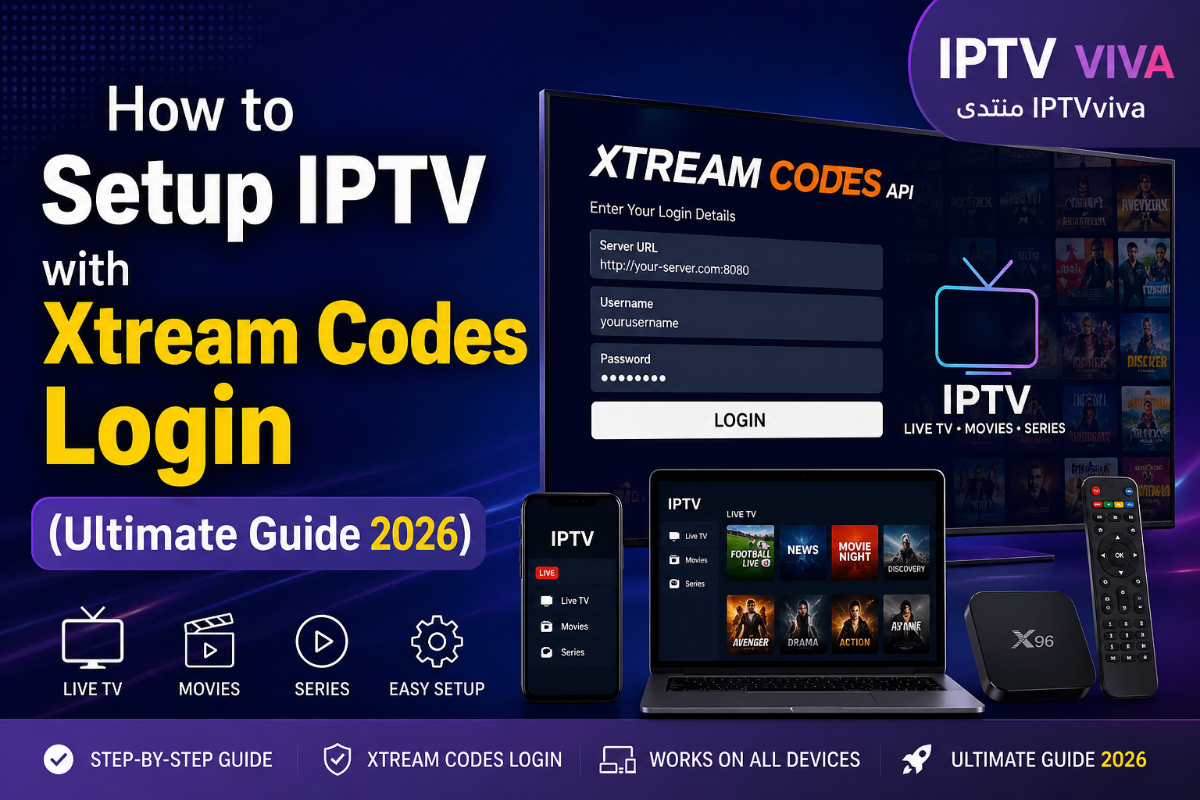
How to Setup IPTV with Xtream Codes Login (Ultimate Guide 2026) Setting up IPTV doesn’t have to be complicated. While many users still use M3U playlists, the Xtream Codes API login is now the easiest and most efficient method. It provides a faster login process, better organization (Live TV, Movies, Series), and fewer errors. In this guide, you’ll learn how to fully configure IPTV using Xtream Codes on any device. What is Xtream Codes Login? Xtream Codes is a system used by IPTV providers that allows users to log in using: Username Password Server URL Unlike M3U playlists, this method automatically organizes your content and improves performance. Supported IPTV Apps Most modern IPTV apps support Xtream Codes, including: IPTV Smarters Pro TiviMate XCIPTV Player Flix IPTV Step-by-Step Setup Guide Install the App Download your preferred IPTV player from the official store or website. Open the App Launch the app and select: Login with Xtream Codes API Enter Your Details Fill in the required information: Username Password Server URL (example: http://example.com:8080) Make sure there are no typos Load Content After login, the app will automatically load: Live TV channels Movies (VOD) TV Series This usually takes a few seconds Pro Tips for Best Performance Use a stable internet connection (15 Mbps recommended) Prefer Ethernet over Wi-Fi when possible Keep your IPTV app updated Use a VPN if your ISP blocks IPTV services Troubleshooting Login failed → Double-check your credentials Channels not loading → Restart the app or refresh Buffering issues → Change server / use VPN If you want a smooth and reliable IPTV experience, Xtream Codes login is the best option. It simplifies setup, reduces errors, and improves overall performance. Related IPTV Setup Guides (Boost Your Experience) To fully optimize your IPTV setup, check these tutorials: How to Install & Set Up IPTV Smarters Pro on iPhone & iPad (iOS Guide) How to Install and Set Up IPTV Smarters Pro on Android (Guide) How to Install and Configure IPTV Apps on Any Device (Beginner Guide) How to Set Up IPTV on Any Device (2026 Guide) – Firestick, Android TV & Smart TV These guides will help you improve compatibility, performance, and user experience across all devices.
-
World Cup 2026 – Match 3: Canada vs Bosnia & Herzegovina | Date, Time & TV Channels The third match of the FIFA World Cup 2026 kicks off on the second day of the tournament, featuring host nation Canada against Bosnia & Herzegovina in an exciting Group B clash. Match Details Match: Canada vs Bosnia & Herzegovina Competition: FIFA World Cup 2026 – Group B Date: June 12, 2026 Kick-off: 3:00 PM (ET) Venue: BMO Field, Toronto This is officially Match 3 of the tournament, played the day after the opening games. TV Channels & Broadcast Watch the match live on: FOX Sports BBC / ITV beIN Sports (MENA) IPTV (M3U / Xtream Codes) On IPTV, check: Sports sections World Cup channels HD / 4K streams Match Preview Canada will have strong home support in Toronto Bosnia brings tactical discipline and experience A key match for early qualification momentum This is one of the most important matches for Group B standings. Tournament Context Tournament runs from June 11 to July 19, 2026 Hosted across USA, Canada & Mexico Features 48 teams and 104 matches Discussion Can Canada win at home? Will Bosnia control the midfield? Who scores first? Share your prediction below!
-
World Cup 2026 – Match 2: South Korea vs Czechia | Date, Time & TV Channels The second match of the FIFA World Cup 2026 takes place right after the opening game and promises an exciting clash between two competitive teams. Match Details Match: South Korea vs Czechia Competition: FIFA World Cup 2026 – Group Stage Date: June 11, 2026 Kick-off: 10:00 PM (ET) Venue: Guadalajara Stadium, Mexico This is the second match of the tournament, played on the same day as the opening match. TV Channels & Broadcast Depending on your region, the match will be available on: FOX Sports / FS1 BBC / ITV beIN Sports (MENA) IPTV Providers (M3U / Xtream Codes) Most IPTV services will include this match in: Sports categories World Cup channels 4K / HD live streams What to Expect South Korea brings speed and technical play Czechia offers strong physical and tactical football Early group-stage points are crucial This match could already impact qualification chances in the group. Tournament Context World Cup 2026 starts on June 11, 2026 Hosted across USA, Canada & Mexico Features 48 teams and 104 matches Discussion Who will win this match? Can South Korea dominate possession? Will Czechia surprise everyone? Share your predictions below!
-
IPTV Keeps Disconnecting? Fix Random Drops & Auto-Reconnect Issues (2026 Guide) IPTV randomly disconnecting can ruin your streaming experience—especially when it happens during live matches or movies. This issue is more common than you think, and it’s usually caused by network instability, app settings, or server limitations. In this guide, we’ll show you how to fix IPTV disconnection issues on Smart TVs, Android TV, and IPTV apps. Why IPTV Keeps Disconnecting Before fixing the issue, it’s important to understand the common causes: Unstable internet connection Weak Wi-Fi signal IPTV server limits (1 connection only) App timeout settings ISP interruptions or throttling Fix IPTV Random Disconnections 1. Check Your Internet Stability Use a stable connection (Ethernet recommended) Restart your router Avoid using IPTV on overloaded networks 2. Improve Wi-Fi Signal Move your router closer to your TV Avoid walls or interference Use a Wi-Fi extender if needed 3. Avoid Multiple Connections Many IPTV providers allow only 1 active connection Disconnect other devices using the same account Ask your provider if multi-connection is supported 4. Adjust App Settings Disable battery optimization (on Android TV) Increase buffer size in IPTV app settings Enable auto-reconnect if available 5. Use a VPN (If Needed) Fix ISP throttling issues Improve connection stability Choose a fast nearby server 6. Change IPTV App Sometimes the issue is the app itself: Try another IPTV player Update or reinstall your current app Use a more stable app like TiviMate or IPTV Smarters Random IPTV disconnections are usually easy to fix once you identify the cause. By improving your connection, adjusting settings, and using the right app, you can enjoy a smooth and stable IPTV experience without interruptions.
-
IPTV Not Working on Smart TV? Fix Buffering, Freezing & Playback Issues (2026 Guide) IPTV issues on Smart TVs can be frustrating, especially when you’re dealing with buffering, freezing, or login errors. The good news is that most of these problems are easy to fix once you identify the cause. This guide covers the most common IPTV problems and how to fix them quickly on Samsung, LG, and Android TVs. 1. IPTV Buffering or Lagging Buffering is the most common IPTV issue and is usually related to internet speed or server quality. Fixes: Check your internet speed (minimum 15–25 Mbps recommended for HD) Use a wired Ethernet connection instead of Wi-Fi Restart your router and Smart TV Try a different IPTV server or playlist Use a VPN if your ISP is throttling IPTV traffic 2. IPTV Freezing or Stuttering If your stream pauses or freezes randomly, it may be due to unstable connections or overloaded apps. Fixes: Clear cache of your IPTV app Close background apps Lower stream quality (from 4K to HD or SD) Update your IPTV app to the latest version 3. Login Errors (Xtream Codes / M3U Not Working) Sometimes IPTV apps fail to connect due to incorrect credentials or server issues. Fixes: Double-check username, password, and server URL Ensure your subscription is still active Try logging in on another app Contact your IPTV provider if the server is down 4. Channels Not Loading or Black Screen If channels don’t open or show a black screen, it’s often a playlist or codec issue. Fixes: Refresh or reload your playlist Update the M3U link from your provider Try an external player (like VLC or MX Player) Check if the channel is offline 5. App Crashing or Not Opening Some IPTV apps may crash due to outdated software or compatibility issues. Fixes: Reinstall the IPTV app Update your Smart TV firmware Use a different IPTV app Ensure your TV has enough storage space 6. IPTV Not Working Without VPN In some regions, ISPs block or slow down IPTV services. Fixes: Use a reliable VPN service Connect to a nearby server for better speed Avoid free VPNs (they are often slow and unstable) Most IPTV problems are not caused by the app itself, but by internet issues, server quality, or incorrect setup. By following the fixes above, you can quickly restore your IPTV experience and enjoy smooth streaming on your Smart TV.
-
Best IPTV Apps with Multi-Playlist Support for Smart TVs (Guide) Managing multiple IPTV subscriptions on a Smart TV can be frustrating if your app doesn’t support multi-playlists. Fortunately, several IPTV apps are built to handle multiple M3U lists efficiently, giving you a more organized and seamless viewing experience. Why Multi-Playlist Support Matters If you use more than one IPTV provider, multi-playlist support becomes essential: Organize channels by country, category, or provider Switch between servers instantly Avoid mixing channels from different subscriptions Improve navigation and overall user experience Top IPTV Apps with Multi-Playlist Support 1. TiviMate (Android TV) Supports multiple playlists with ease Advanced EPG per playlist Favorites for each list Smooth interface optimized for TV remotes Best for: Android TV users who want full control 2. IPTV Smarters Pro Supports multiple Xtream Codes accounts Clean and user-friendly interface Includes Live TV, VOD, and Series Easy switching between accounts Best for: Users with multiple IPTV subscriptions 3. Smart IPTV (SIPTV) Allows multiple M3U uploads Compatible with Samsung and LG Smart TVs Stable and simple interface Best for: Non-Android Smart TVs 4. OTT Navigator IPTV Advanced playlist management tools Channel filtering and grouping Multi-provider support Best for: Advanced IPTV users Tips for Managing Multiple Playlists Name each playlist clearly (e.g., Sports, Movies, Europe) Keep playlists updated to avoid broken streams Use EPG for each playlist to improve navigation Avoid loading too many playlists at once to maintain performance Choosing an IPTV app with multi-playlist support can significantly improve your Smart TV experience. It allows better organization, faster navigation, and full control over your IPTV content.
- 1 reply
-
- 2
-

-
Best IPTV Apps for Samsung Smart TV – Complete Guide 2026 Looking for the best IPTV apps for Samsung Smart TV? Samsung TVs run on Tizen OS, which supports several IPTV apps that allow you to stream live TV, movies, and sports using M3U playlists or Xtream Codes. In this guide, you’ll discover the top IPTV apps for Samsung Smart TVs, how to install them, and which one is best for your needs. Best IPTV Apps for Samsung Smart TV Smart IPTV (SIPTV) ✔ One of the most popular IPTV apps for Samsung ✔ Supports M3U playlists ✔ Easy setup via web portal Requires one-time activation fee Best for: Simple and stable IPTV streaming SS IPTV ✔ Completely free ✔ Available directly on Samsung App Store ✔ Supports external playlists ✔ Cloud playlist management Best for: Free IPTV solution Duplex IPTV ✔ Modern and user-friendly interface ✔ Fast channel loading ✔ Supports multiple playlists Paid activation required Best for: Premium experience on Samsung TV How to Install IPTV Apps on Samsung Smart TV Open Samsung Smart Hub Go to Apps Search for: SS IPTV Duplex IPTV Install the app Open the app and note your device ID Upload your M3U playlist via the app website Restart the app and enjoy Tips for Better Performance ✔ Use a stable internet connection (20 Mbps+) ✔ Prefer wired (Ethernet) over Wi-Fi ✔ Use updated playlists ✔ Avoid overloaded/free servers Disclaimer These apps do not provide any content. Users must use legal IPTV playlists only.
-
How to Setup IPTV on MAG Box - Step-by-Step Guide MAG Box is one of the most popular IPTV set-top boxes, widely used for stable live TV streaming. Devices like MAG 250, MAG 254, MAG 322, and MAG 524 are known for their simplicity and strong performance. In this guide, you will learn how to set up IPTV on your MAG Box step by step. What You Need Before Setup Before starting, make sure you have: A MAG Box device connected to your TV Stable internet connection (Ethernet recommended) IPTV subscription with Portal URL from your provider Step 1: When the box is being loaded, the main portal screen appears. Click on “Settings” and then press the remote button “SETUP/SET”. Step 2: Next, press on “System settings” and click on “Servers”. Step 3: Select “Portals”. Step 4: In the “Portal 1 name” line, enter “IPTV“. In the “Portal 1 URL” field, enter the portal address provided by your IPTV distributor. You will need to provide your device’s MAC address, which can be found on the back of your box, to your IPTV distributor. Step 5: Once you have completed all the steps above, press “OK”. When the settings are saved, click “EXIT” on the remote control and select the option “General”. In the “NTP server” line, enter either “pool.ntp.org” or “us.pool.ntp.org” for North America. Press “OK” to save the changes. After completing all the steps, press “EXIT” twice on the remote control and restart the portal. Now you are ready to start watching Live TV. Password for adult content Please note that the password for adult content on MAG is typically 0000 unless it has been manually changed by the user. MAG Box is one of the most reliable IPTV devices for users who want a simple plug-and-play experience. Once the portal is configured, everything runs smoothly without complex setup. Setting up IPTV on MAG Box is very easy if you have the correct portal URL. Follow the steps above and you’ll have a fully working IPTV system in minutes.
in2026.png.20d49dbccad65c7e01e7600789912c38.png)
.png.334cd84c301746485965c450f2ff838e.png)
.png.636d347e3cd0456b5a39a5a167d6c2cb.png)
.png.98eebbe219fc7b24f08ad0a95e19366c.png)
.png.6af2f55e5c20fc033bd9e9e1ac26e580.png)
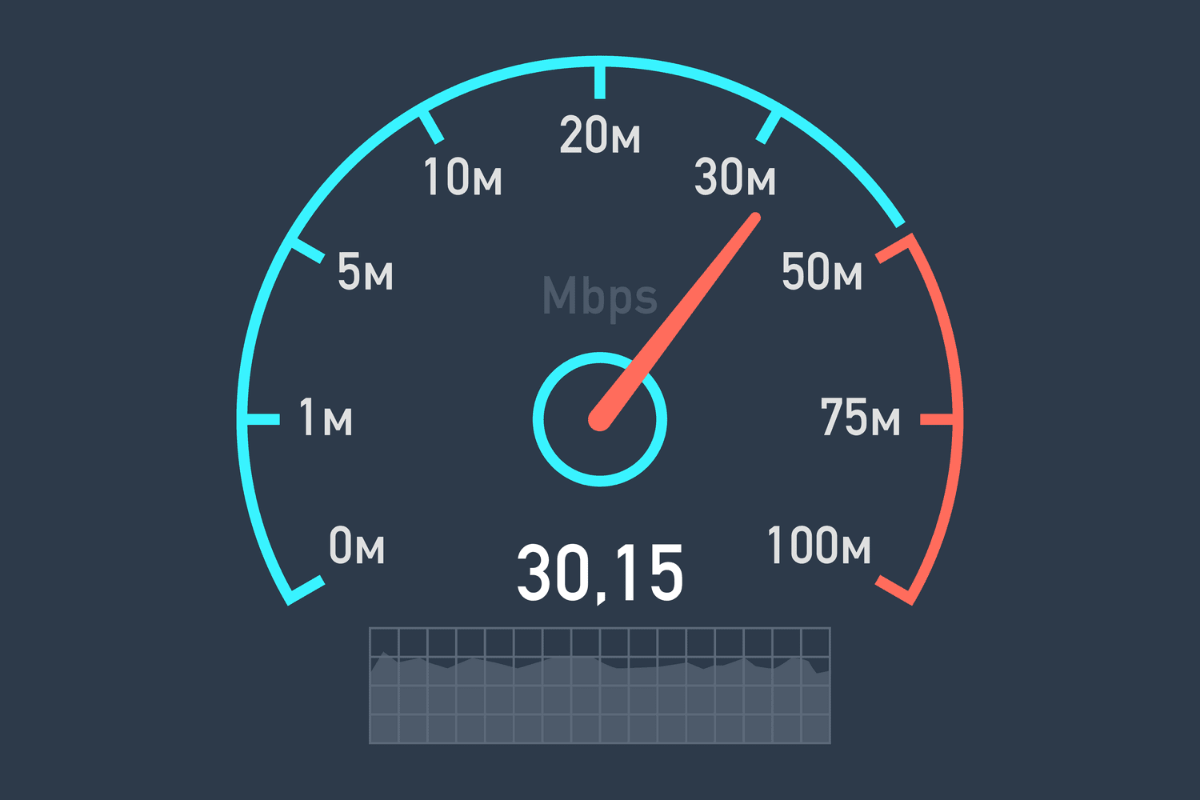
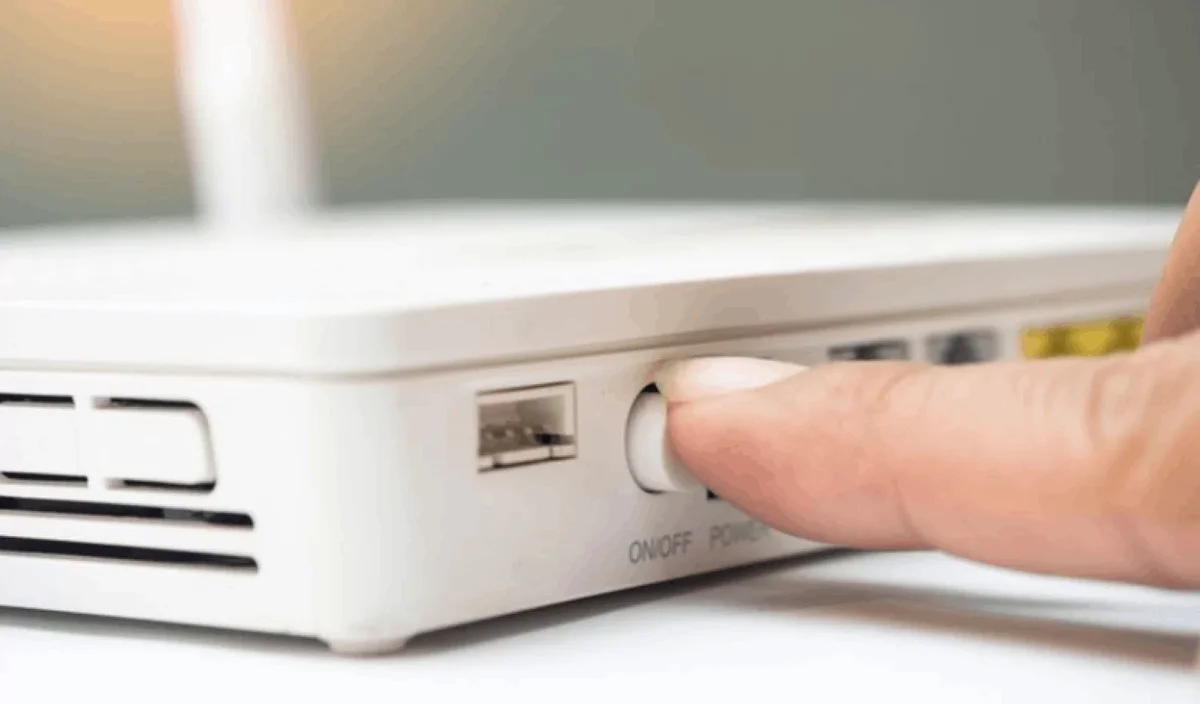

.png.e5200a5adb10b3c50c0b9a20daa3f24d.png)
.png.43547a70e9e29b57daabbc40590c1703.png)
.png.d5a0b0c16f67686a0546b7e234f44e25.png)
.png.7921f56c3fa57b54c031e5419ccdbf5a.png)
.png.3e0dc5995627298313c899a3bcbd0313.png)