Jump to content




IPTVviva
-
Posts
127 -
Joined
-
Last visited
-
Days Won
8
Everything posted by IPTVviva
-
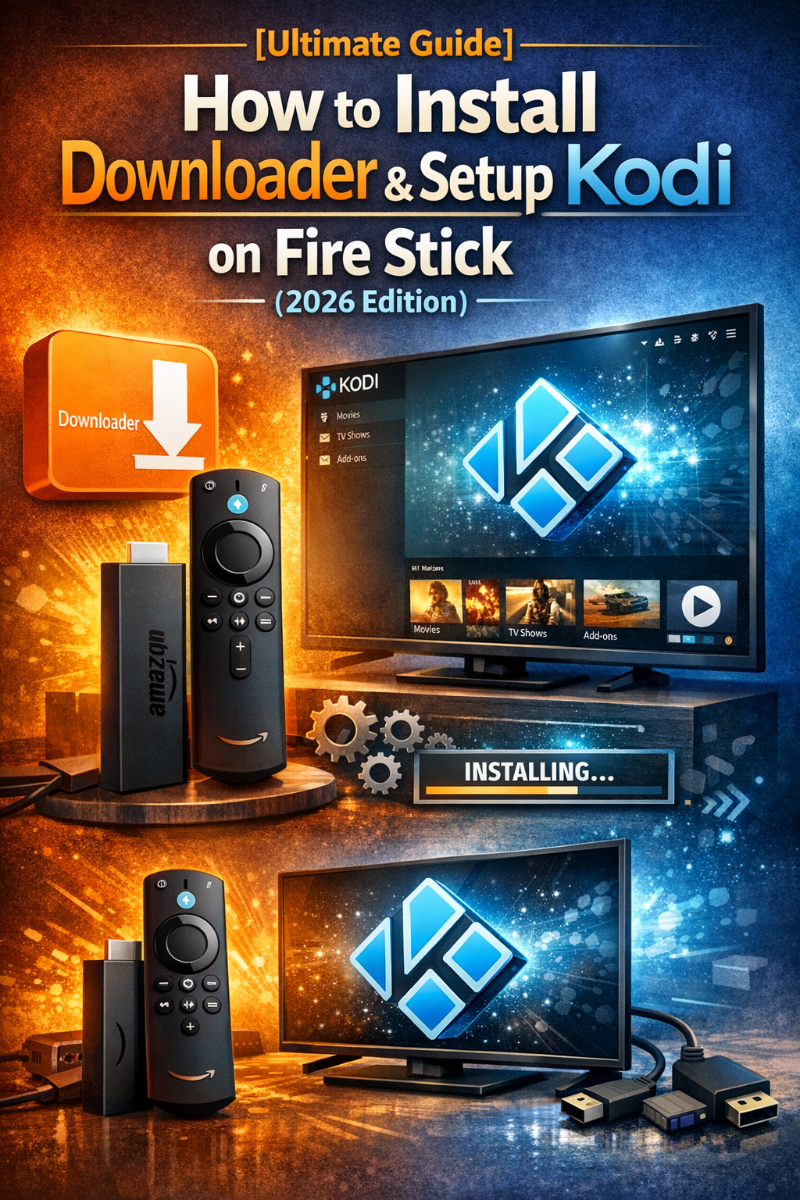
 How to Install Kodi on Fire TV (Step-by-Step Guide) Kodi is one of the most powerful open-source media players that allows you to stream movies, TV shows, live TV, and IPTV content. Installing Kodi on Amazon Fire TV / Firestick gives you access to a full entertainment center directly on your TV. What You Need Before Installation Before installing Kodi, make sure: Your Fire TV is connected to the internet You have an Amazon Fire TV Stick or Fire TV device You allow installation from unknown sources Step 1: Enable Unknown Apps Go to Settings on Fire TV Open My Fire TV Click Developer Options Enable: Apps from Unknown Sources → ON ADB Debugging → ON (optional) Step 2: Install Downloader App Go to Fire TV home screen Search for Downloader Install the app from Amazon Store Open Downloader and allow permissions Step 3: Download Kodi APK Open Downloader app Enter the official Kodi download URL: https://kodi.tv/download Select Android version (ARMV7A) Download the APK file Step 4: Install Kodi on Fire TV After download, click Install Wait for installation to complete Click Open to launch Kodi Step 5: Setup Kodi for First Use After installing Kodi: Go to Add-ons to install streaming plugins Configure IPTV via M3U playlists or PVR IPTV Simple Client Customize interface and settings Advantages of Kodi on Fire TV Free and open-source platform Supports IPTV, movies, series, live TV Highly customizable with add-ons Works smoothly on Firestick devices Important Notes Always use official Kodi website for downloads Some add-ons may require third-party sources Use legal IPTV sources for safe streaming Kodi on Fire TV transforms your device into a complete entertainment hub. With proper setup, it can replace multiple streaming apps and give you full control over your media experience.
-
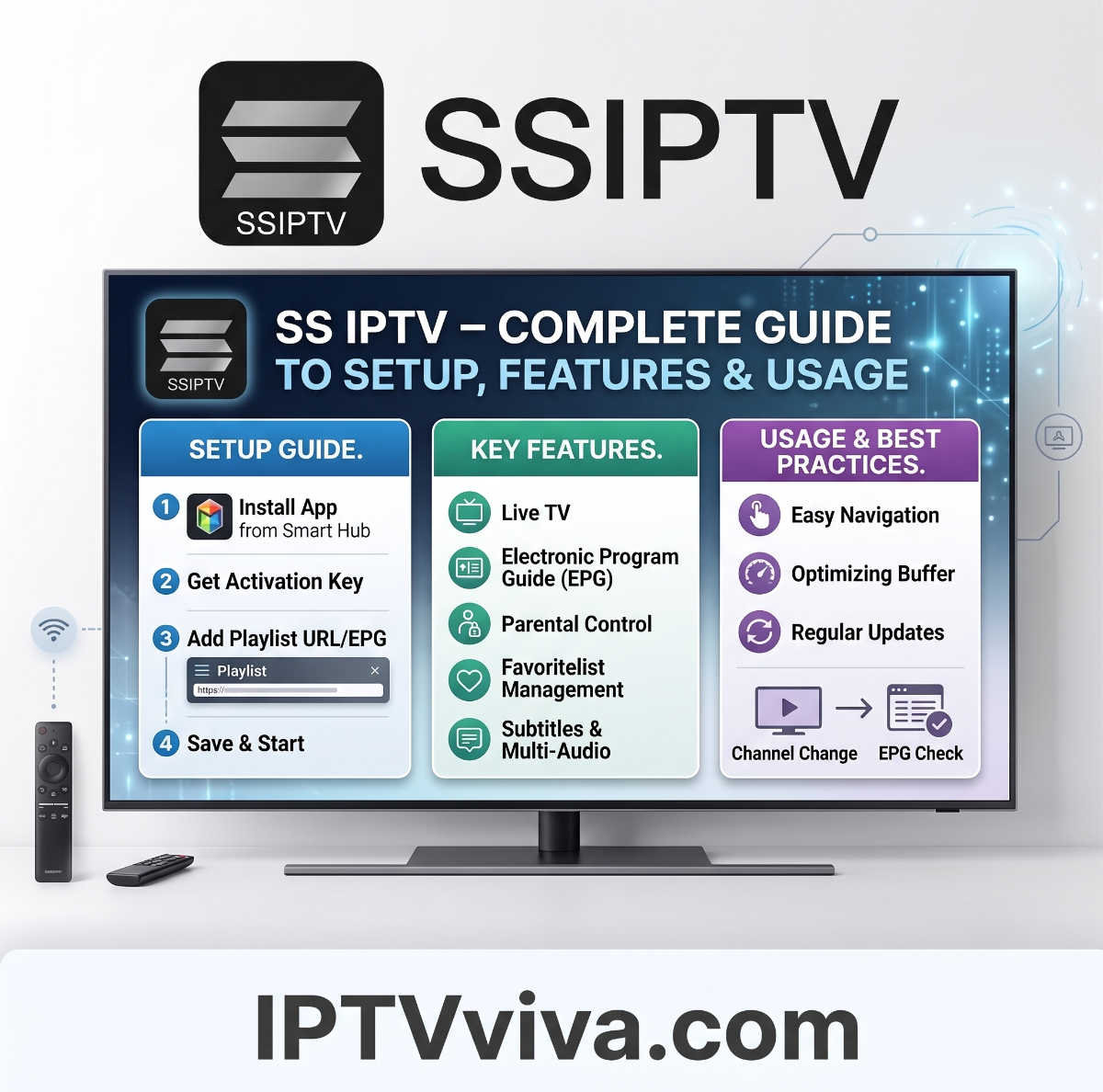
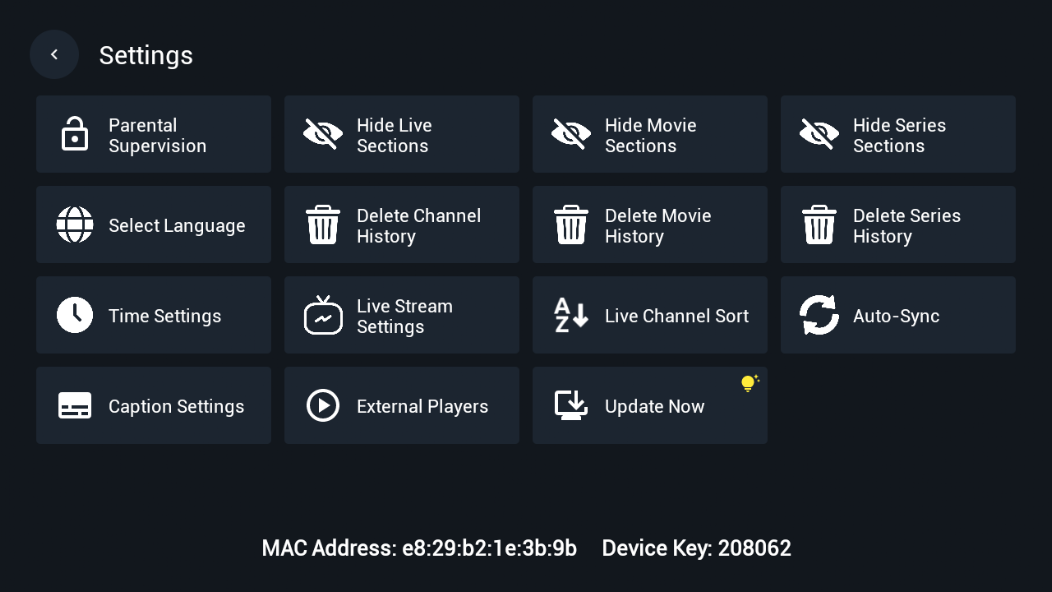
SS IPTV – Complete Guide to Setup, Features & Usage on Smart TV SS IPTV is one of the most popular and lightweight IPTV applications for Smart TVs. It allows users to stream live TV channels, movies, and series using M3U playlists. The app is widely used on Samsung Smart TV, LG Smart TV, and other supported platforms. How to add IPTV channels to SS IPTV Step 1: To upload user playlist press “Settings” button of the main screen. Step 2: There are two methods to upload your playlist. Uploading by link (external playlists) Uploading with non-permanent access code (internal playlists) The user may have any number of external playlists and only one internal playlist with live channels and one with VoD streams (films). To import a playlist via link, navigate to the Content section within the app’s settings. Then, select the External Playlists subsection and tap on the Add button located beneath the screen. Input the desired title for your playlist and paste the playlist link into the corresponding field. Finally, click the Save button to confirm. Your playlist will now appear on the Main Screen as a separate tile. For setting up IPTV on your Smart TV using SS IPTV, follow these steps: Step 3: If you wish to import a playlist with a temporary code, access the General subsection in the app’s settings. Then, click on the Get code button. Please note that the temporary code is valid for 24 hours or until a new code is generated. This procedure ensures seamless integration of IPTV services into your Smart TV interface via the SS IPTV application. Step 4: Enter received code at this URL http://ss-iptv.com/users/playlist and press Add Device button. Step 5: When the connection was made select playlist file in your PC and upload it by pressing Save button. The internal playlist will be available through tile My playlist on the Main Screen. Key Features ✔ Free IPTV player for Smart TVs ✔ Supports M3U playlists and Xtream links (via setup) ✔ Easy installation on LG & Samsung Smart TV ✔ Simple and lightweight interface ✔ Channel grouping and favorites ✔ External subtitle support How to Install SS IPTV For Samsung Smart TV: Open Samsung App Store Search for SS IPTV Install and launch the app Upload your playlist using the provided code or portal For LG Smart TV: Go to LG Content Store Search SS IPTV Install the application Activate and upload your playlist How to Add Channels (M3U Playlist) Open SS IPTV Go to Settings Select Content / Playlist section Upload M3U link from your IPTV provider Refresh and start watching Advantages Very light and fast Works without external devices Easy playlist management Free to use Disadvantages No built-in channels (playlist required) Basic interface compared to premium apps Limited EPG features If you are looking for a lightweight IPTV solution for your Smart TV, SS IPTV is definitely worth trying. It is easy to set up, stable, and widely supported.
-
IPTVviva Forum Rules & Guidelines Welcome to IPTVviva Community! To keep this forum useful, safe, and enjoyable for everyone, all members must follow the rules below. By participating in this forum, you agree to respect these guidelines. 1. Respect All Members Treat every user with respect. Harassment, insults, hate speech, or toxic behavior will not be tolerated. 2. No Illegal Content Sharing, requesting, or promoting illegal IPTV services, copyrighted streams, or pirated content is strictly forbidden. 3. Stay on Topic Please post in the correct category. Off-topic posts may be moved or removed without notice. 4. No Spam or Advertising Spam, repeated messages, or self-promotion without permission is not allowed. 5. Quality Posts Only Avoid low-quality content such as empty messages, meaningless replies, or duplicate topics. 6. One Account Per User Multiple accounts are not allowed. Any duplicate accounts may be banned. 7. No Fake Links or Malware Do not share harmful links, viruses, or misleading downloads. Safety comes first. 8. Follow Moderator Instructions Moderators have the right to edit, move, or delete content to maintain order in the forum. Please respect their decisions. 9. Use Appropriate Language Keep communication clean and professional. This is an international community. 10. Updates & Changes Rules may be updated at any time. Members are responsible for staying informed. Final Note Failure to follow these rules may result in warnings, post removal, or permanent ban. Thank you for being part of IPTVviva Community and helping us grow a better IPTV discussion platform.
-
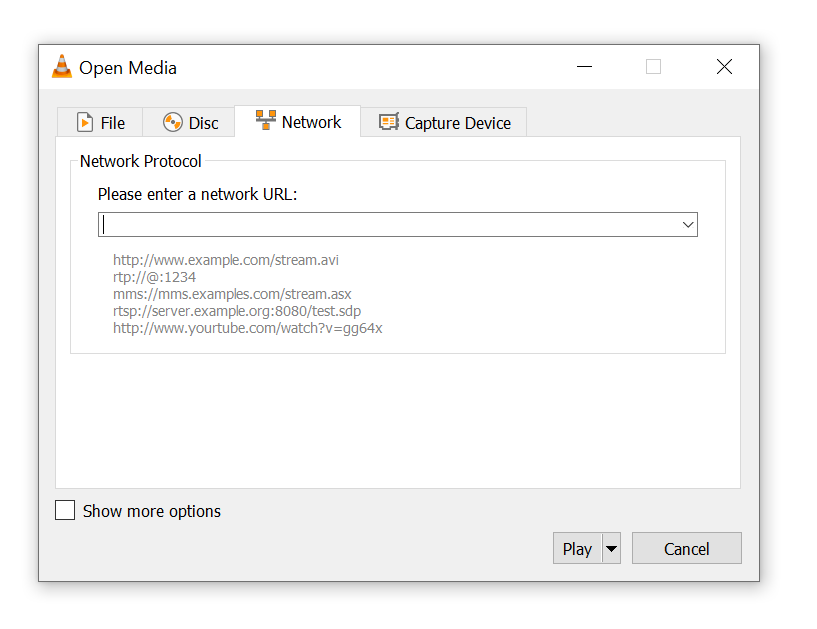
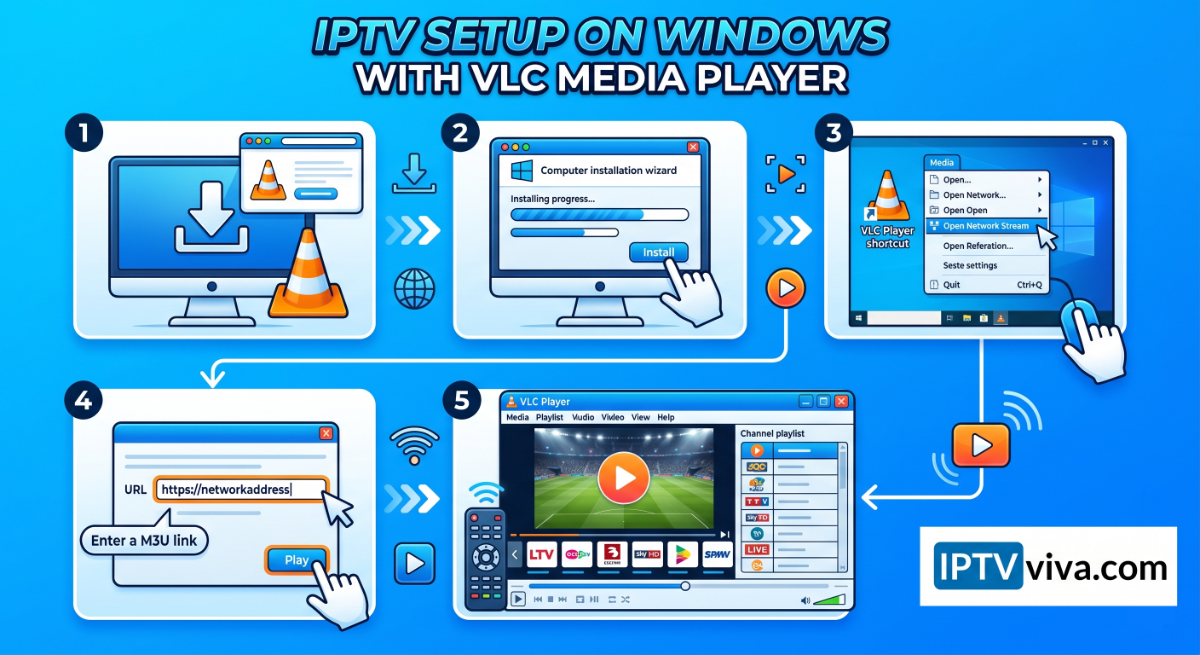
How to Install & Set Up IPTV on Windows PC Using VLC Player (Step-by-Step Guide) Watching IPTV on a Windows PC is simple and powerful when using VLC Media Player. This guide will show you exactly how to install VLC and stream IPTV channels using M3U playlists in just a few minutes. 1. Download & Install VLC Media Player Step 1: Download VLC Go to the official website of VLC Media Player Download the Windows version Step 2: Install VLC Open the downloaded file Follow the installation steps Launch VLC after installation 2. Add IPTV Playlist (M3U URL) Step 3: Open Network Stream Click on Media in the top menu Select Open Network Stream Step 4: Enter M3U URL Paste your IPTV M3U playlist link Click Play 3. Watch IPTV Channels Step 5: Access Channel List Go to View → Playlist Browse all available channels 4. Optimize Your IPTV Experience Enable caching for smoother playback Adjust video/audio settings Use fullscreen mode for better viewing Using VLC Media Player is one of the easiest and most reliable ways to watch IPTV on a Windows PC. With just a playlist URL, you can access hundreds of live channels instantly.
-
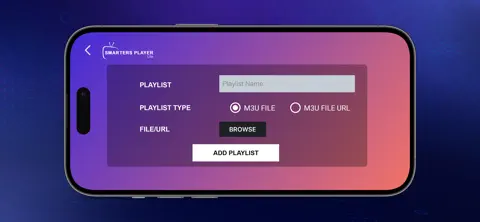
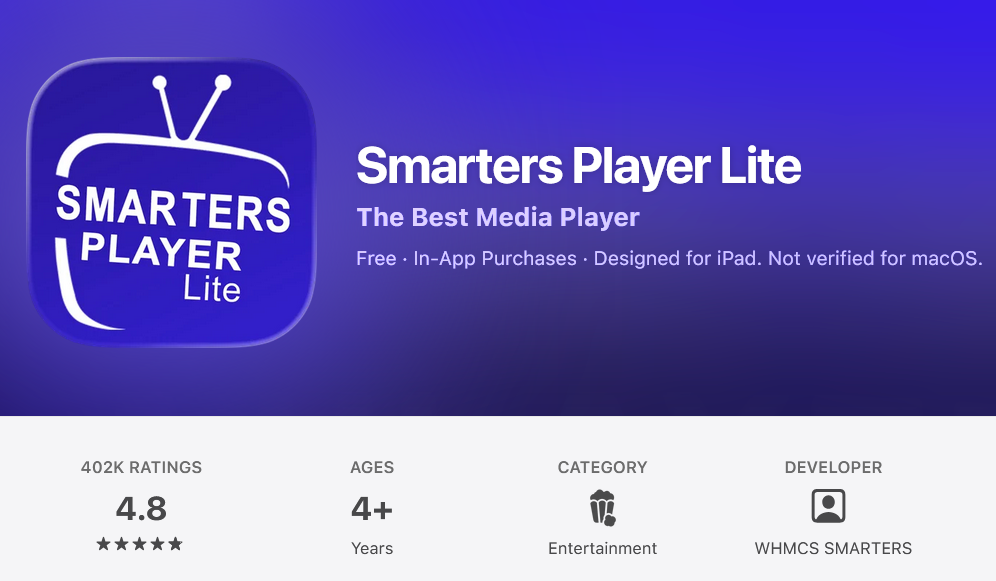
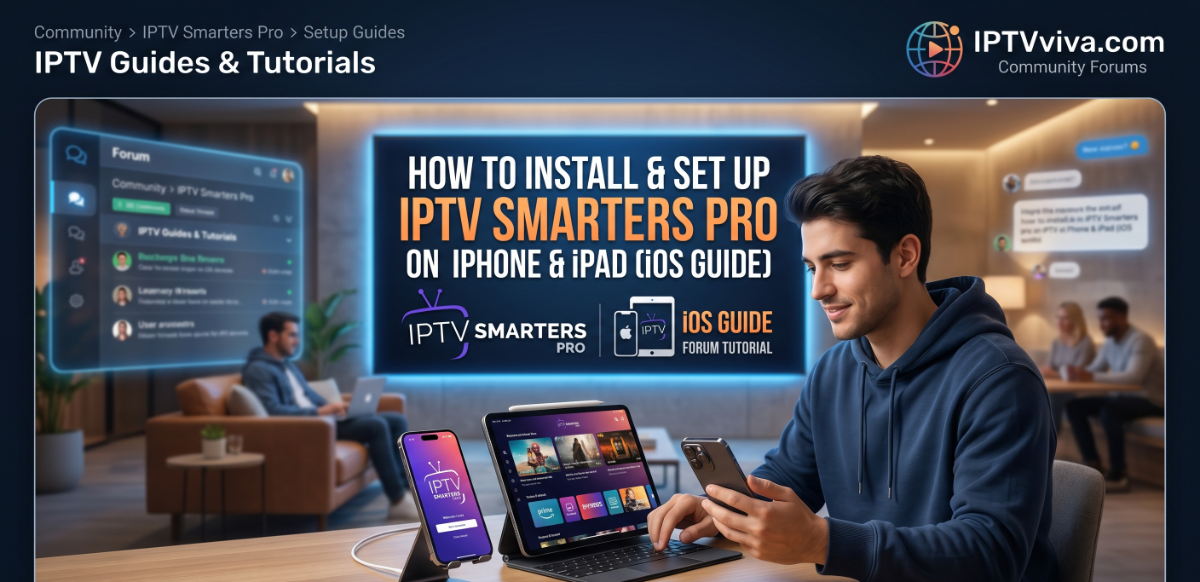
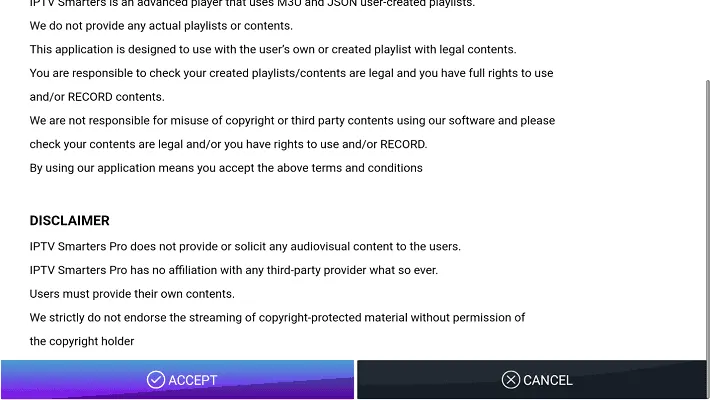
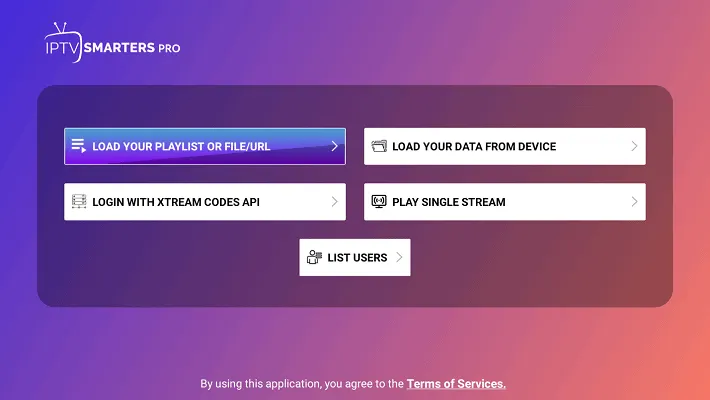
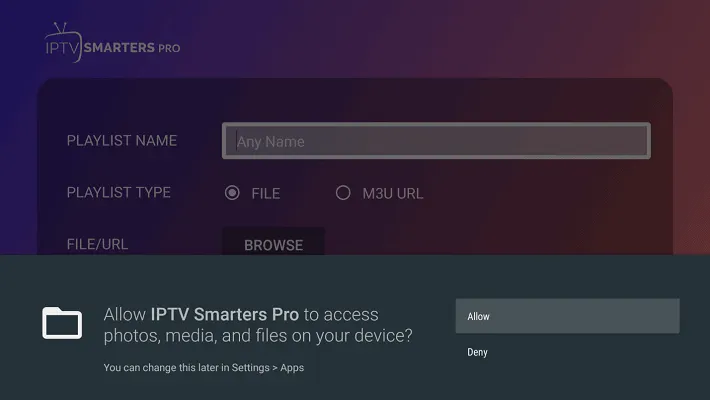
How to Install & Set Up IPTV Smarters Pro on iPhone & iPad (iOS Guide 2026) IPTV Smarters Pro is one of the most popular IPTV apps available on iOS devices. This guide will show you how to install and configure it on your iPhone or iPad step-by-step. 1. Install IPTV Smarters Pro on iOS Step 1: Download the App Open the App Store Search for IPTV Smarters Pro Tap Install 2. Launch the App Step 2: Open IPTV Smarters After installation, open the app Accept the terms and conditions 3. Add IPTV Account Step 3: Login with Xtream Codes API (Recommended) Enter the following details: Username Password Server URL Alternative: Load your M3U Playlist URL 4. Wait for Content to Load The app will automatically download: Live TV channels Movies (VOD) Series 5. Customize Your Settings Enable subtitles if needed Change player settings Activate parental controls Pro Tips for Best Experience Use a stable Wi-Fi connection Always keep the app updated Use VPN if streams are blocked in your region Conclusion IPTV Smarters Pro on iOS is simple, fast, and reliable. With the right setup, you can enjoy live TV and on-demand content anywhere on your iPhone or iPad.
-
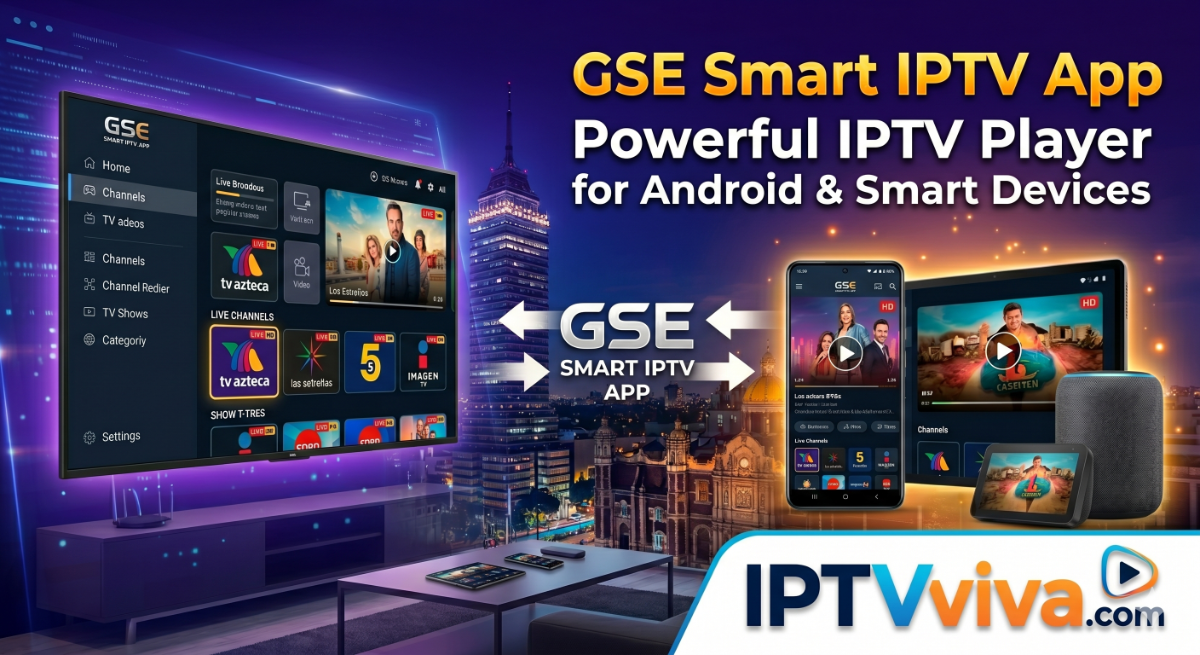
GSE Smart IPTV App – Powerful IPTV Player for Android & Smart Devices GSE Smart IPTV App is one of the most popular IPTV players available for Android devices. It allows users to stream live TV channels, movies, and series using M3U playlists or Xtream Codes API. The app does not provide content itself, but works as a powerful IPTV player that supports multiple formats and advanced features for smooth streaming experience. Key Features ✔ Supports M3U playlists & Xtream Codes API ✔ Built-in powerful video player ✔ EPG (TV Guide) support ✔ Chromecast support ✔ Parental control options ✔ Multi-language interface ✔ External player support ✔ Fast channel loading User Experience The app is designed with a clean interface and smooth navigation. It works well on: Android phones Android TV boxes Smart TVs Firestick devices Channel switching is fast and playback is stable when using a good IPTV source. How to Use Install the app from Google Play Open the app Add M3U URL or Xtream Codes login Load channels Start watching live TV Compatible IPTV Apps TiviMate – A Comprehensive Review of the IPTV App IPTV Smarters Pro Review 2026: Why It Is Still the Most Popular Player? OTT Navigator IPTV Review 2026 – Best Free IPTV Player for Android iMPlayer TV IPTV Player – The Ultimate IPTV App for Android TV Download App Official Google Play Link:
-
M3U Player (M3U & IPTV) – Full Review, Features, Pros & Cons If you're looking for a simple and lightweight app to stream IPTV using M3U or M3U8 playlists, M3U Player is one of the rising options on Android. In this review, we’ll break down its features, performance, and overall user experience to help you decide if it’s worth using. App Overview App Name: M3U Player Category: Video Players & IPTV Price: Free Platform: Android Support: M3U / M3U8 Playlists Key Features 1. M3U & IPTV Support M3U Player allows users to stream live TV and video-on-demand content using M3U and M3U8 playlist links. 2. Simple User Interface The app features a clean and easy-to-use interface, making it ideal for beginners. 3. Smooth Streaming It delivers stable playback with decent quality, depending on your IPTV provider and internet connection. 4. Completely Free All core features are available without requiring any subscription. 5. Fast Playlist Loading Playlists load quickly, and channels are organized in a simple format for easy navigation. Performance & User Experience M3U Player performs well on most Android devices. It is lightweight, meaning it doesn’t consume too much storage or RAM. Streaming is generally smooth, but like any IPTV app, performance depends heavily on the quality of your playlist source. Final Verdict M3U Player is a solid choice for users who want a simple and free IPTV player without complicated settings. It may not compete with advanced apps like TiviMate or IPTV Smarters Pro, but it does its job well for basic streaming needs.
-
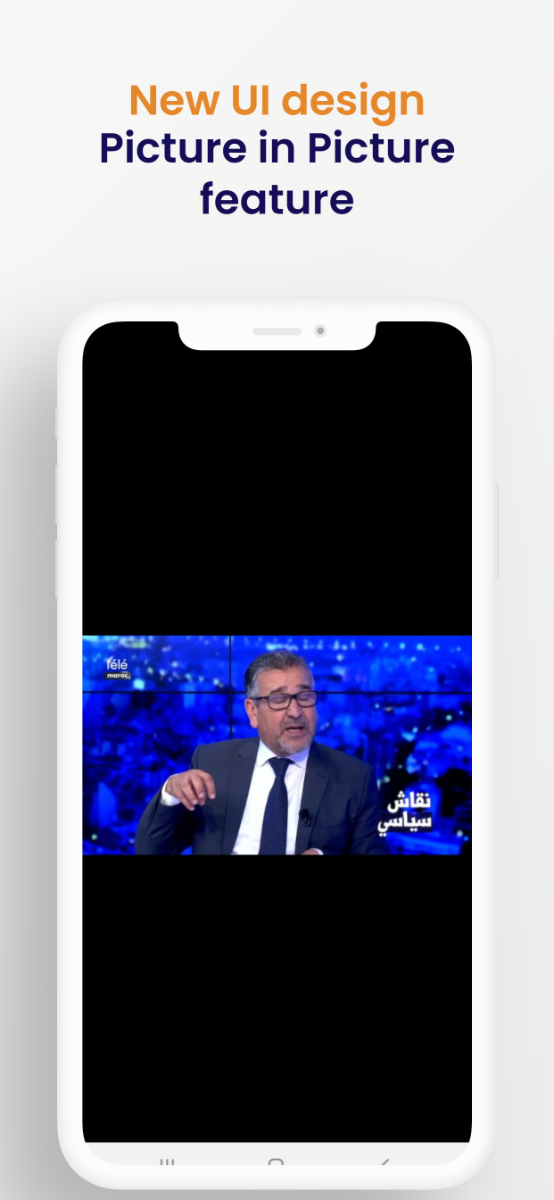
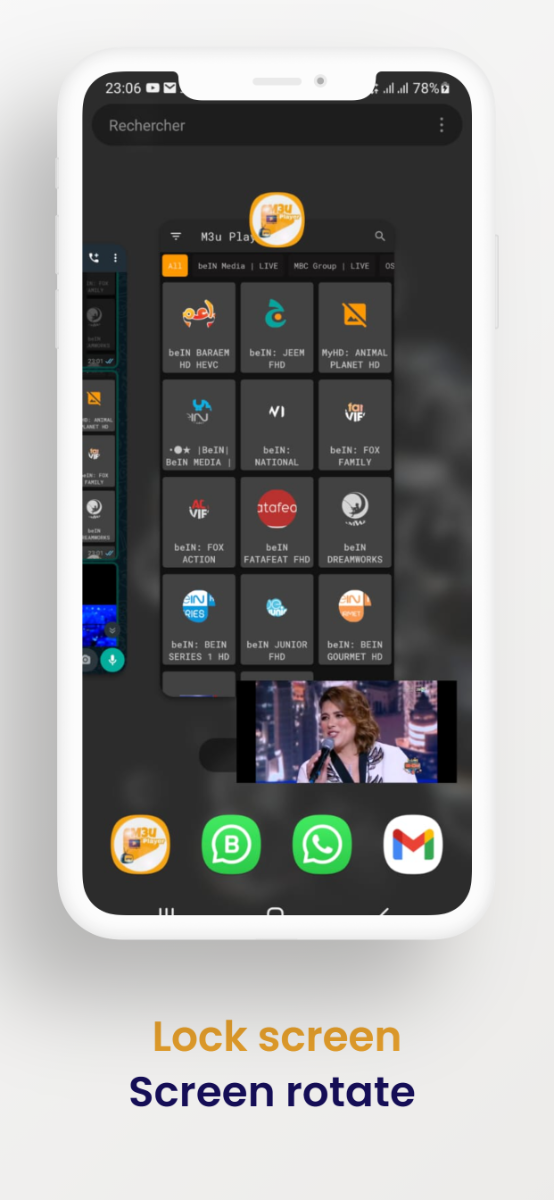
IPTV Player (M3U & Xtream) – Simple & Powerful IPTV App for Android IPTV Player (M3U & Xtream) is a versatile IPTV application designed to stream live TV, movies, and series using your own playlists. The app supports popular formats like M3U / M3U8 and Xtream Codes API, making it compatible with most IPTV providers. It focuses on simplicity, speed, and a smooth user experience for Android users. Key Features Supports M3U / M3U8 playlists & Xtream Codes Built-in powerful video player EPG (TV Guide) support Favorites system for quick access Advanced search for large playlists Background playback support Landscape mode for better viewing Screen casting to bigger displays Playback timer & rotation lock These features make it a complete IPTV solution for everyday streaming. Download Google Playstore How to Setup IPTV Player Install the app from Google Play Open the app Add your playlist using: M3U / M3U8 URL Xtream Codes login (Username, Password, Server URL) Wait for channels to load Start watching IPTV Player is a solid choice if you want a simple, functional, and reliable IPTV app without unnecessary complexity. Best for: Beginners in IPTV Users with M3U or Xtream subscriptions People looking for a lightweight player Important: This app does NOT include any channels or content. You must add your own IPTV subscription or playlist.
-
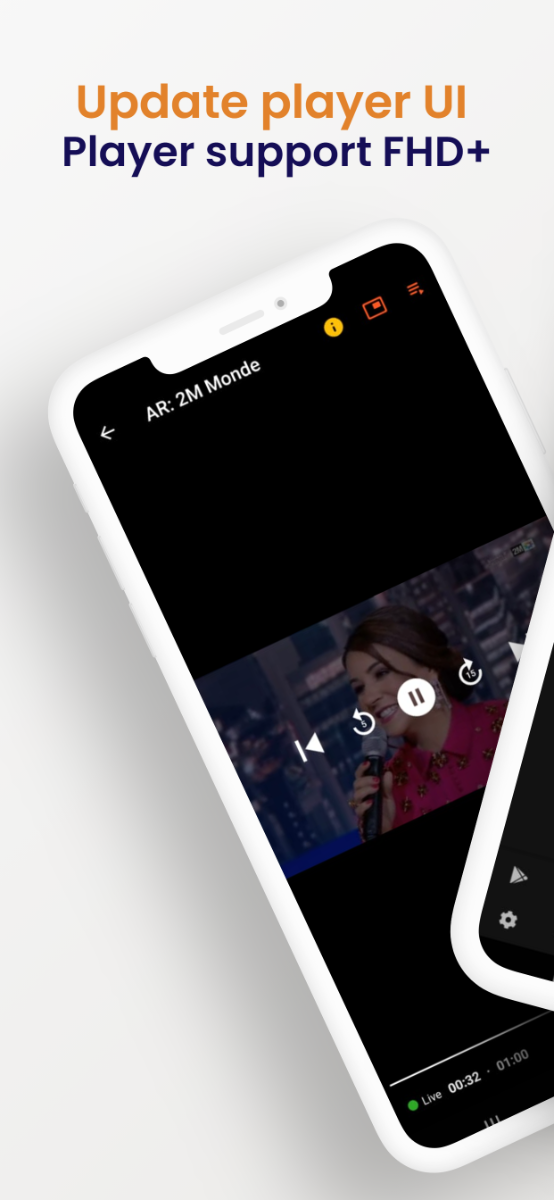
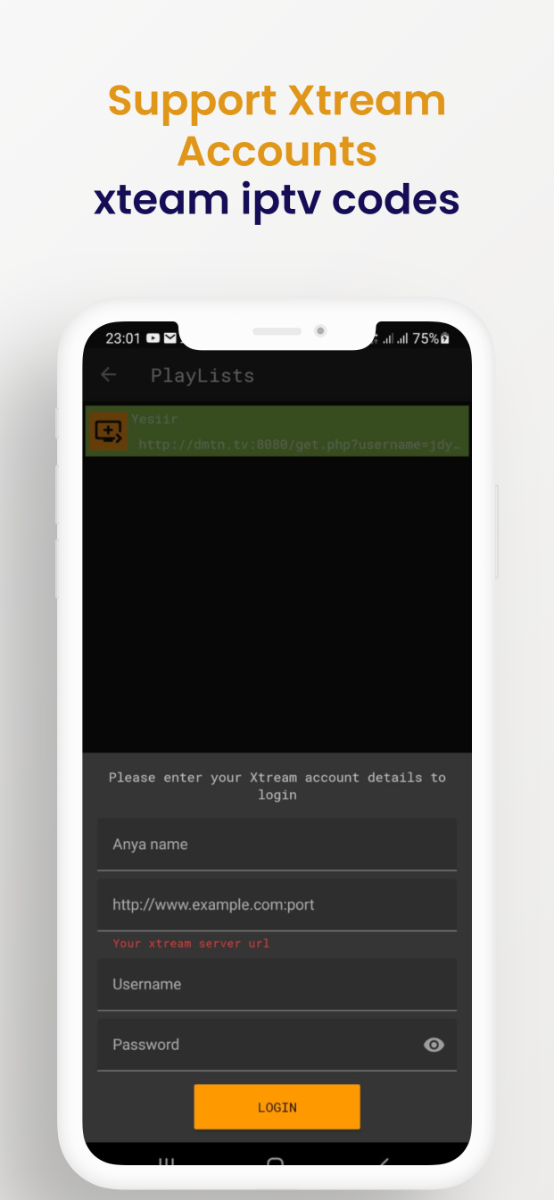
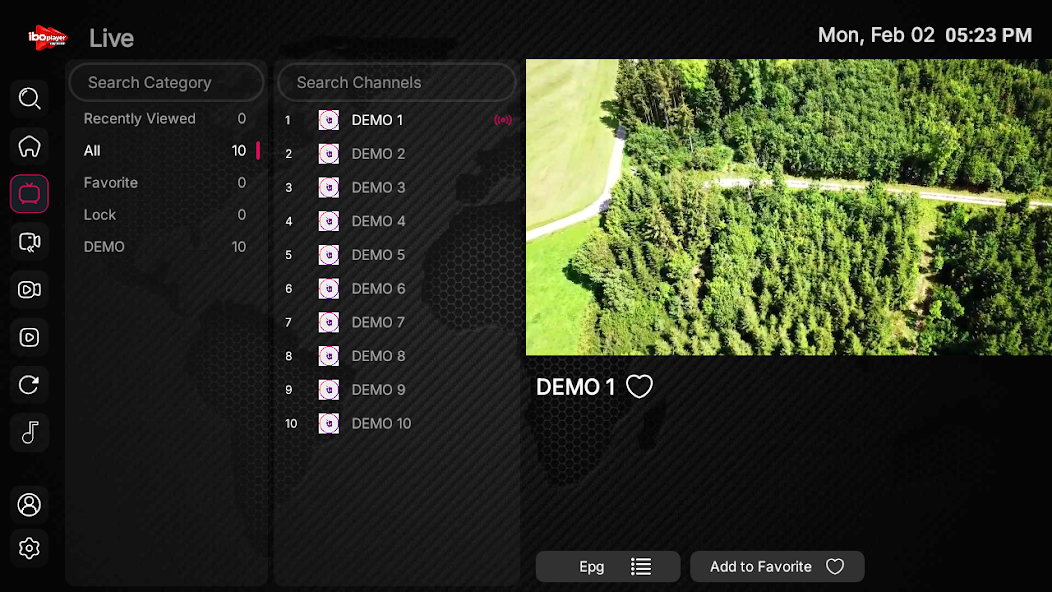
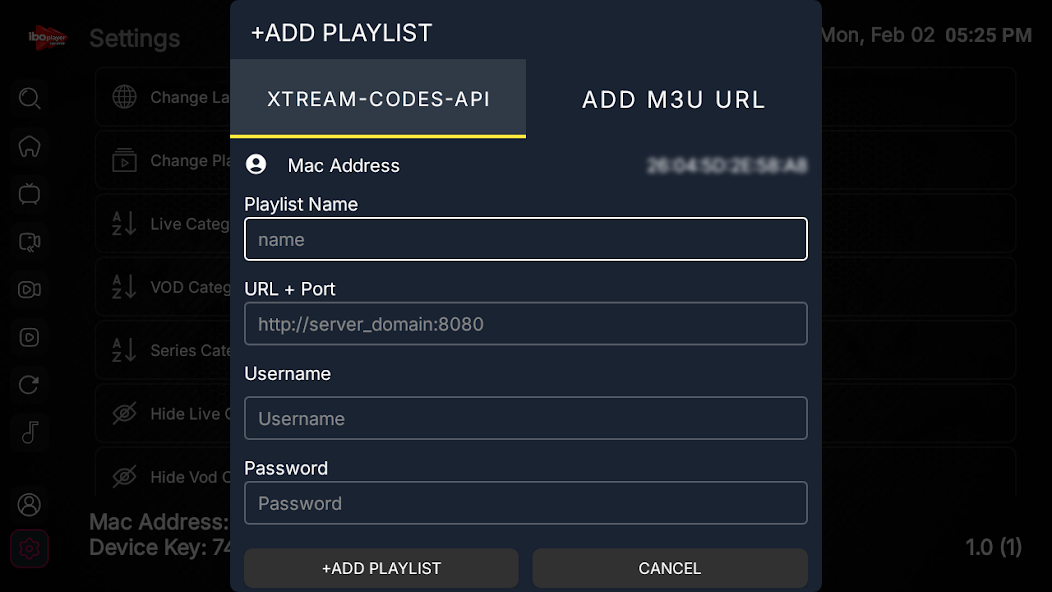
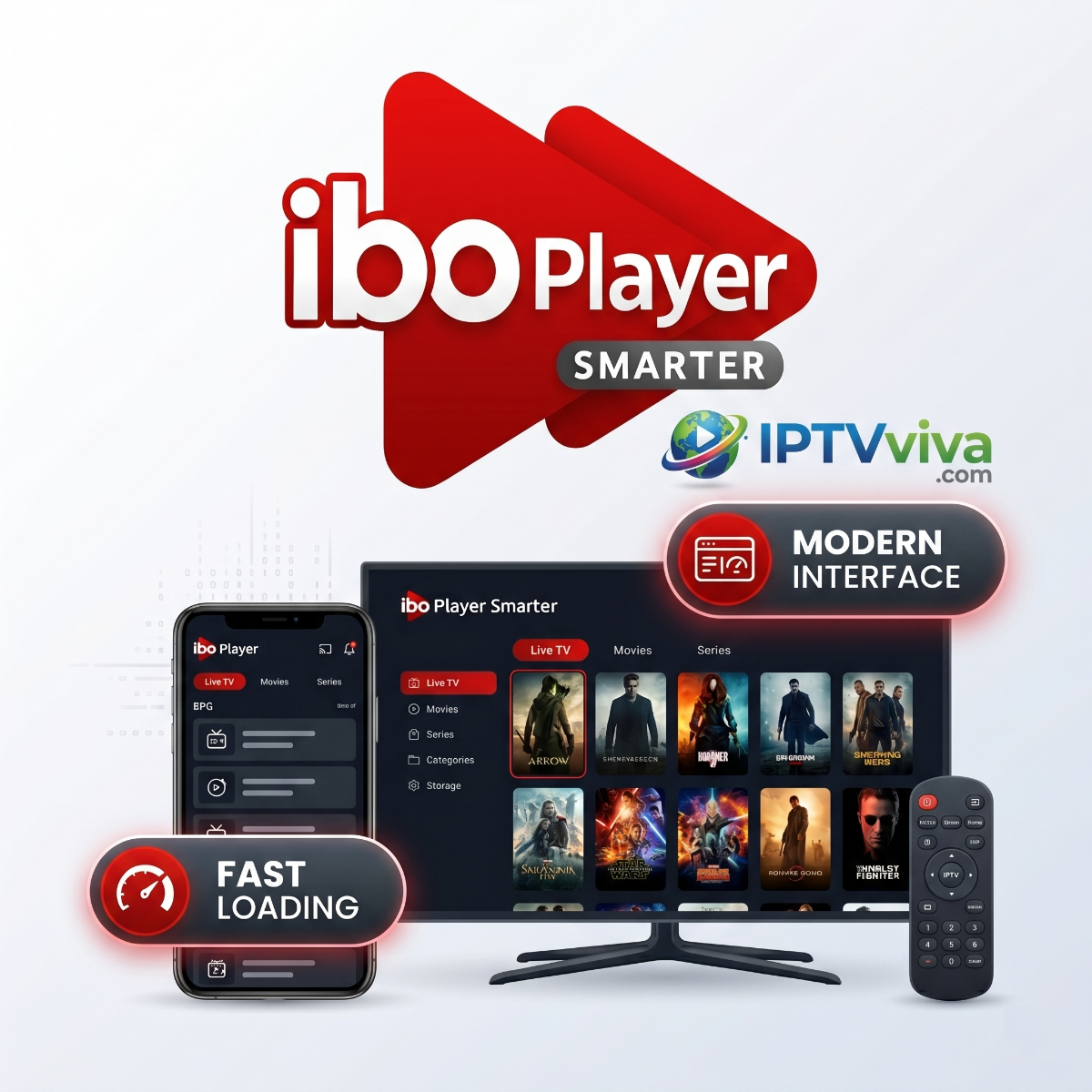
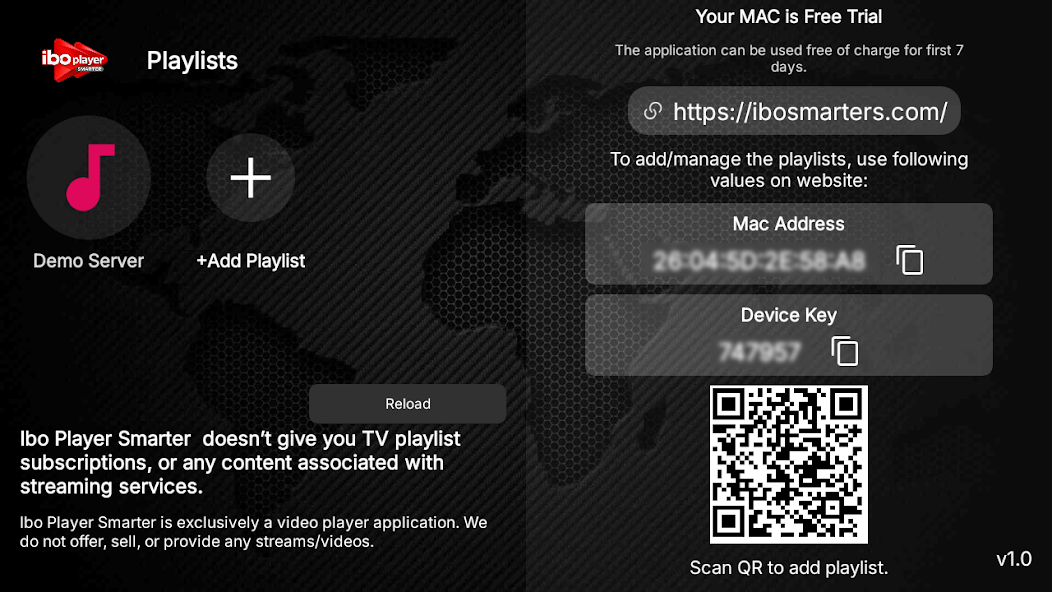
Ibo Player Smarter IPTV Player – Fast & Modern Streaming App for Android & Smart TV Ibo Player Smarter is a modern IPTV player designed for users who want a smooth and reliable streaming experience on Android devices and Smart TVs. Unlike many apps, it focuses on performance, simplicity, and compatibility with popular IPTV formats such as M3U playlists and Xtream Codes API. Key Features Supports M3U & Xtream Codes API Smooth playback with minimal buffering High-quality streaming (HD / Full HD / 4K) User-friendly and modern interface Fast channel switching Supports external video players Multi-format compatibility (MP4, MKV, AVI, etc.) Parental control options Lightweight and optimized for performance How to Setup Ibo Player Smarter Install the app from Google Play Launch the application Choose your login method: M3U Playlist URL Xtream Codes API (Username / Password / Server URL) Load your playlist Start streaming live TV, movies, or series Ibo Player Smarter is a great choice if you’re looking for a stable and lightweight IPTV player without unnecessary complexity. It’s especially recommended for users who want a plug-and-play IPTV experience with solid performance on Android and Smart TVs. Note: This app does not provide any content. You must use your own IPTV subscription. DOWNLOAD NOW FROM GOOGLE PLAYSTORE
-
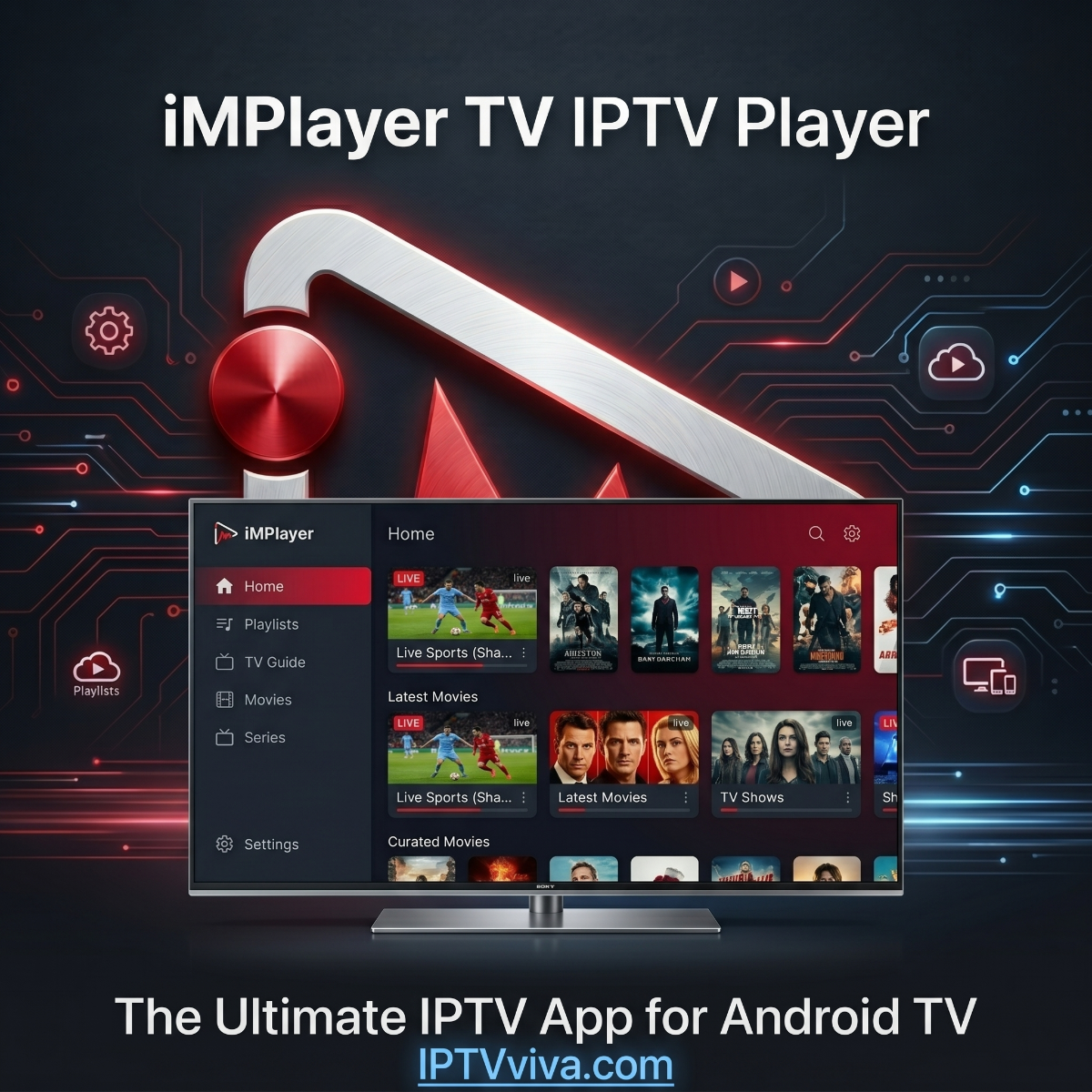
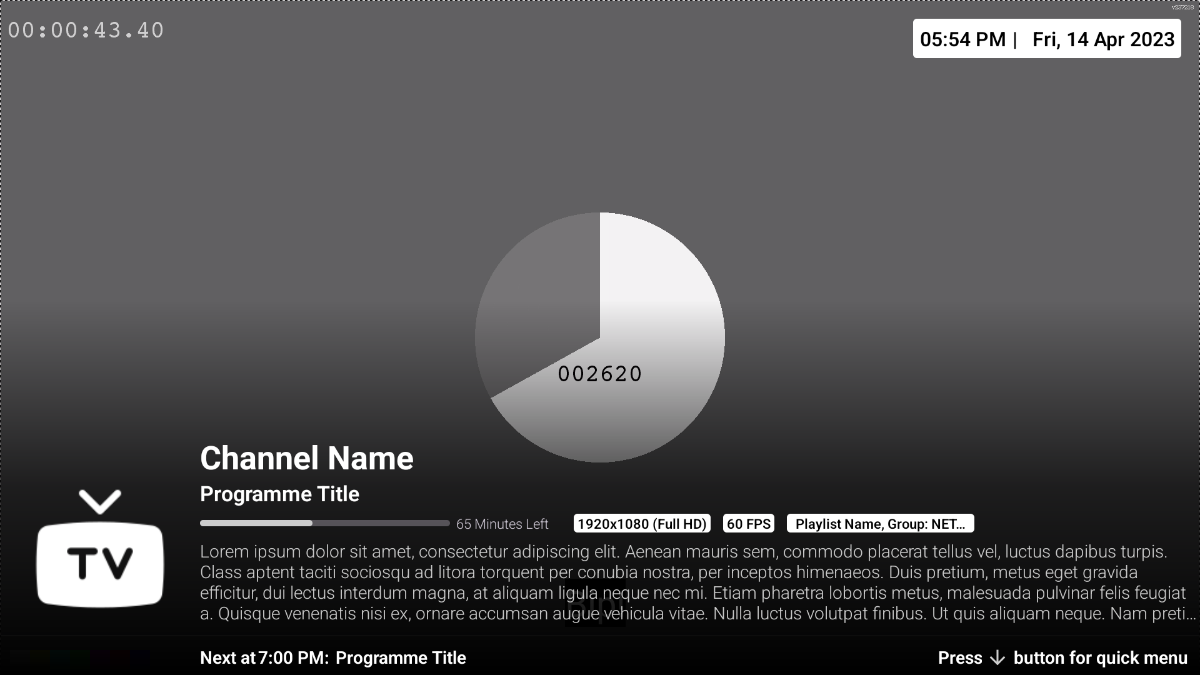
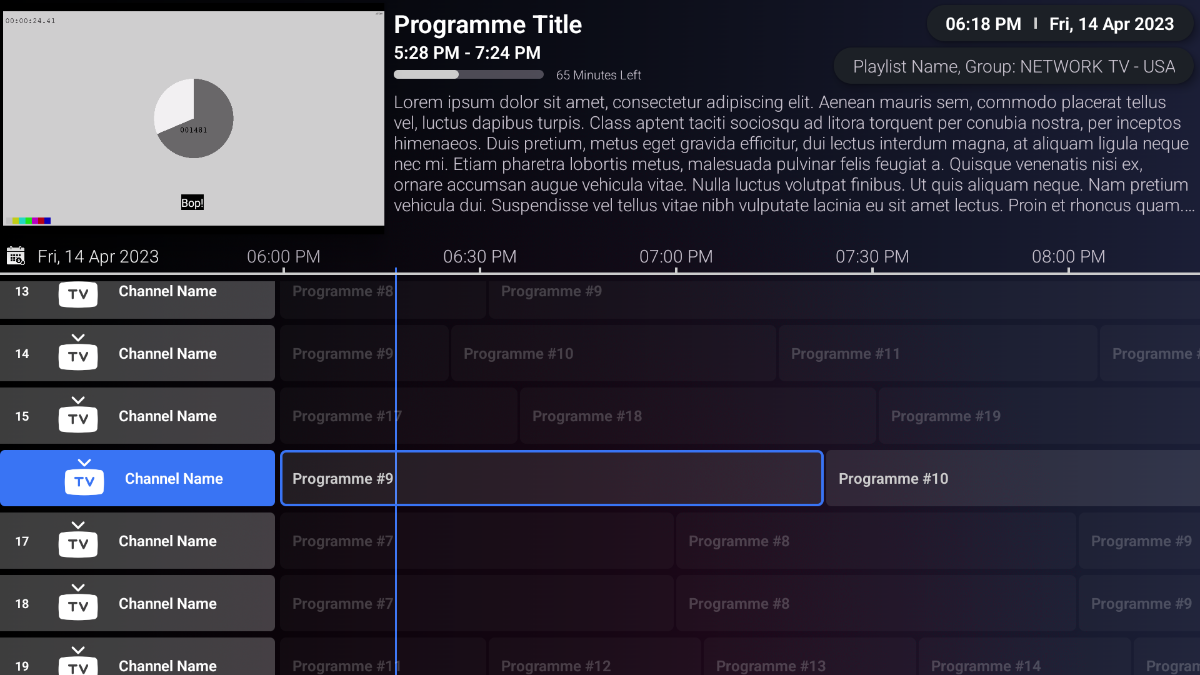
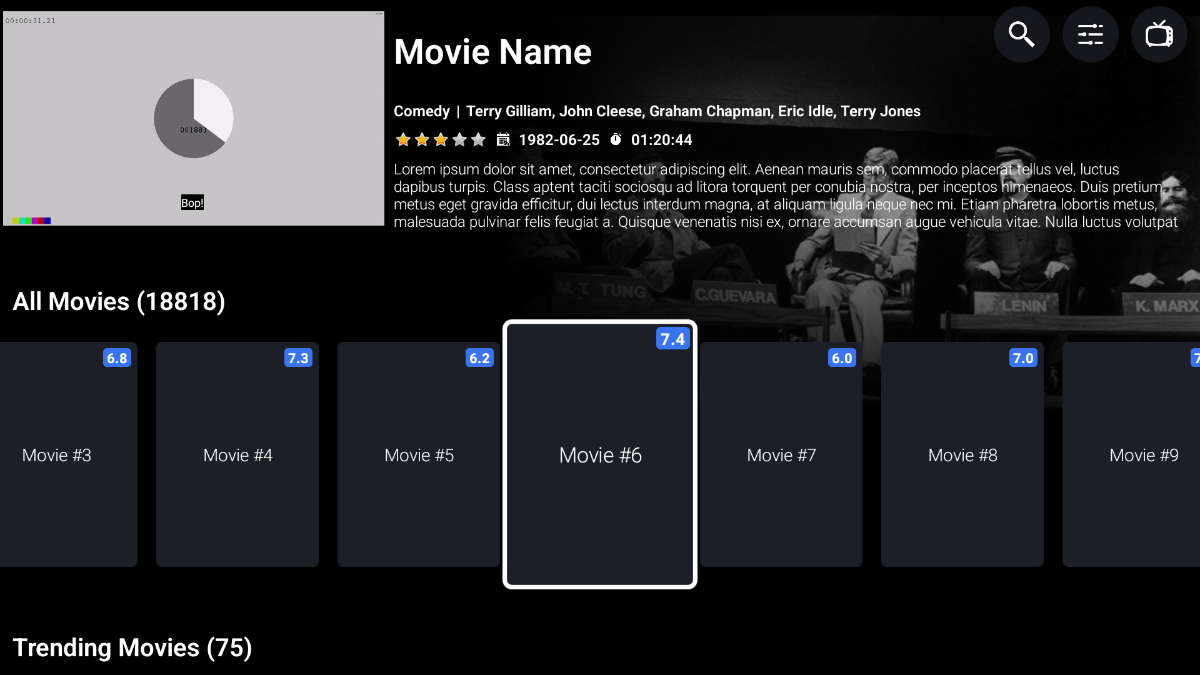
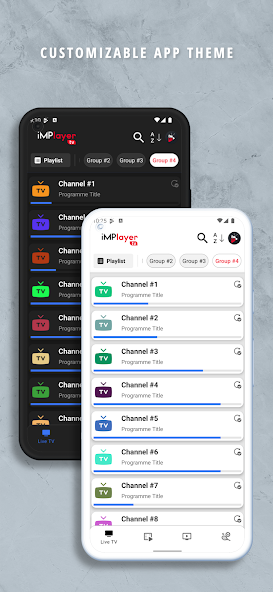
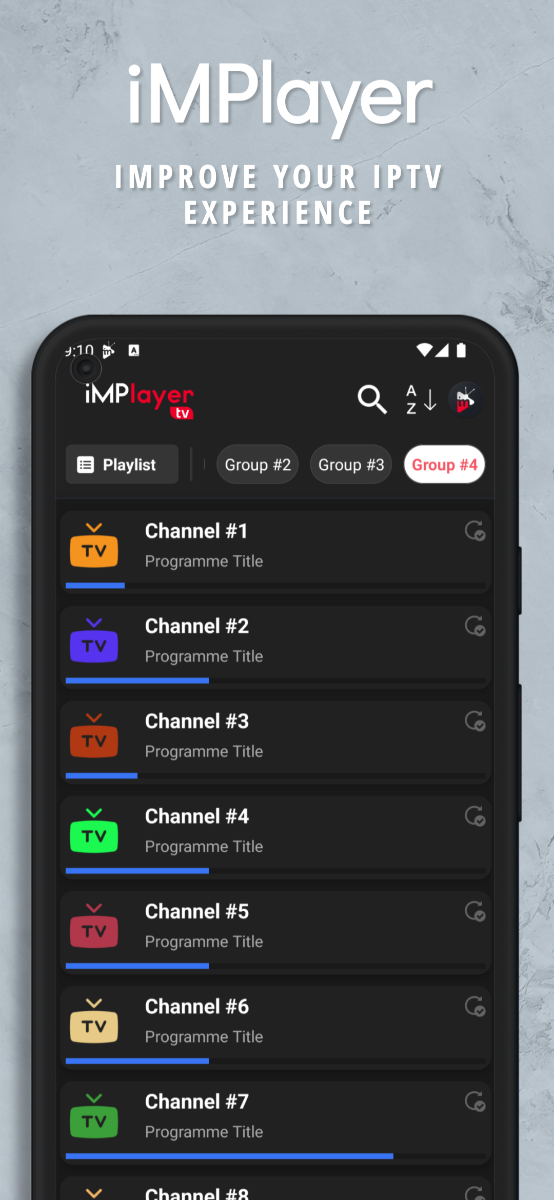
iMPlayer TV IPTV Player – The Ultimate IPTV App for Android TV If you're searching for a powerful and modern IPTV player for your Smart TV or Android TV Box, iMPlayer TV IPTV Player is one of the top choices available. Built specifically for big screens, it offers a smooth, fast, and highly customizable streaming experience. What is iMPlayer TV IPTV Player? iMPlayer TV is an advanced IPTV player designed for Android TV devices such as Smart TVs, Firestick, and TV Boxes. It allows users to stream live TV, movies, and series using their own IPTV subscription via M3U playlists or Xtream Codes API. Note: This app does not provide any channels or content. You must add your own IPTV service. Key Features Live TV, Movies & Series (VOD) Access all your IPTV content in one place. EPG (Electronic Program Guide) Full TV guide for easy navigation between channels. Recording & Timeshift Pause, rewind, and record live TV directly on your device. Customizable Interface Personalize layout, themes, and categories. Multi Playlist Support Add and manage multiple IPTV subscriptions. Fast & Smooth Performance Optimized for HD and 4K streaming on large screens. External Player Support Compatible with players like VLC or MX Player. Compatibility iMPlayer TV works perfectly on: Android TV Smart TVs (Android-based) Fire TV Stick TV Boxes Its interface is optimized for remote control, making navigation easy and intuitive. How to Use iMPlayer TV Install the app from Google Play Open the app on your TV device Add your IPTV playlist (M3U or Xtream Codes) Load channels and enjoy streaming Download iMPlayer TV IPTV Player Google Play Store: Related IPTV App Reviews (You May Also Like) If you’re exploring more IPTV apps for Android TV and Smart TVs, check out these popular reviews from our forum: TiviMate IPTV Player Review – Best IPTV App for Android TV IPTV Smarters Pro Review – Easy & Beginner-Friendly IPTV Player iMPlayer Mobile IPTV Player – Powerful & Customizable IPTV Experience
-
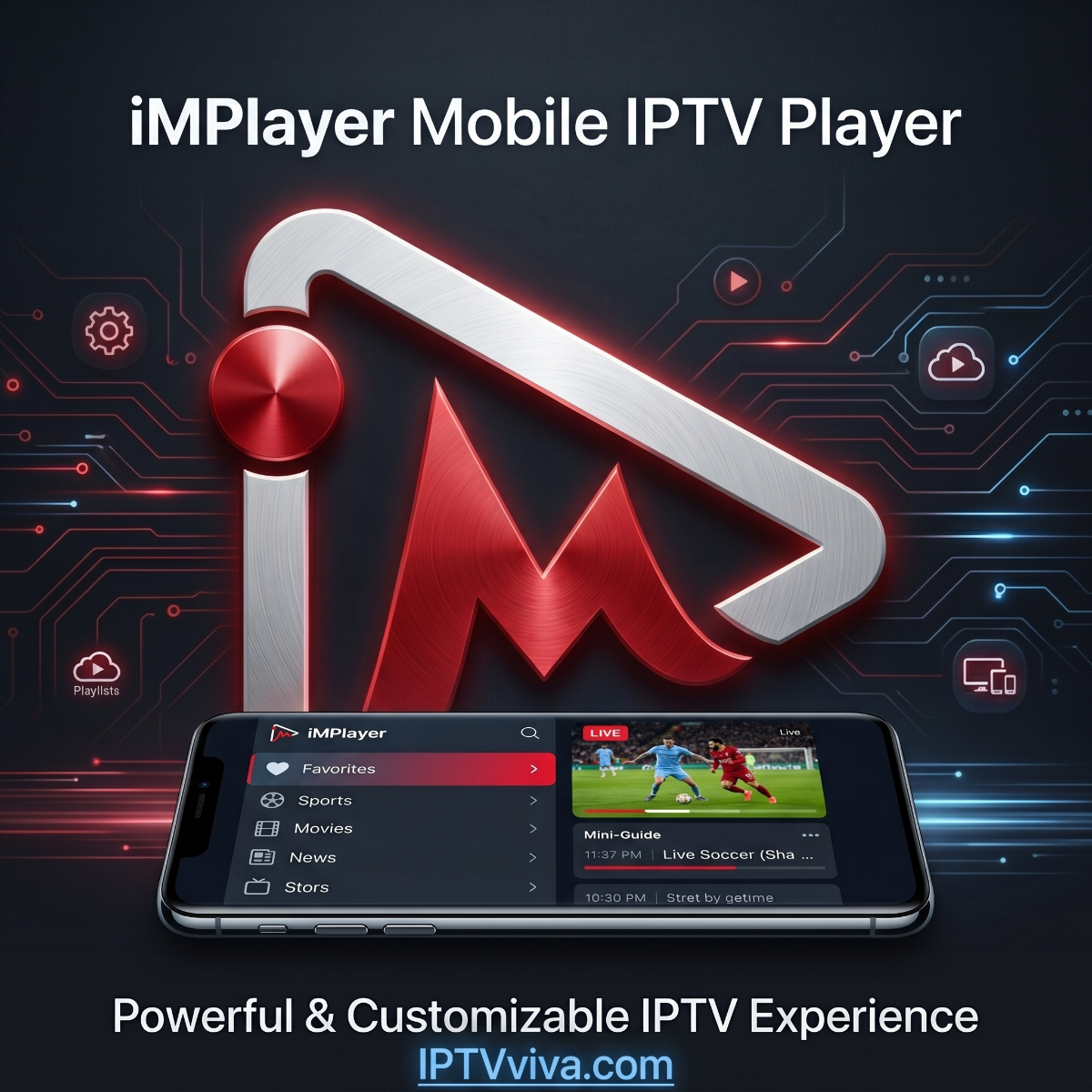
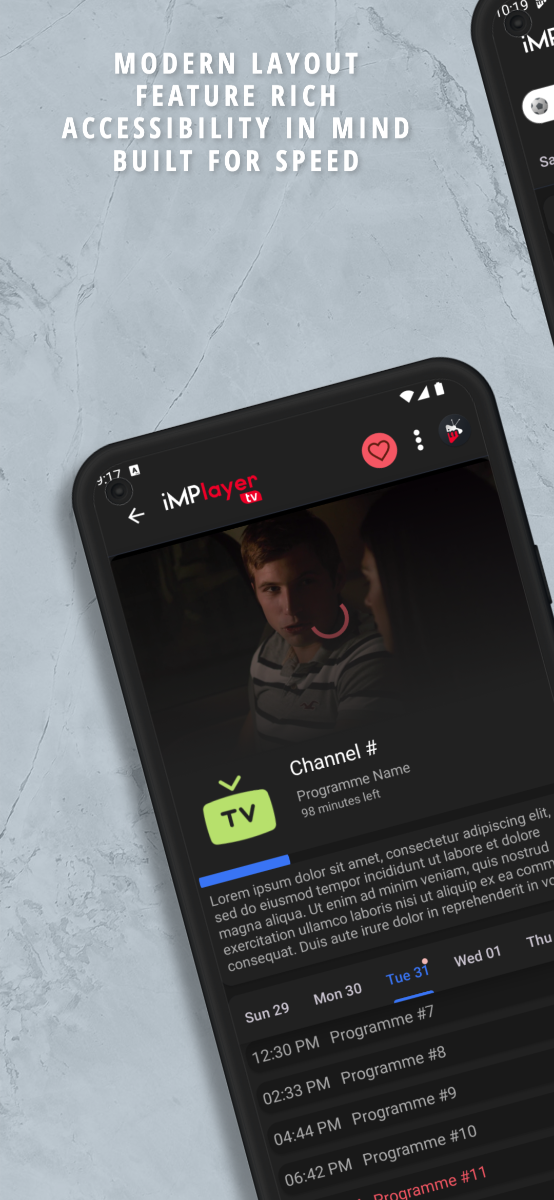
iMPlayer Mobile IPTV Player – Powerful & Customizable IPTV Experience If you're looking for a modern, fast, and highly customizable IPTV player for your smartphone, iMPlayer Mobile IPTV Player is one of the best options available today. Designed for Android devices, this app delivers a premium TV-like experience with advanced features and smooth performance. What is iMPlayer Mobile IPTV Player? iMPlayer is a professional IPTV media player that allows users to stream live TV, movies, and series using their own IPTV subscription. It supports popular formats like M3U playlists and Xtream Codes API, making it compatible with most IPTV providers. Important: The app does NOT provide any content. You must add your own IPTV playlist or subscription to use it. Key Features Live TV, VOD & Catch-Up Support Watch live channels, on-demand content, and replay missed programs easily. Full EPG (TV Guide) Integration Navigate channels with a complete electronic program guide. Modern & Customizable Interface Personalize layout, categories, and viewing experience. Multi-Playlist Support Manage multiple IPTV playlists in one place. Recording & Timeshift Record live TV and pause/rewind streams. Smart Features Includes “Last Watched”, “Up Next Shows”, and favorites system. External Player Support Use players like VLC or MX Player for better compatibility. Performance & Compatibility Works on Android phones & tablets Smooth streaming with fast loading times Supports HD, Full HD, and even 4K streams depending on your IPTV provider Regular updates and improvements With over 500,000+ downloads, the app is widely trusted among IPTV users. Download iMPlayer Mobile IPTV Player Google Play Store: Download iMPlayer Mobile IPTV Player
-
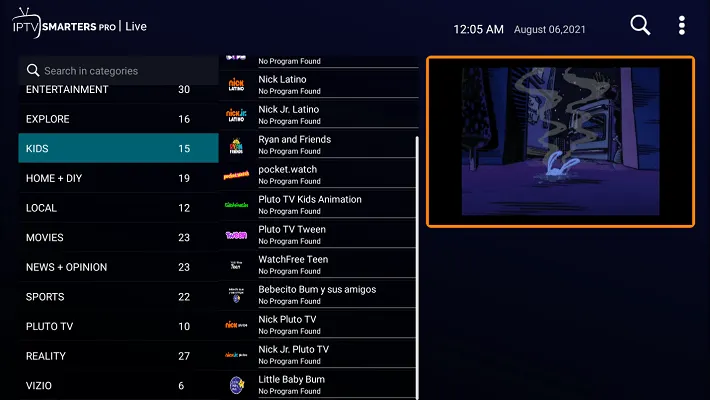
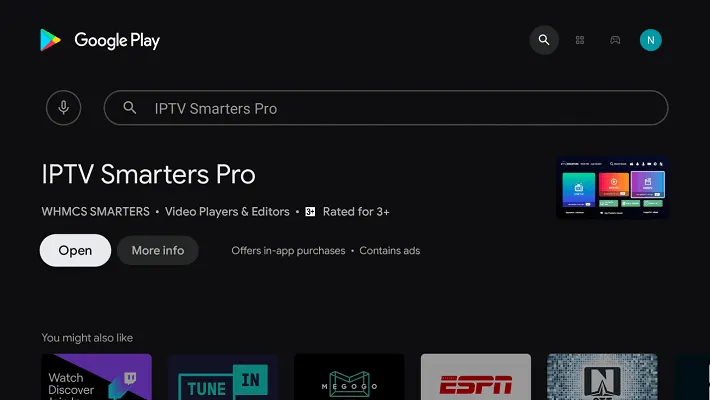
How to Install and Set Up IPTV Smarters Pro on Android (Guide) IPTV Smarters Pro is one of the most popular IPTV apps for streaming live TV, movies, and series. In this guide, you’ll learn how to install and configure it step by step on Android. Install IPTV Smarters Pro on Android Open Google Play Store Search for IPTV Smarters Pro Click Install Open the app after installation Add Your IPTV Subscription After opening the app: Option 1: Xtream Codes API Username Password Server URL Option 2: M3U Playlist Click “Load Your Playlist” Paste M3U URL Best Settings for Smooth Streaming Set buffer size to Medium or High Enable Hardware Decoding Turn on Auto Frame Rate (if available) Start Watching Once setup is complete: Open Live TV Browse categories Start streaming instantly Common Setup Issues Login failed → Check credentials No channels → Refresh playlist App not opening → Reinstall Pro Tips Always use updated playlists Avoid overloaded free servers Use stable internet connection
-
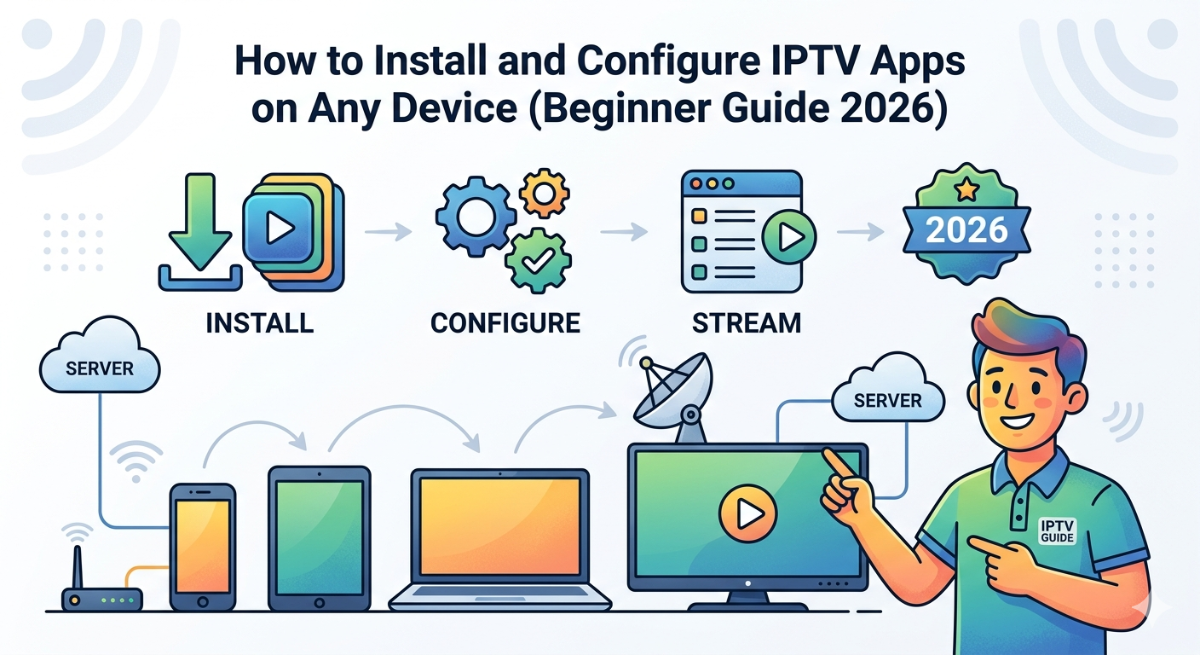
How to Install and Configure IPTV Apps on Any Device (Beginner Guide 2026) Setting up an IPTV app can seem complicated at first, but with the right steps, anyone can start streaming live TV, movies, and sports in minutes. This guide will walk you through installing and configuring IPTV apps on Android, Smart TVs, Firestick, and more. Step 1: Choose the Right IPTV App Before starting, you need a reliable IPTV player. Some popular options include: IPTV Smarters Pro TiviMate Televizo Smart IPTV Make sure your app supports M3U playlists or Xtream Codes API. Step 2: Install the IPTV App On Android Devices Open Google Play Store Search for your IPTV app Click Install On Firestick Enable “Apps from Unknown Sources” Install Downloader app Enter the APK URL Install the IPTV app On Smart TVs (Samsung / LG) Go to App Store Search for IPTV apps Install directly Step 3: Add IPTV Subscription After installing the app: Option 1: M3U Playlist Open the app Select “Add Playlist” Paste your M3U URL Option 2: Xtream Codes API Enter: Username Password Server URL Step 4: Configure Settings for Best Performance To improve your streaming experience: Set buffer size to medium or high Enable hardware decoding Use external player (like VLC) if needed Organize channels into favorites Step 5: Start Watching Once everything is set up: Refresh channels Browse categories (Live TV, Movies, Series) Enjoy streaming Common Problems & Fixes Buffering issues → Check internet speed Playlist not loading → Verify URL App crashing → Clear cache or reinstall Pro Tips Use a stable internet connection (20 Mbps+) Update your app regularly Avoid overloaded free IPTV links
-
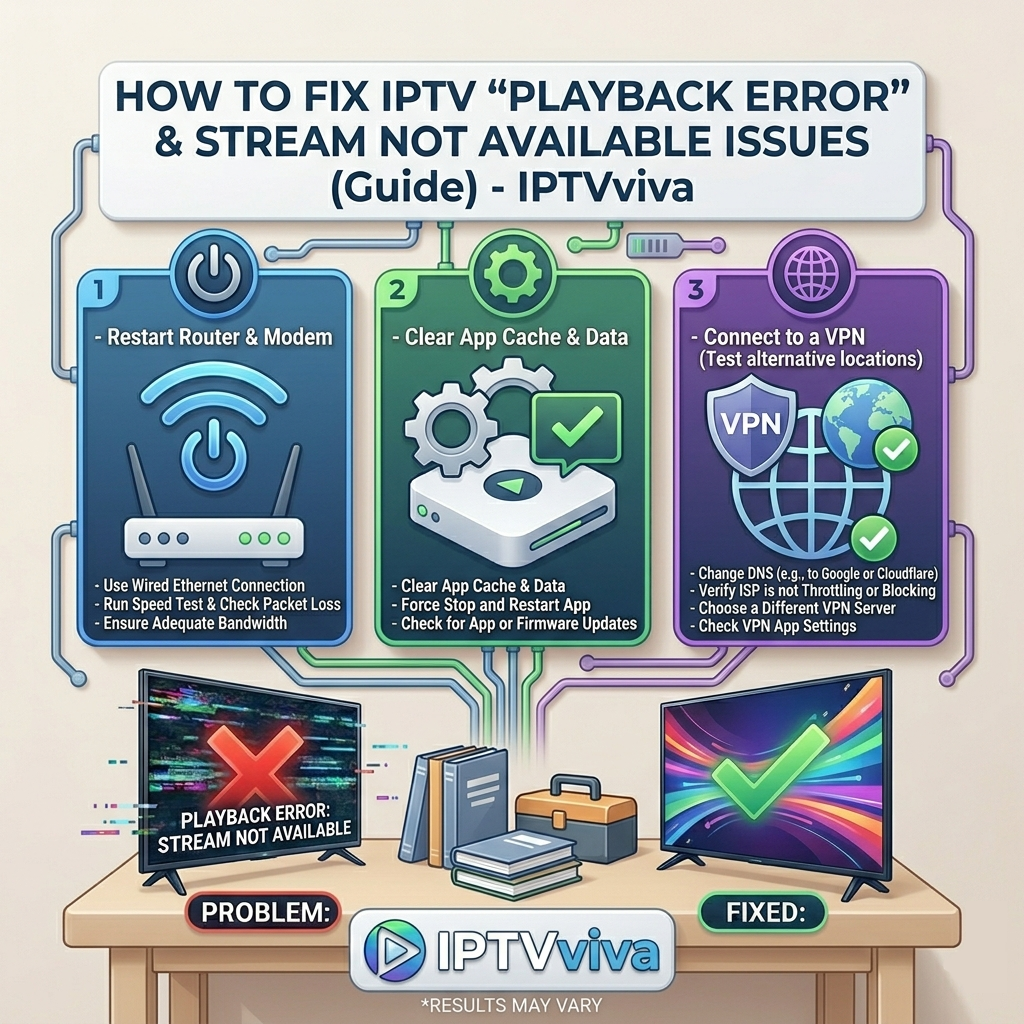
How to Fix IPTV “Playback Error” & Stream Not Available Issues (2026 Guide) One of the most frustrating IPTV problems is the “Playback Error” or “Stream Not Available” message. This issue can appear suddenly, even if your IPTV was working perfectly before. In this guide, we’ll break down the real causes and show you how to fix it step-by-step. Common Causes of Playback Errors Before fixing the issue, it's important to understand why it happens: Expired or inactive IPTV subscription Server downtime or overload Broken or outdated M3U playlist Weak or unstable internet connection IPTV app compatibility issues ISP blocking IPTV streams Step-by-Step Fixes 1. Check IPTV Subscription Status Sometimes the problem is simple. ✔ Make sure: Your subscription is still active Your account hasn’t expired Contact your provider if needed 2. Refresh or Update Playlist (M3U / Xtream Codes) ✔ Go to: Settings → Refresh Playlist Or: Re-add your IPTV credentials Fixes broken or outdated links 3. Try Another IPTV Player App Some apps fail to decode certain streams. ✔ Try alternatives like: TiviMate IPTV Smarters Pro Televizo If it works on another app → app 4. Check Internet Stability ✔ Minimum required: 10 Mbps (HD) 25 Mbps (4K) Restart your router before testing 5. Use a VPN (If Blocked by ISP) ✔ If channels don’t open at all: Try a VPN and switch country Some ISPs block IPTV servers 6. Clear App Cache & Data ✔ Steps: Settings → Apps → IPTV App Clear Cache Restart app Fixes playback glitches 7. Check Specific Channels Only ✔ If only some channels don’t work: Problem is from provider (not you) Pro Tips Always keep a backup IPTV app Update your app regularly Avoid free IPTV lists (unstable) Use Ethernet instead of Wi-Fi
-
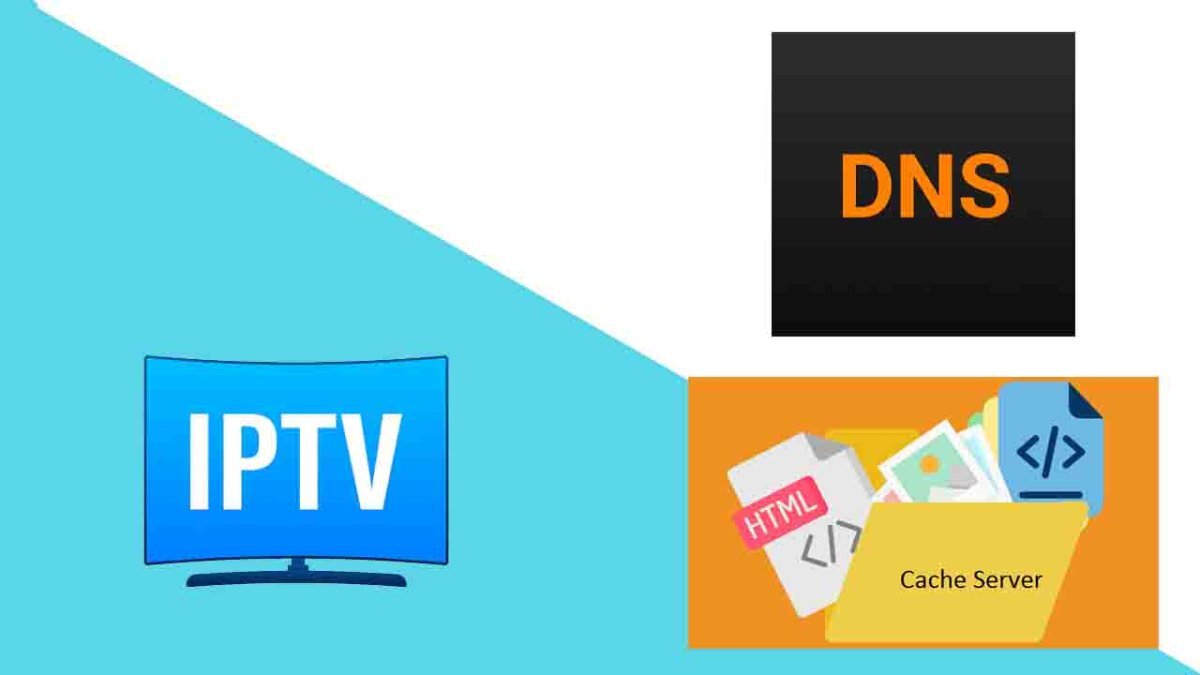
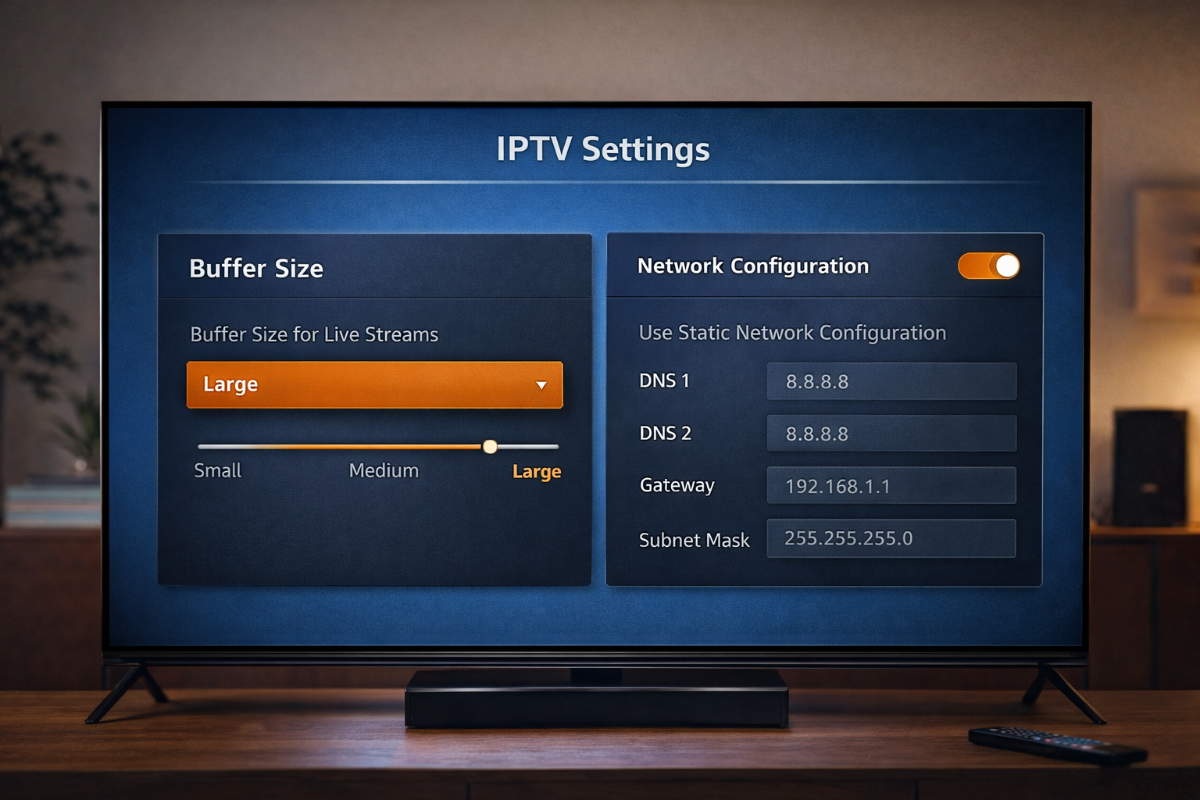
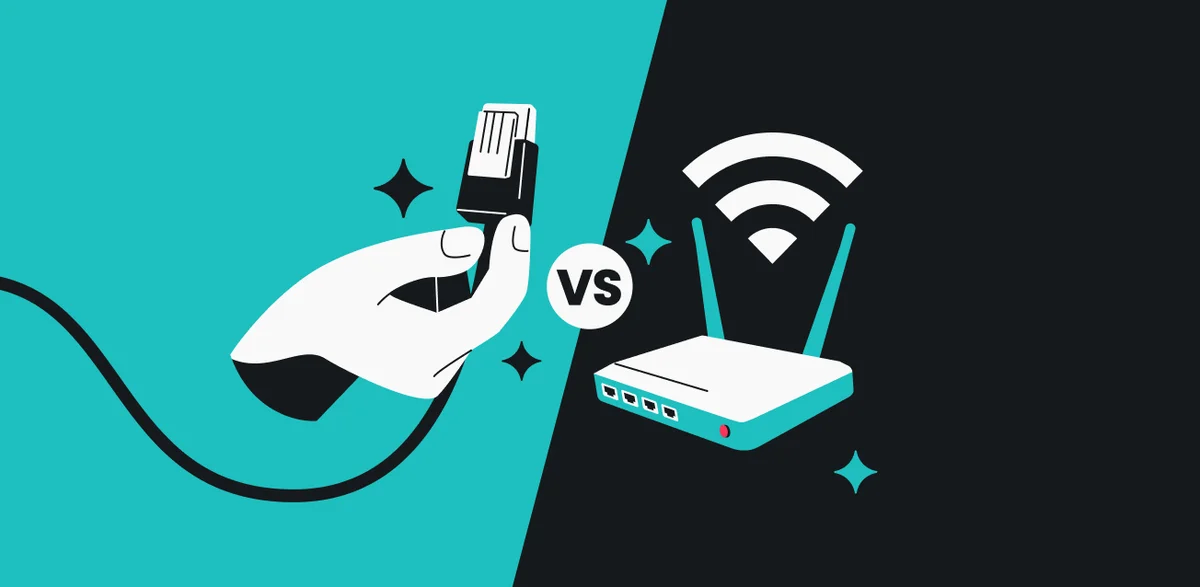
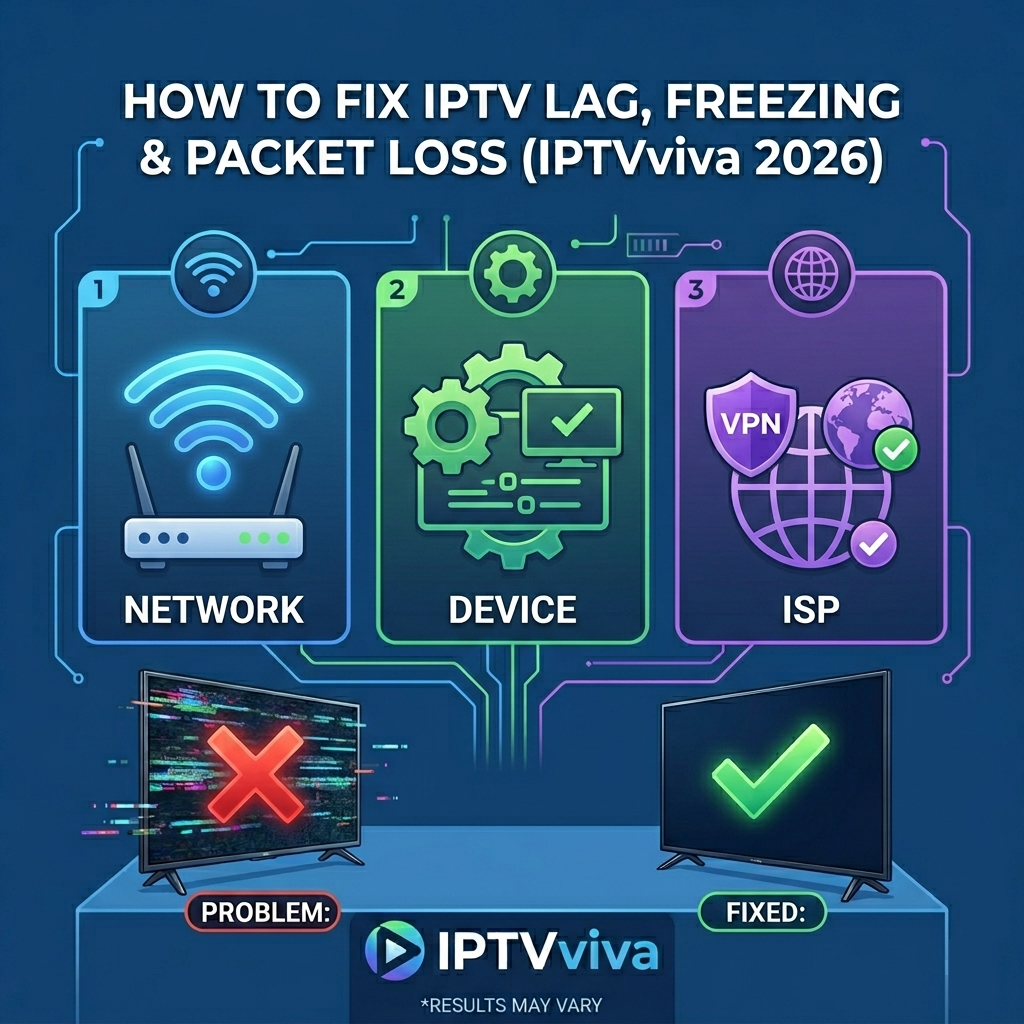
How to Fix IPTV Lag, Freezing & Packet Loss Issues (Advanced Guide) IPTV issues are not always caused by slow internet or weak Wi-Fi. In many cases, advanced problems like packet loss, jitter, or DNS routing issues are the real reason behind lag, freezing, or unstable streams. This guide focuses on advanced troubleshooting techniques that most users ignore — but can dramatically improve IPTV performance. What Is Causing IPTV Lag (Advanced Causes) Unlike basic guides, here are deeper issues you should check: Packet Loss → Missing data packets causing freezes High Jitter → Unstable latency affecting live streams DNS Routing Problems → Slow channel loading Router Overload → Too many connected devices CPU Overload on Device → Weak IPTV box or overheating Even small packet loss (1–2%) can cause visible stuttering in IPTV streams Step-by-Step Advanced Fixes 1. Test Network Stability (Not Just Speed) Don’t rely only on Mbps. ✔ Use tools like: Ping test (check latency stability) Packet loss test (should be 0%) Ideal: Ping: < 50ms Jitter: < 10ms Change DNS for Faster IPTV Loading Sometimes DNS slows down IPTV channel requests. Try: Cloudflare DNS → 1.1.1.1 Google DNS → 8.8.8.8 This can fix: Channels not loading Slow playlist refresh Increase Buffer Size in IPTV Player Most users ignore this powerful setting. ✔ Go to: Player Settings → Buffer Size Recommended: Small → for fast internet Medium/High → for unstable networks Bigger buffer = fewer interruptions Use Ethernet Instead of Wi-Fi Wi-Fi is the #1 cause of instability. ✔ Solution: Connect device via LAN cable This alone fixes most buffering issues 5. Close Background Apps (Important) Low-end devices struggle with IPTV decoding. ✔ Do this: Close all apps Restart device Weak hardware can cause lag even with good internet 6. Detect ISP Throttling If speed is good but IPTV still lags: ✔ Try: Use a VPN Test different server locations Some ISPs slow down IPTV traffic during peak hours 7. Check IPTV Provider Quality Sometimes the problem is NOT you. ✔ Signs: Only some channels lag Works fine at morning, bad at night Server overload is very common during peak time Pro Tips (Most People Don’t Know) Avoid cheap IPTV boxes (low RAM = lag) Use 5GHz Wi-Fi instead of 2.4GHz Restart router once a week Avoid peak hours (8PM–12AM)
-
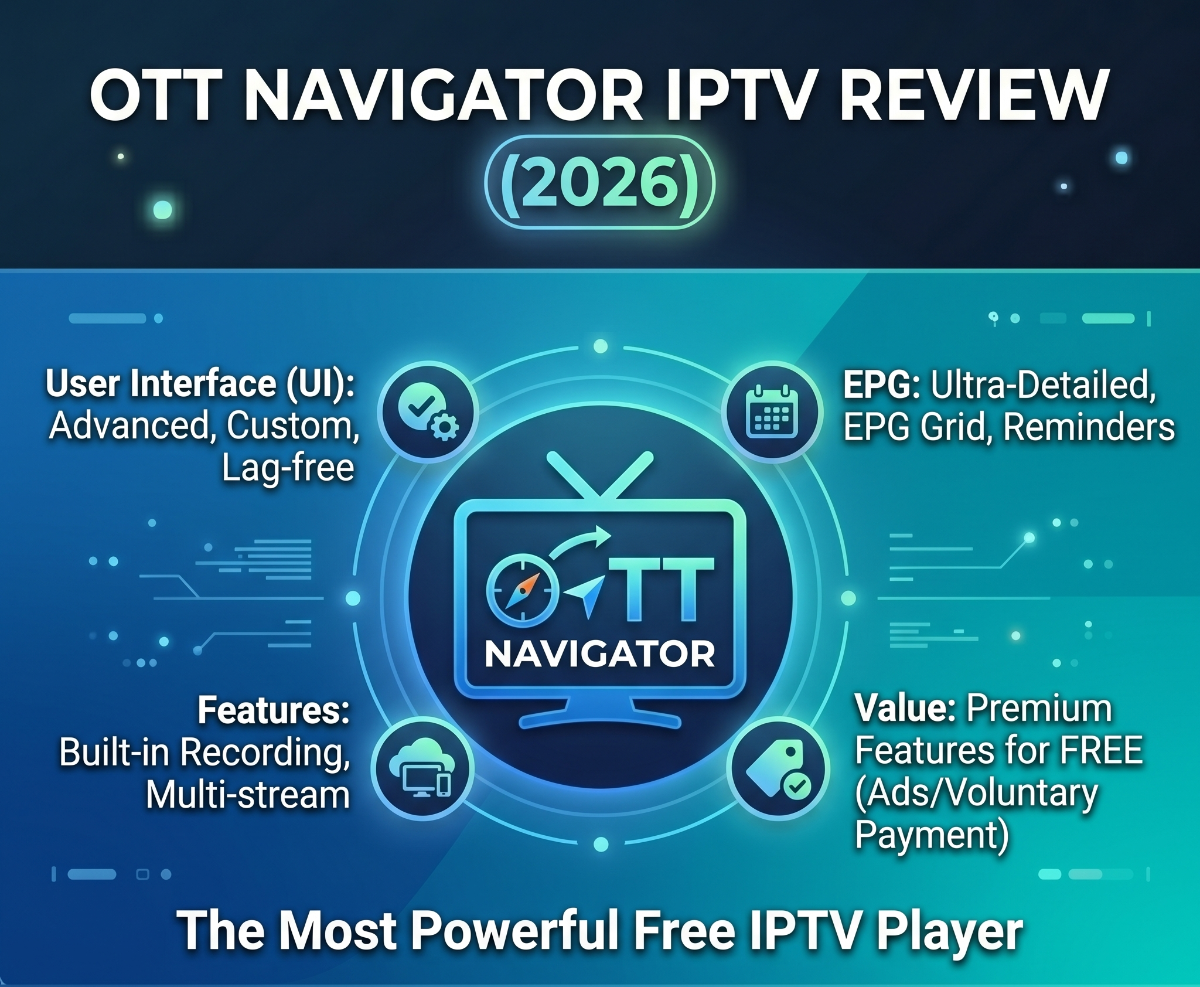
OTT Navigator IPTV Review (2026) – The Most Powerful Free IPTV Player? If you're looking for a powerful IPTV player without paying for premium features, OTT Navigator IPTV is one of the best alternatives in 2026. Known for its deep customization and advanced controls, this app is designed for users who want full control over their IPTV experience. But is it easy to use? And is it better than other IPTV apps? Let’s find out. What is OTT Navigator? OTT Navigator is an advanced IPTV player that supports: M3U playlists Xtream Codes API Electronic Program Guide (EPG) It is mainly available on Android devices, including Android TV and Firestick. Like all IPTV players, it does not provide channels, only the interface. Key Features Advanced Customization Fully customizable interface Multiple layout styles Channel grouping & sorting Powerful TV Guide (EPG) Detailed TV guide with multiple views Auto-updating EPG Timeline navigation Multi-Screen & Picture-in-Picture Watch multiple channels at once Great for sports fans Parental Controls Lock channels Restrict content access Performance & Speed OTT Navigator is: Fast and responsive on most Android devices Stable even with large IPTV playlists Optimized for heavy users However: The interface can feel complicated at first Requires some setup time It’s more “pro-level” than beginner-friendly
-
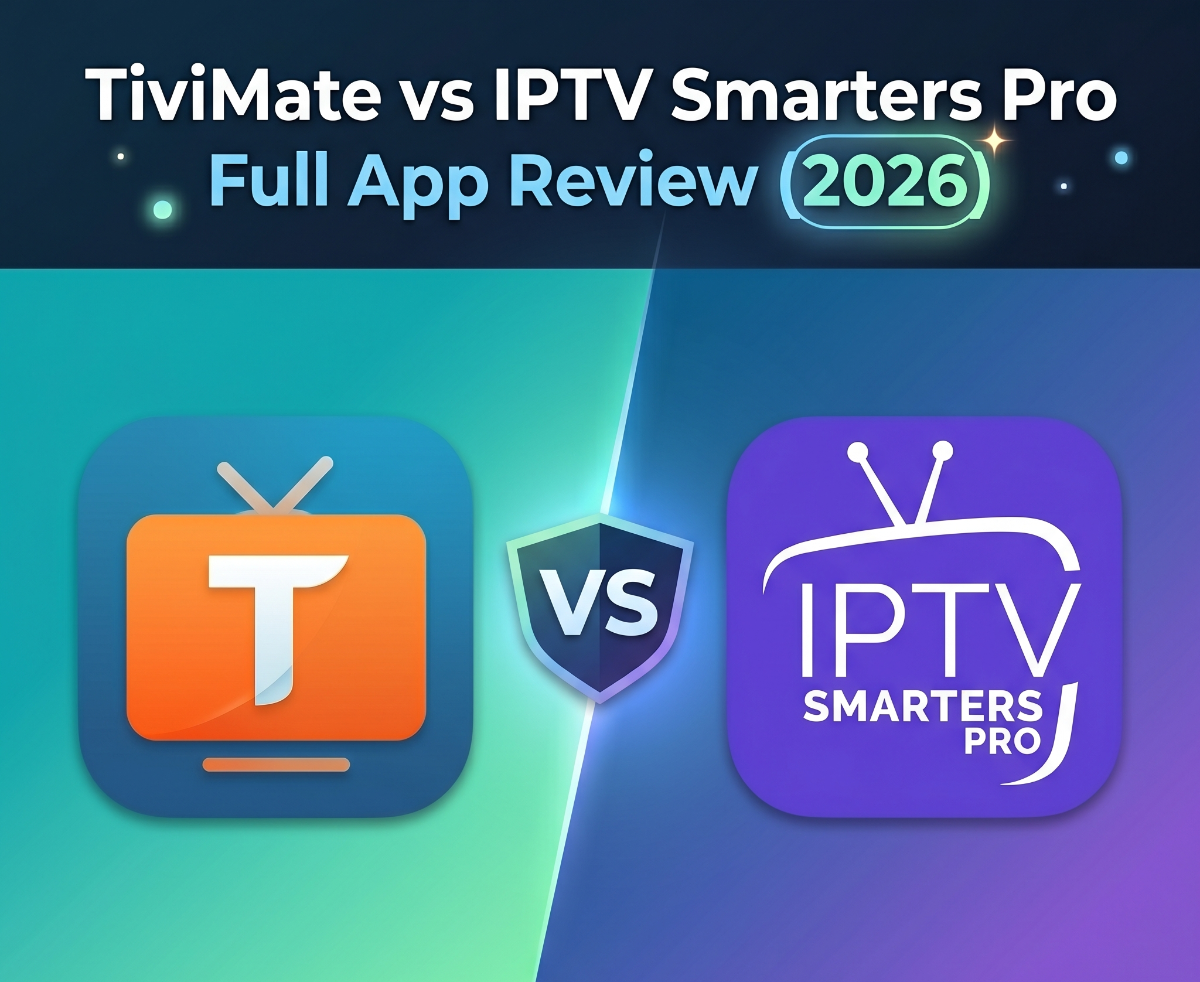
TiviMate vs IPTV Smarters Pro – Full App Review (2026) When it comes to IPTV streaming, choosing the right player is just as important as selecting a good IPTV service. Two of the most popular apps in 2026 are TiviMate and IPTV Smarters Pro. Both are powerful IPTV players, but they offer very different user experiences depending on your device and needs. In this review, we’ll break down features, performance, compatibility, and which app is best for you. What Are These Apps? TiviMate and IPTV Smarters Pro are IPTV players, meaning they do not provide channels themselves. You must use your own IPTV subscription (M3U or Xtream Codes) to stream content. Key Features Comparison TiviMate Modern TV-style interface (like cable TV) Advanced EPG (TV Guide) Multi-playlist support Catch-up & recording (Premium) Multi-screen (watch multiple channels) Highly customizable layout Best for Android TV / Firestick users IPTV Smarters Pro Simple and beginner-friendly interface Supports Live TV, Movies & Series Works on Android, iOS, Windows, Smart TVs Multi-user and parental controls Free to use (with optional upgrades) Best for beginners and multi-device users Performance & Speed TiviMate is faster, smoother, and optimized for TV devices Channel switching is nearly instant Better performance with large playlists IPTV Smarters Pro is stable but can feel slower May lag on older devices or large channel lists Compatibility Feature TiviMate IPTV Smarters Pro Android TV Firestick iOS Windows Smart TVs Limited Smarters Pro clearly wins in cross-platform support User Experience TiviMate offers a premium, cable-like experience with deep customization Smarters Pro focuses on simplicity and ease of use Power users prefer TiviMate Beginners prefer Smarters Pro Pricing TiviMate Free (limited) Premium (one-time payment) IPTV Smarters Pro Free version available Optional paid features Final Verdict Choose TiviMate if you want: Best performance Advanced features Premium TV experience Choose IPTV Smarters Pro if you want: Free solution Multi-device compatibility Easy setup
-
[MATCH #1] Mexico vs South Africa – World Cup 2026 Opening Match | TV Channels & Where to watch The stage is set! On June 11, 2026, the world will stop to watch the host nation Mexico take on South Africa in the opening match of the FIFA World Cup 2026. This historic game will be played at the iconic Estadio Azteca, making it the first stadium to host three World Cup opening matches. Match Details (Official) Fixture: Mexico vs South Africa (Group A) Tournament: FIFA World Cup 2026 – Opening Match Date: Thursday, June 11, 2026 Time: 13:00 (Local Mexico City) | 19:00 (GMT) | 22:00 (Riyadh/Doha) Venue: Estadio Azteca, Mexico City Official TV Channels & IPTV Folders We will provide multiple sources for this match to ensure 4K stability: Region Broadcaster Language Middle East & Africa beIN Sports MAX 1/2/3 `AR Mexico TelevisaUnivision / TV Azteca `LATIN USA FOX Sports (English) / Telemundo (Spanish) `USA United Kingdom ITV 1 / STV `UK Canada CTV / TSN / RDS `CAN South Africa SABC / SuperSport `AFRICA Latest Updates (April 2026) Opening Ceremony: The ceremony is scheduled to start 2 hours before kick-off. We will have a dedicated "WC Ceremony" channel in the 4K section. Server Readiness: We have added new bandwidth capacity specifically for the MEX vs RSA stream to prevent any lag during the high-demand opening hour. Anti-Buffer Tip: For this specific match, we recommend using the HEVC or FHD (Low Latency) streams if you are on a mobile network. Community Discussion This is a rematch of the famous 2010 opening game (Siphiwe Tshabalala's goal!). Prediction: Do you think Mexico will win at home, or will South Africa shock the world again?
-
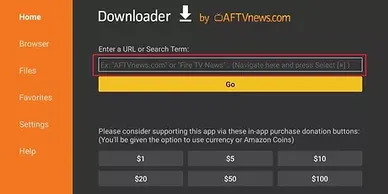
If you own an Amazon Fire Stick or an Android TV box, you know that the best streaming apps aren't always available on the official store. To unlock the full potential of your device, you need to master Sideloading. In this guide, we’ll show you how to install the essential Downloader App and how to configure Kodi—the most powerful media player—to run your IPTV service smoothly. 1. Enable Developer Options (The "Hidden" Step) Recent Fire OS updates hide the developer menu. Here’s how to reveal it: Navigate to Settings > My Fire TV. Select About. Highlight your device name (e.g., Fire TV Stick 4K) and click the center button 7 times until it says "No need, you are already a developer." Go back one screen, enter Developer Options, and turn On "Install unknown apps" for Downloader. 2. Installing the Downloader App This is the "gateway" for all IPTV apps: Search for "Downloader" in the Amazon App Store and install it. Open the app and grant permission to access your files. Pro Tip: You can now use "Short Codes" to quickly download APKs without typing long URLs. 3. Setting Up IPTV on Kodi Kodi is a beast when it comes to stability. Here is how to add your IPTV subscription: Open Downloader, type the official Kodi URL, and install the latest version (e.g., Kodi 21 Omega). Launch Kodi and go to Add-ons. Select Install from repository > PVR Clients. Find and install PVR IPTV Simple Client. Go to Configure > M3U Play List URL and paste your M3U link provided by your IPTV provider. Restart Kodi. Your channels and EPG will now appear under the TV tab. 4. Why Choose Kodi for IPTV? High Compatibility: Works with almost every video codec. Customization: You can change skins to make it look like a high-end cable box. Zero Cost: It’s 100% free and open-source.
-
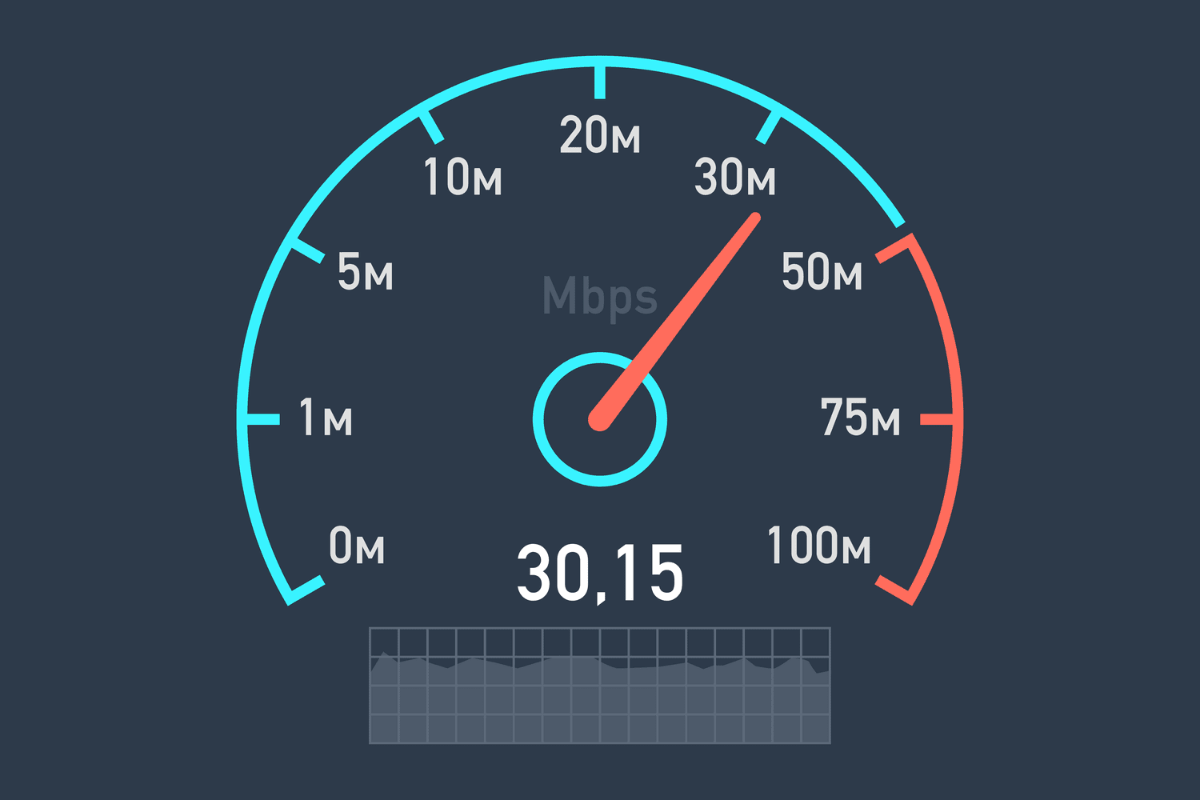
Nothing is more frustrating than your favorite stream freezing or buffering during a big match or movie. While most people blame the server, the issue is often related to device settings or network optimization. In this guide, we will show you the best technical tweaks to eliminate buffering and enjoy a smooth, lag-free experience on your Android TV or Fire Stick. 1. Check Your Internet Speed & Ping Before changing settings, ensure your connection is stable. For 4K streaming, you need at least 25 Mbps, and for HD, 10 Mbps. Tip: Use a speed test app on your Fire Stick. If your Ping (Latency) is higher than 50ms, you will likely experience delays. 2. Change Your DNS (The Secret Fix) Sometimes your Internet Service Provider (ISP) throttles IPTV traffic. Changing your DNS can bypass these limits. Recommended DNS: Use Cloudflare (1.1.1.1) or Google (8.8.8.8). How: Go to your device’s network settings and manually set the DNS. This often results in faster channel zapping and less freezing. 3. Optimize App Buffer Size If you are using apps like TiviMate, OTT Navigator, or Televizo, you can adjust the "Buffer Size": Go to Settings > Playback. Increase the Buffer Size to Large or Extra Large. This allows the app to pre-load more of the stream, preventing stops during minor internet dips. 4. Clear Cache Regularly Android devices store temporary data that can slow down your apps. Go to Settings > Applications > Manage Installed Applications. Select your IPTV app and click Clear Cache. (Do NOT click Clear Data, or you will lose your login details). 5. Use a Wired Connection (Ethernet) Wi-Fi is convenient but unstable. If possible, use an Ethernet adapter for your Fire Stick or plug your Android Box directly into the router. A wired connection provides a consistent data flow that Wi-Fi simply can't match. Conclusion By following these steps, you should see a significant improvement in your streaming quality. Remember, a high-quality player is only half the battle; network optimization is the other half. Explore More Guides [TiviMate Setup]: The best premium player for Fire Stick. [Televizo Guide]: The top free lightweight player. [OTT Navigator]: The most customizable IPTV app.
-
If you like to have full control over your TV interface, OTT Navigator is the app for you. It is widely considered the biggest rival to TiviMate due to its incredible customization options and advanced technical features. Whether you are using a Fire Stick, an Android TV Box, or even a tablet, OTT Navigator provides a smooth and professional streaming experience. Top Features of OTT Navigator Highly Customizable UI: Change themes, colors, and layout styles to match your taste. Picture-in-Picture (PiP): Watch your favorite channel in a small window while browsing the menu. Media Library Support: Excellent integration for VOD (Movies & Series) with metadata and posters. Network Tuning: Advanced settings to optimize streams for slow internet connections. Auto-restacking: Automatically groups similar channels from different providers. How to Install OTT Navigator on Fire Stick OTT Navigator can be installed easily using the Downloader app: Open Downloader on your device. Enter the URL: Search for the official OTT Navigator APK or use a direct link from a trusted source. Install & Launch: Follow the on-screen prompts to complete the installation. Setting Up Your Service Launch the app and go to Settings > Provider. Select Add Provider. Choose your preferred method: Xtream Codes: Enter your Server URL, Username, and Password. M3U Playlist: Paste your playlist link. The app will now download your categories and EPG data. Pro Tip: How to Enable "Preview" Mode One of the best features of OTT Navigator is seeing what's playing on other channels without switching. Go to Settings > Interface. Enable "Show preview in list". Now, when you hover over a channel name, a small live preview will appear (if supported by your device). Conclusion OTT Navigator is perfect for power users who want more than just a simple player. It’s fast, stable, and offers features that even paid apps struggle to provide. Disclaimer: This guide is for educational purposes. IPTVviva does not host or provide any streaming content. Users must provide their own legal playlists. Explore More Guides [TiviMate Setup]: The best premium player for Fire Stick. [Televizo Guide]: The top free lightweight player.
-
Looking for a powerful, sleek, and completely free IPTV player? While apps like TiviMate dominate the market, Televizo has emerged as the best free alternative for 2026. It offers a premium-looking interface without the heavy price tag, making it perfect for Fire Stick and Android Box users who want simplicity and performance. Why Choose Televizo in 2026? Televizo stands out because it balances advanced features with a very lightweight build: Multiple Playlist Support: Easily add M3U playlists or Xtream Codes API. Electronic Program Guide (EPG): Full support for XMLTV and JTV formats. Subtitles & Audio Tracks: Full control over multi-language streams. Favorites Management: Create your own categories and group channels easily. No Hidden Subscriptions: Most of the essential features are available for free. Installation Guide for Fire Stick & Android TV Televizo is available on the Google Play Store, but for Fire Stick users, follow these steps: Launch Downloader: Open the app on your Fire Stick. Enter Code: downloader code 474318 or Use the direct APK link or search for "Televizo APK" on a trusted source like APKPure. Install: Open the file and click Install. Open: Launch the app and you are ready to go. How to Add Your Playlist (Tutorial) Open Televizo and click on Create Playlist. Choose your method: New M3U Playlist: Paste your M3U URL. New Xtream Codes IPTV: Enter your server address, username, and password. Click Done and wait for the app to synchronize your channels and movies. Optimization Tip: Faster Channel Zapping To make Televizo even faster: Go to Settings > Playback. Select Internal Player (ExoPlayer) for the best compatibility. Enable Auto-play last channel to save time when opening the app. Conclusion Televizo is the perfect "no-nonsense" player. If you want a professional layout that is easy to navigate with a remote control, this is the app for you. Educational Disclaimer: IPTVviva does not provide any media content or playlists. This article is a technical review of the software only. Explore More Guides [TiviMate Setup]: The best premium player for Fire Stick. [OTT Navigator]: The most customizable IPTV app.
-
If you are looking for the most professional, cable-like experience on your Android TV or Fire Stick, TiviMate IPTV Player is the undisputed king. Unlike other players, TiviMate offers a premium interface, smooth navigation, and advanced features that turn your device into a high-end streaming box. In this guide, we will walk you through the installation and the best settings to get a lag-free experience. Key Features of TiviMate Modern UI: A sleek interface designed specifically for big screens. Multi-playlist Support: Add multiple M3U URLs or Xtream Codes. Scheduled Recordings: Record your favorite shows directly to your storage. Multiview: Watch up to 4 channels simultaneously (Perfect for sports!). Custom EPG: Full support for Electronic Program Guides with auto-update. How to Install TiviMate on Fire Stick Since TiviMate isn't always available on the official Amazon Appstore in all regions, we use the Downloader method: Enable Unknown Sources: Go to Settings > My Fire TV > Developer Options and turn on "Install Unknown Apps" for Downloader. Open Downloader: Enter the official TiviMate URL or the shortcode (272483 for the latest version). Install: Once the APK is downloaded, click Install and then Open. Setting Up Your Playlist (Step-by-Step) Once you open the app, follow these steps to add your content: Select Add Playlist. Choose Xtream Codes (Recommended for stability) or M3U Playlist. Enter your Server URL, Username, and Password. Wait for the channels and EPG to process. Pro Tips for a Lag-Free Experience To ensure your stream doesn't buffer, apply these tweaks in Settings: Buffer Size: Go to Settings > Playback and set the Buffer Size to Medium or Large if you have a slow internet connection. Output Format: Switch from TS to HLS in the playlist settings for faster channel switching. EPG Update: Set the EPG to update every 24 hours to keep your channel list fresh without slowing down the app. Conclusion TiviMate is a "must-have" for any IPTV enthusiast. While the free version is great, the Premium version unlocks the true potential of your Fire Stick. Note: This is a technical tutorial for educational purposes. We do not provide or host any streaming content. Explore More Guides [Televizo Guide]: The top free lightweight player. [OTT Navigator]: The most customizable IPTV app. What do you think? Don't forget to reply to this thread if you face any issues during the setup!
-
When it comes to simplicity and speed, Set IPTV remains a top contender for Smart TV users. Whether you are using a high-end Samsung QLED or a modern LG OLED, this app provides a stable platform to manage your media content without any unnecessary bloatware. In this guide, we will provide a technical walkthrough on how to get it running. Why is Set IPTV Popular? Ultra-Lightweight: It consumes very little RAM, making it perfect for older Smart TV models. Instant Zapping: Known for fast channel switching (low latency). M3U & Xtream Codes: Supports both traditional links and the more stable Xtream Codes API. Easy Remote Navigation: Every feature is accessible with just a few clicks on your TV remote. Installation & Configuration Guide 1. Download the App Samsung Smart Hub: Search for "Set IPTV" and install the official version. LG Content Store: Search for "Set IPTV" in the apps section. 2. Identify your Device MAC Address Launch the app on your TV. The MAC Address will be displayed prominently on the screen (e.g., aa:bb:cc:dd:ee:ff). You will need this for the next step. 3. Uploading your Media Playlist To configure the app, use the official Set IPTV management website: Official Link: https://setsysteme.com/set.app Enter your MAC Address. Choose between M3U Link or Xtream Codes. Enter your playlist details and click "Send". Restart the app on your TV to apply the changes. Official Resources Official Website: https://setsysteme.com/home.app Developer Support: Check the official portal for license renewals and technical updates. Technical Disclaimer Educational Content: IPTVviva is a technical resource forum. We do not host, provide, or sell any streaming content or IPTV subscriptions. This guide is purely for informational purposes to help users manage their own media libraries on Smart TV applications.
-
As Smart TV technology evolves, users are looking for more than just a simple media player. Nanomid Player has emerged as a top-tier solution for Samsung (Tizen) and LG (WebOS) owners. Known for its security features and high-end interface, it offers a unique way to manage your personal playlists. In this tutorial, we will explore its features and how to set it up legally. Why Nanomid Player is Different? Integrated VPN Support: It is one of the few apps that offers an optional built-in VPN to protect user privacy. Quick Sync (OTP): You don't need to type long M3U URLs on your TV. You can sync your playlist using a short temporary code. Military-Grade Encryption: Ensures that your data and connection remain secure. Advanced Search Engine: Quickly find any title or channel using a very responsive TV remote interface. Step-by-Step Installation & Setup 1. Install from the Official Store Samsung TVs: Search for "Nanomid Player" in the Samsung Apps Store. LG TVs: Find it in the LG Content Store. 2. Get your OTP or MAC Address Once you open the app, it will provide you with a MAC Address and a Short Code (OTP). Keep these handy. 3. Uploading Your Legal Playlist To add your content, visit the official Nanomid management portal: Official Link: https://nanomid.com/player/manage-your-app Enter your MAC Address and Name your playlist. Upload your M3U link or file. Press "Submit" and then restart the app on your Smart TV to sync. Official Resources & Downloads Always use official links to avoid security risks: Official Website: https://nanomid.com/ Support & FAQ: https://nanomid.com/support Educational Disclaimer Notice: IPTVviva is a technical and educational forum. We do not host, distribute, or sell any IPTV subscriptions, streams, or content. This article is intended for informational purposes to help users configure a media player they have legally acquired.
.png.538fa9adeb001994751cc890800cdddf.png)



.png.554642af59109008c8c815969fca80dc.png)
3.png.1af3488ffcad6ddb10fc73dd854d6f3d.png)
4.png.d7c8e8a2fa6d975e9d0f3969021fda05.png)
5.png.7080630095c752911ff2f9be9e2d7641.png)
SimplePowerfulIPTVAppforAndroid(FullReview).png.56880042ee9082165064276e3047def6.png)
1.png.de068ea2a0edc5394a177468e329ebae.png)
2.png.a0a988871dd9418941f42f3d2795e465.png)
.png.a08c7f9f5234e01ab231fc8a963feefb.png)



.png.e5ace6dc98e3a2a98f62715b8ffd9625.png)